







How to use Standard Journal Feature In Business Central?

 Like
Like Share
Share
 Report
Introduction.
They might be some need to copy the data from one batch to another. In Business central there are multiple ways to do so use copy & paste method or use or configuration packages or Use Standard Journal Feature.
Let’s understand about the Standard Journal Feature in detail.
But please note Standard Journal Function is not present in other journals apart from General Journal.
Steps to achieve the goal:
- Go to batch where you want to move the data from.
- There will be action to save as a standard Journal.
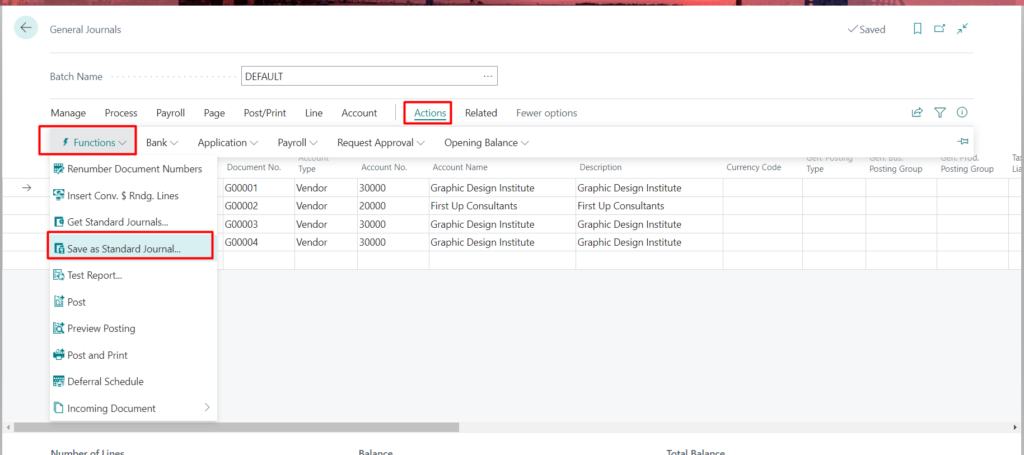
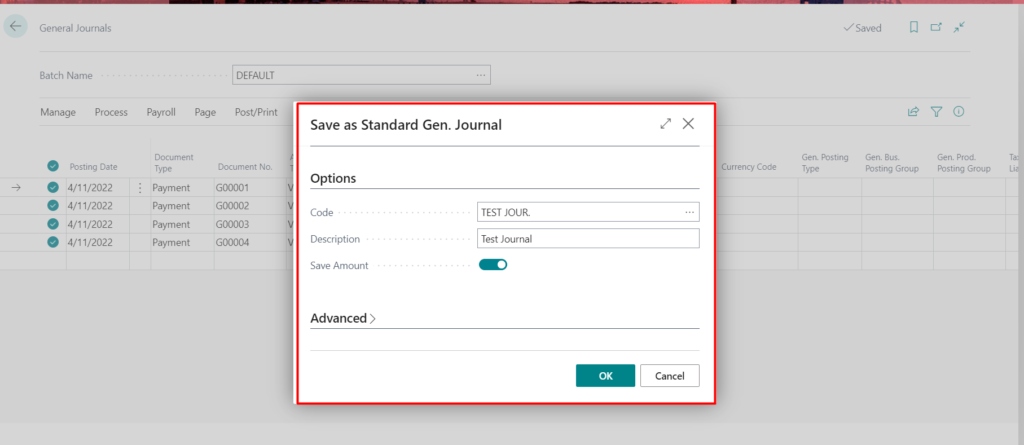
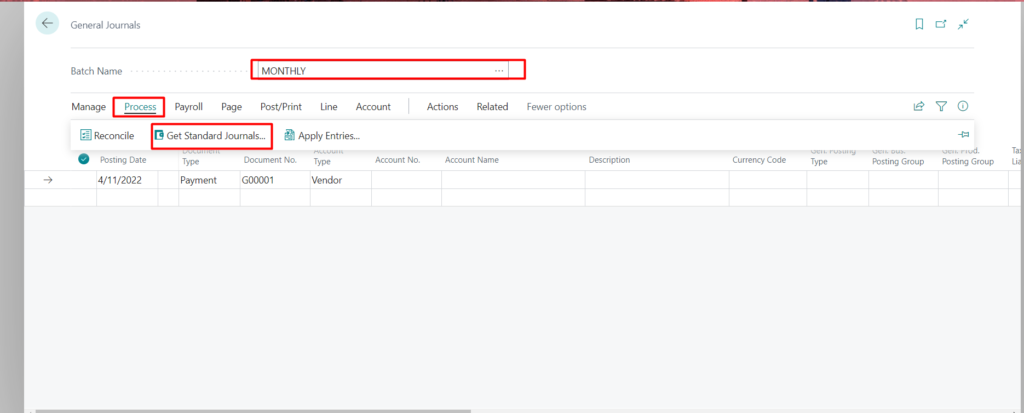
5. You would be able to see the Standard Journal you have created. Click on Ok.
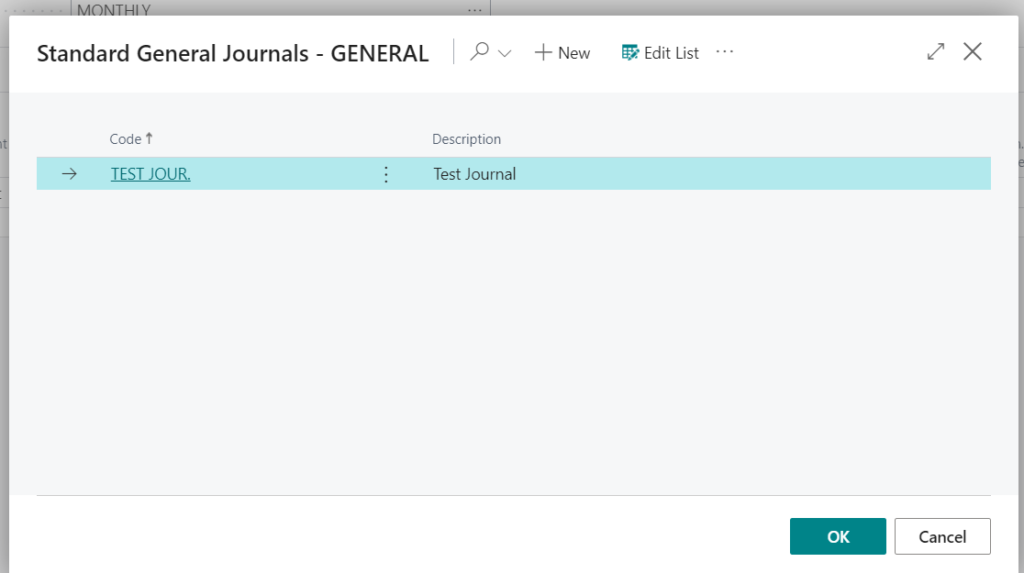
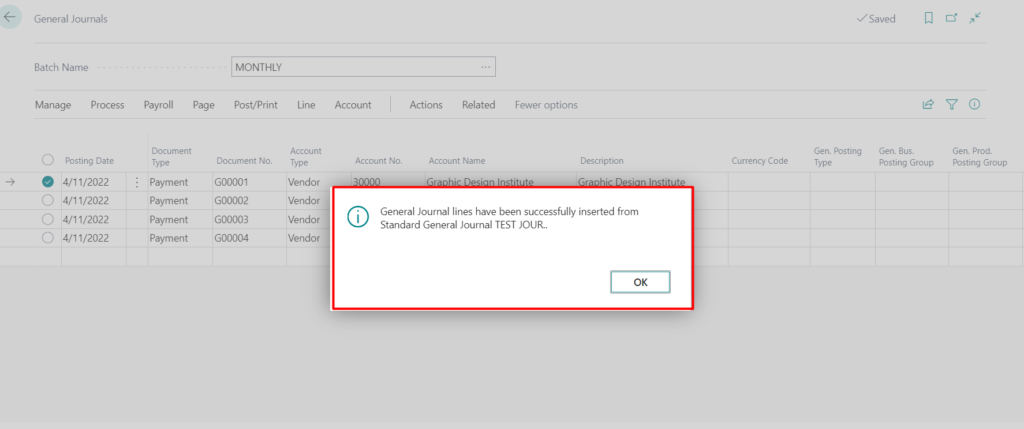
Please note if you change the amount of the line after copying from the Standard Journal. It will not be reflected the same in Standard Journal. As it is used as Template.
Conclusion:
Thus we saw how we can use Standard Journal Feature in Business central.
Thank you very much for reading my work. Hope you enjoyed the article!
The post How to use Standard Journal Feature In Business Central? appeared first on .
This was originally posted here.
*This post is locked for comments