







How to issue and redeem Gift Card in Dynamics 365 For Finance and Operations
Views (270)

 Like
Like Share
Share
 Report
Introduction:
In this blog we shall see how to Issue and redeem Gift Card in Dynamics 365 for Finance and Operations.
Issue Gift Card:
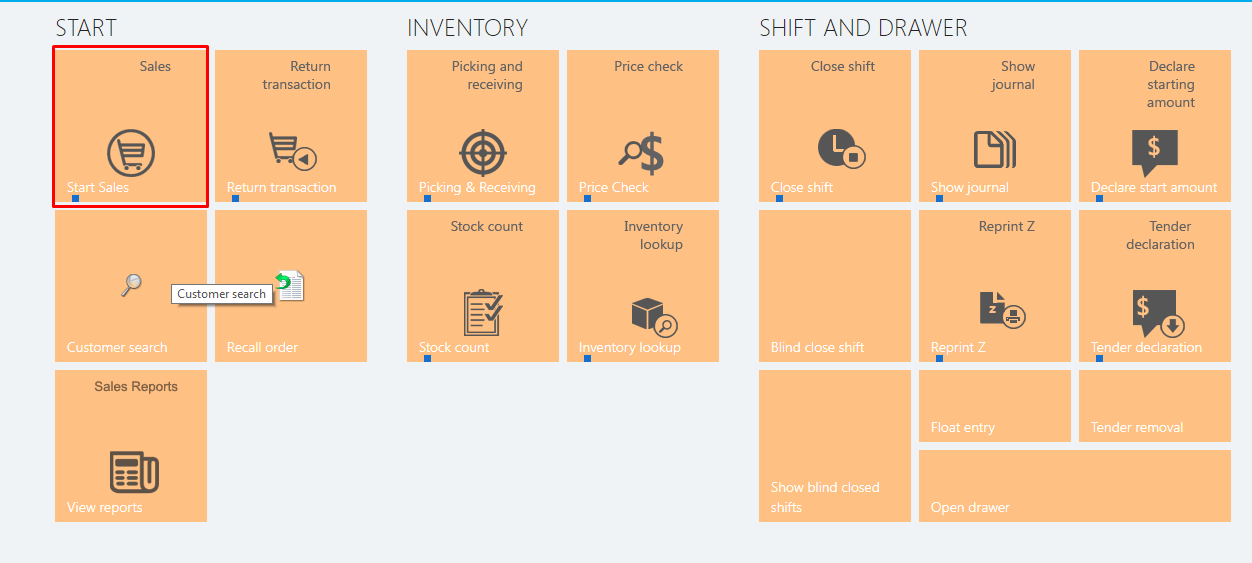
- On POS go to Sales.
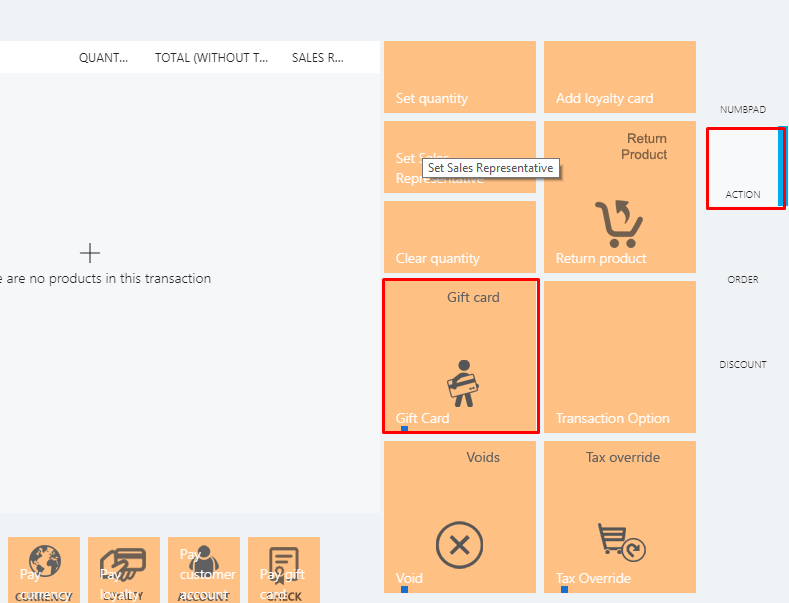
- Go to Action and select Gift Card.
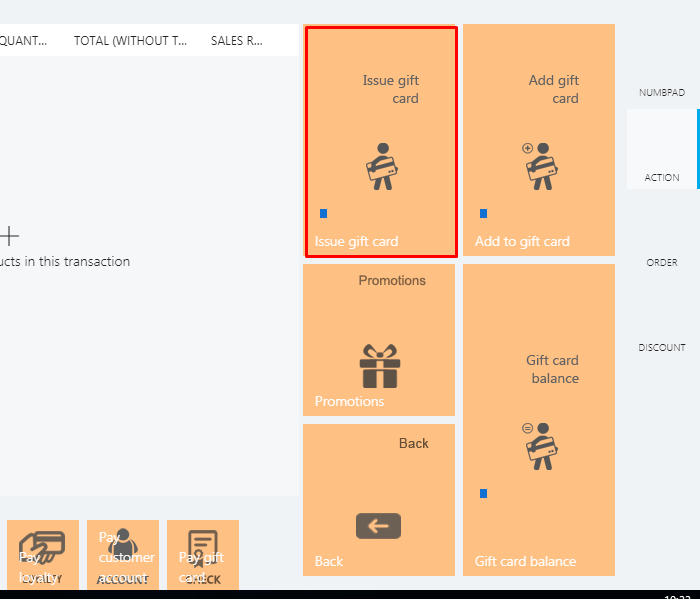
- Click on Issue Gift Card.
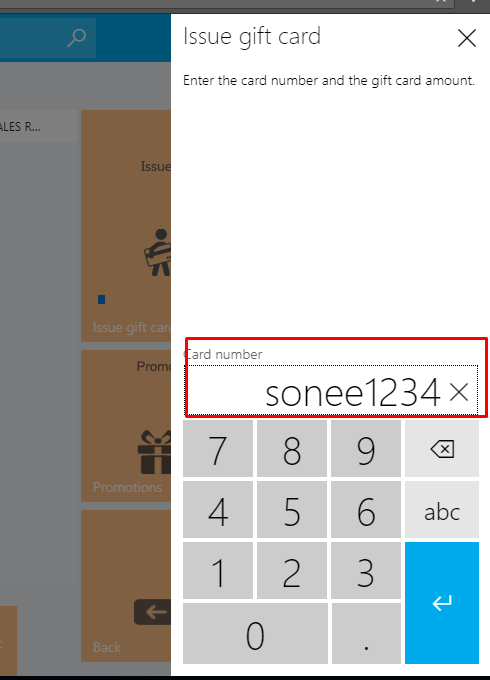
- Enter the Gift Card Number.
- Enter the Amount for gift Card.
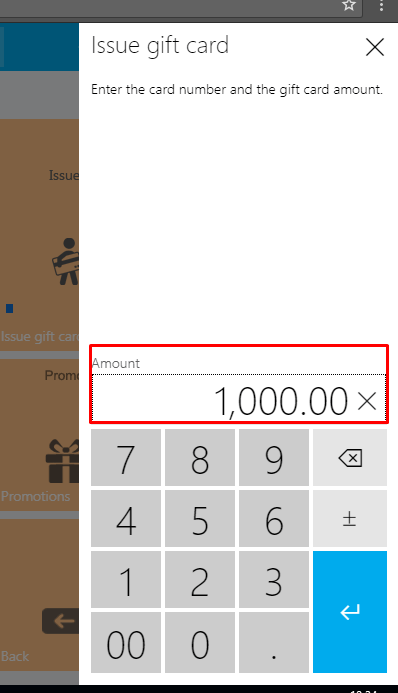
- Select any Tender to pay.

You Can check the details of the Gift card under Gift card in Dynamics 365 FOE.
Redeem Gift Card:
- On the Transaction Screen select the Products.
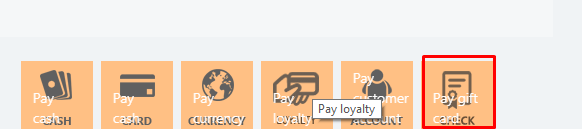
- To redeem the gift card select on Pay gift card.
- Enter the Gift card number.
- You can check the balance by clicking on check balance.
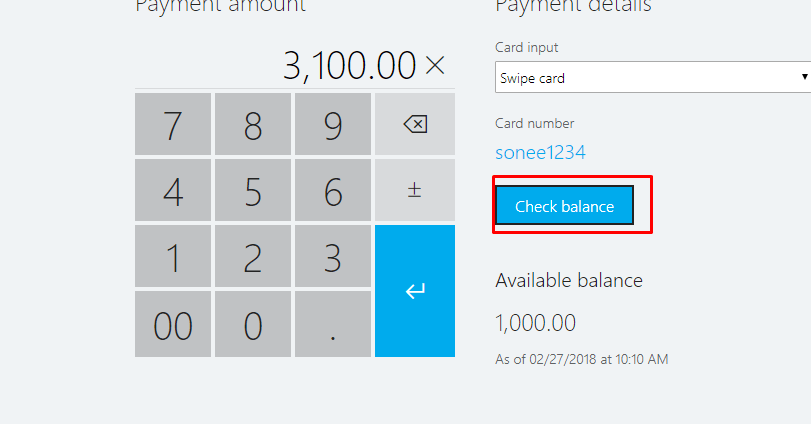
- Proceed to pay. You can manually enter the amount and remaining due can be paid by other mode of payment.
You can check the details of the gift card under gift card in Dynamics 365 FOE.
The post How to issue and redeem Gift Card in Dynamics 365 For Finance and Operations appeared first on CloudFronts - Microsoft Dynamics 365 | Power BI | Azure.
This was originally posted here.
*This post is locked for comments