




 1,856
1,856 Like
Like Share
Share
 Report
If you have been using Forms Pro for any length of time, you should know that the power of the survey tool lies in the ability to run flows to send survey invitations and to run flows when survey responses are received. Your flows to send out the invites should be set up when specific things occur in your databases (CDS/D365CE) or SharePoint lists, but what about when responses are received? Do you really want those flows running potentially thousands of times? Let’s look at how we can add trigger conditions to make sure we only run a flow when the survey response is linked to a specific survey.
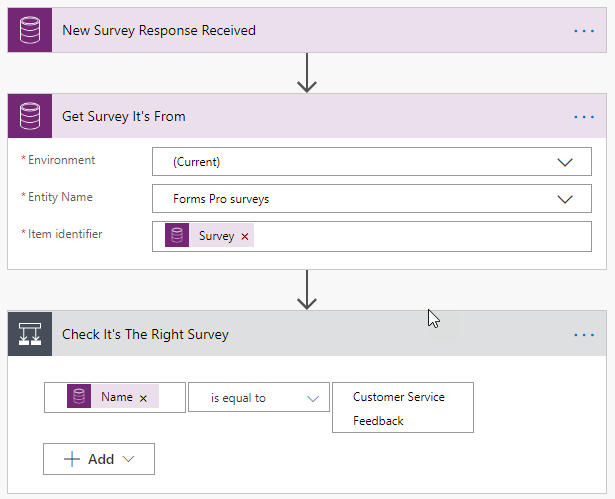
In the past, when creating flows to run when a new survey response is received, I have done something similar to the flow below, getting the survey the response is related to, and then checking against the NAME or the ID of the survey. While these work, it does mean the flow runs EVERY SINGLE TIME there is a new response, regardless of the survey.
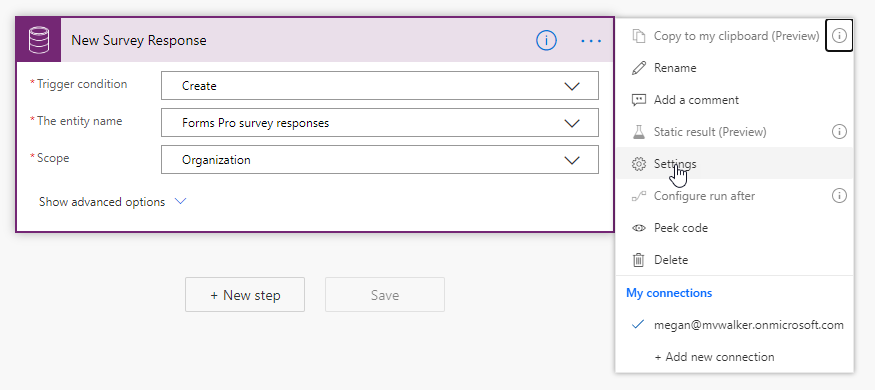
Instead, we can add in a trigger condition. Add the usual trigger of when a new Forms Pro survey response is created. Then, click on the ellipsis at the top right of the flow step, and then on Settings.
At the bottom of the settings area, we can add in a trigger condition. We are checking to make sure that the survey id from the survey response equals a specific id. If it doesn’t the flow will not even run.
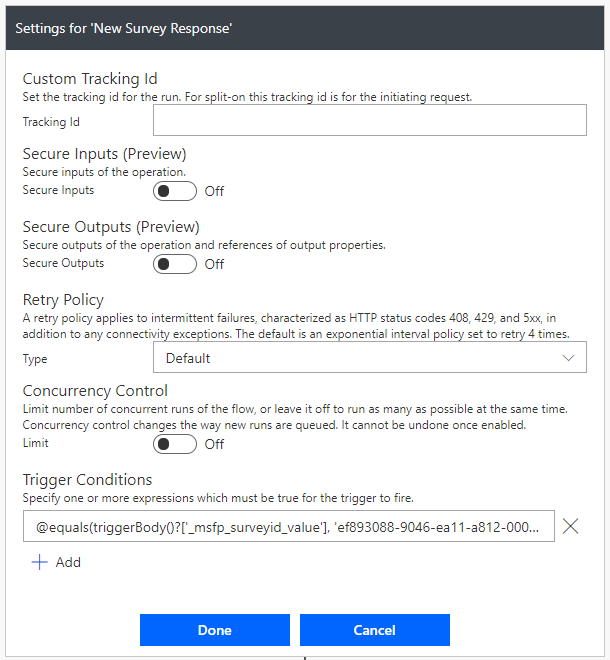
Here is the expression needed.
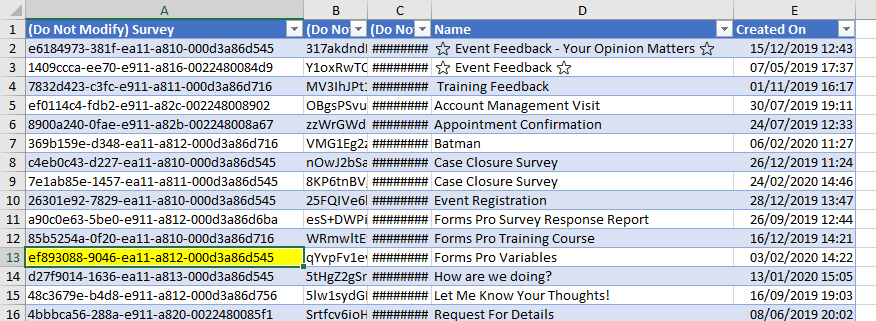
@equals(triggerBody()?['_msfp_surveyid_value'], 'ef893088-9046-ea11-a812-000d3a86d545')So how do we even get the id? If you have access to a model drive Power App (D365CE, naked CDS), you can navigate to your Forms Pro survey records, then use the Export to Excel option and download the list of records. From there, unhide the first few columns and you can access the id you need for the expression above.
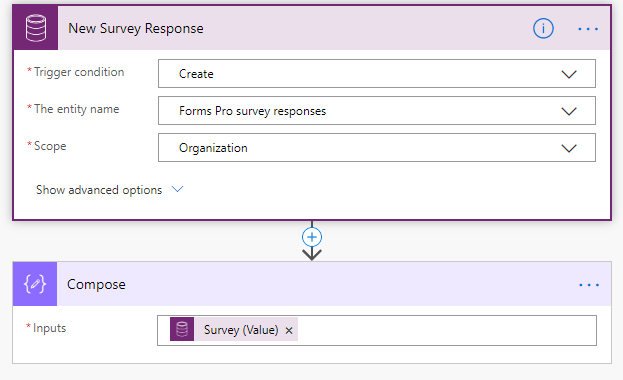
What if you don’t have access to a Power App and can’t get to the ID? Simple. Create a new flow in Power Automate, and add your initial trigger step that will run when a new Forms pro survey response is created. Add in a compose action, and use the Survey (Value) from the trigger. Now go ahead and fill out your survey.
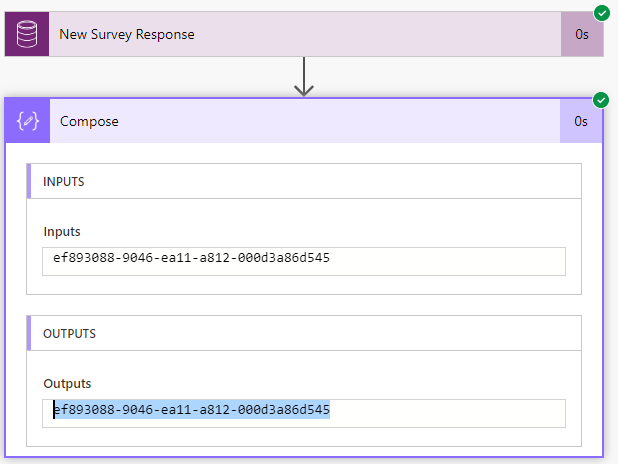
Once you have completed the survey, open up the flow which should have run successfully. From the Compose step, you now have access to the ID you need. You can remove the Compose step now if you wish, and just continue on with the rest of your flow, and add in whatever it is you want to do.
Should you want to have a flow trigger on one or more various surveys, you can use @or at the start and combine a few values in the trigger condition.
@or(equals(triggerBody()?['_msfp_surveyid_value'], 'ef893088-9046-ea11-a812-000d3a86d545'),equals(triggerBody()?['_msfp_surveyid_value'], '26301e92-7829-ea11-a810-000d3a86d545'))
*This post is locked for comments