




 6,230
6,230 Like
Like Share
Share
 Report
When designing a business process flow in Dynamics 365, we might have a data step in one stage, which is a lookup to another step in the next stage. In cases like this we ideally want to filter the search options to only show related records.
This is not available out of the box but can be done using JavaScript.
For example, a BPF for Case, where after selecting an Account lookup, we only want to filter the Contact lookup according to those records related to the selected Account.
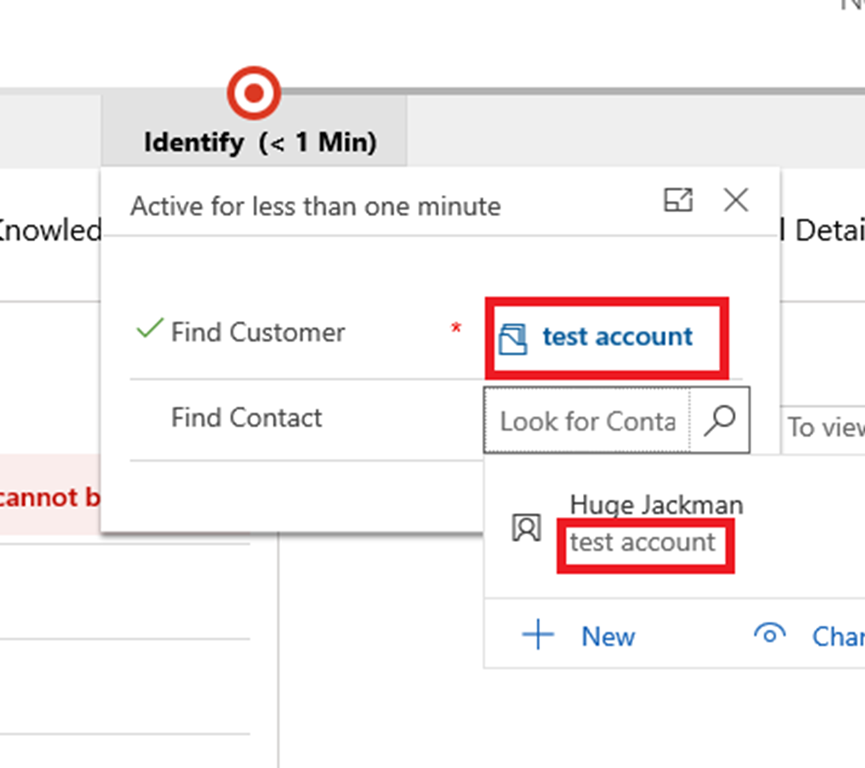
To do this, we need to first check if the Control for that particular field exists, then add a filter to its Pre-Search event using JavaScript.

Where ‘new_contactlookupid’ is the name for the lookup between Case and Contact.
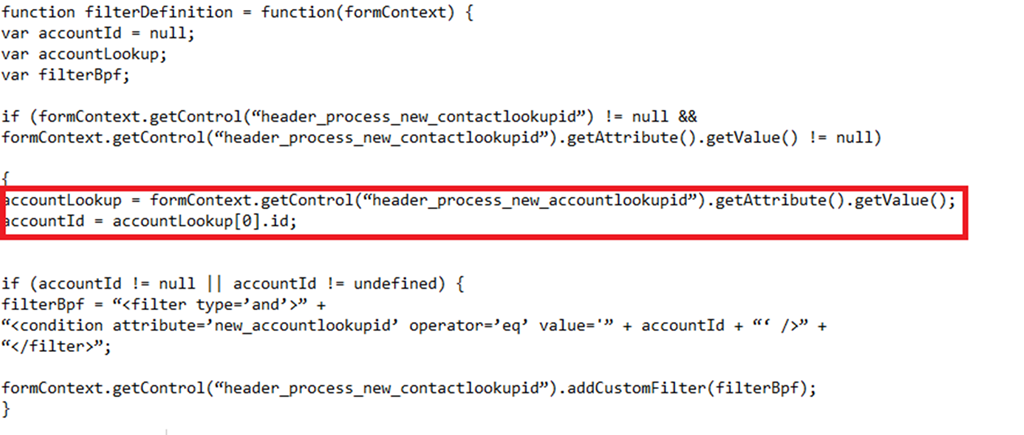
Now we have to define the filter called filterDefinition by first retrieving the value entered in the Account Control:
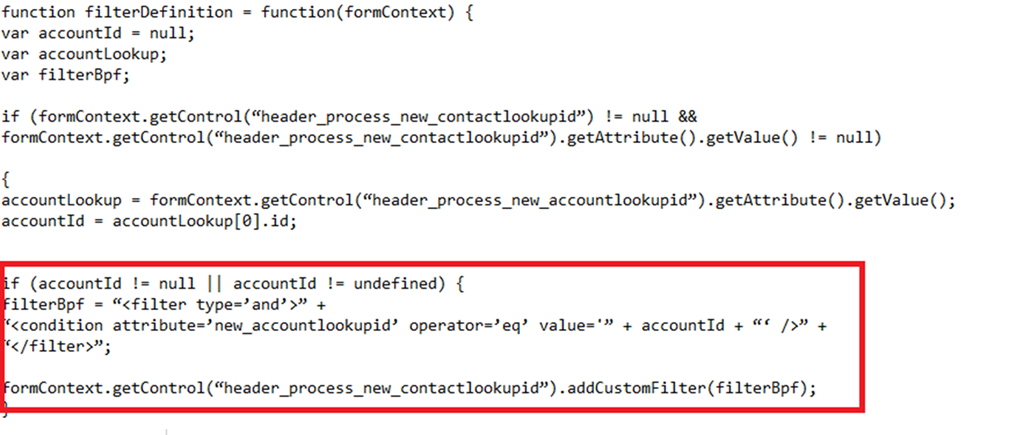
Then creating a query only showing Contact records related to the chosen Account and using addCustomFilter to add it to the respective control.
The problem with this is if the business process flow branches, it uses a different control. This means that while you can reference the first control as “header_process_new_contactlookupid”, the contactlookup control in the next BPF branch will have a different name i.e. “header_process_new_contactlookupid_1”.
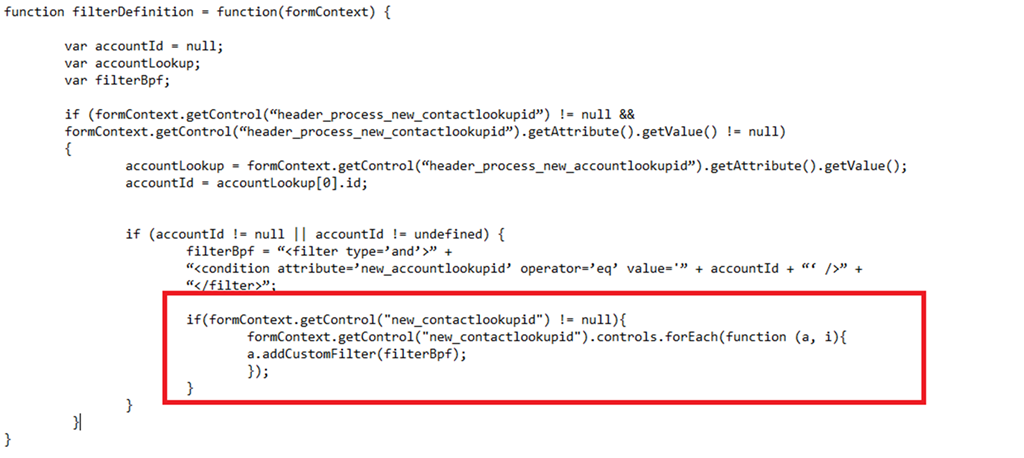
The best approach is to loop through every control for that particular field and apply the filter, using controls.forEach and addPresearch
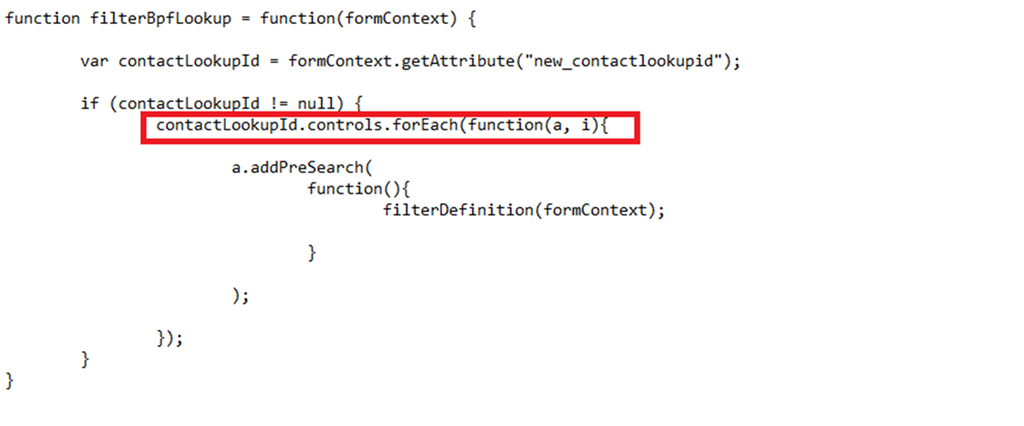
And the same for the filterDefinition function:
*This post is locked for comments