




 Like
Like Share
Share
 Report
Today, I will show you the Environment Setup for PSA to F&O integration with CDS.
Step 1: Create the environment
- Open the link https://admin.powerapps.com and click to create new environment

- Following pop-up window will appear and enter the details and
click on Create Environment, so new environment will gets created
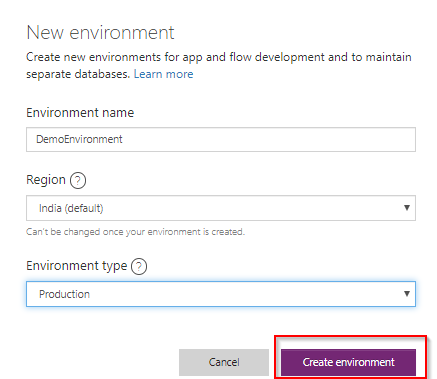
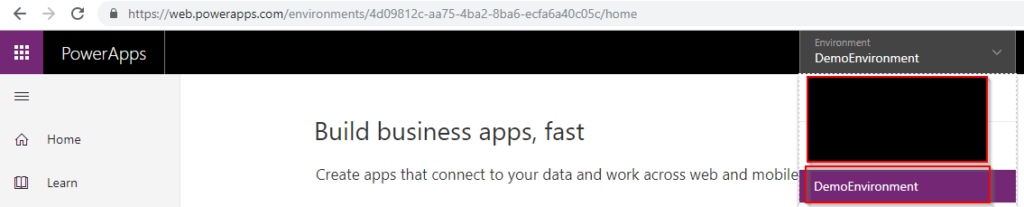
- The environment will get created

Step 2: Create the connections
To create the connection, open the link https://web.powerapps.com and go to the connection in newly created environment (In this case: DemoEnvironment)
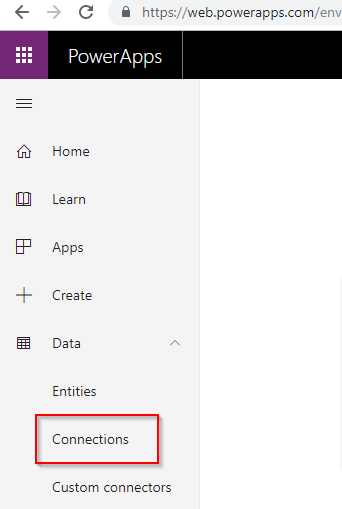
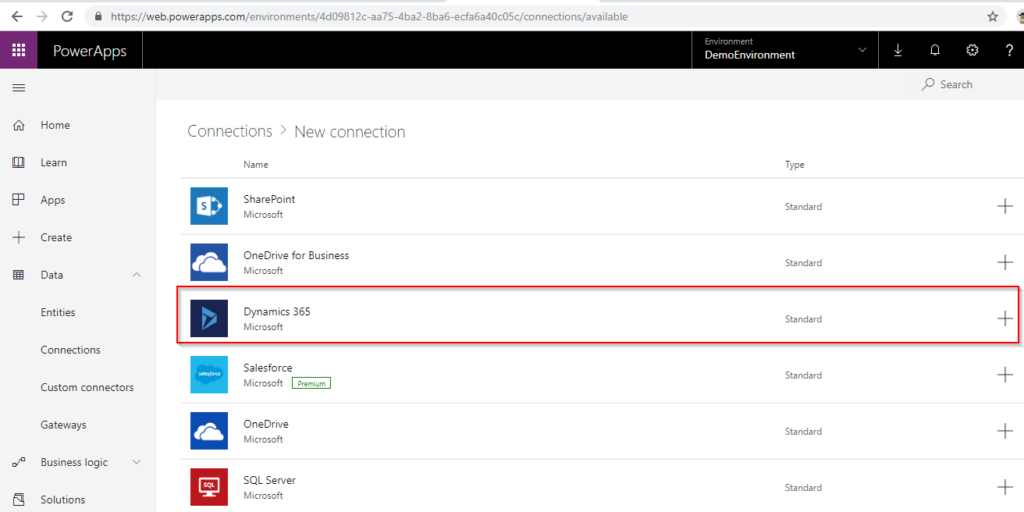
- In the data section click on connections section and click on the “Create a connection” to create new connection
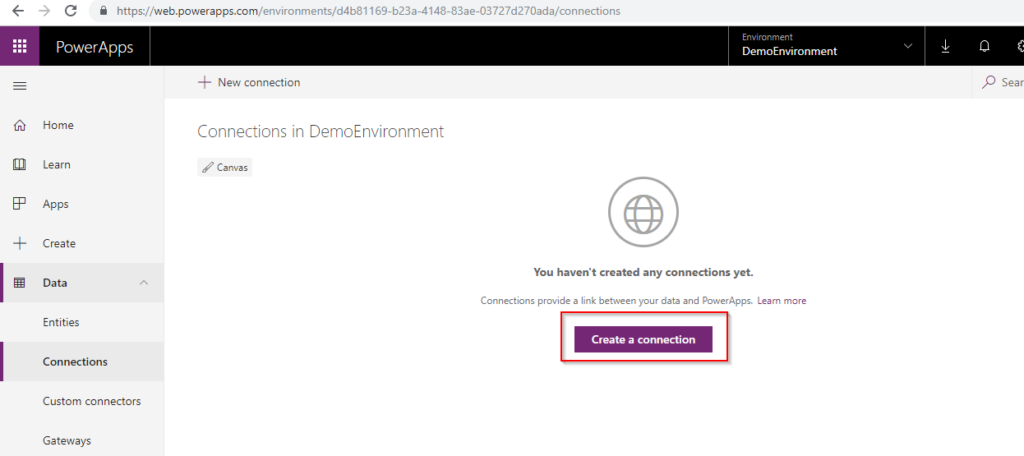
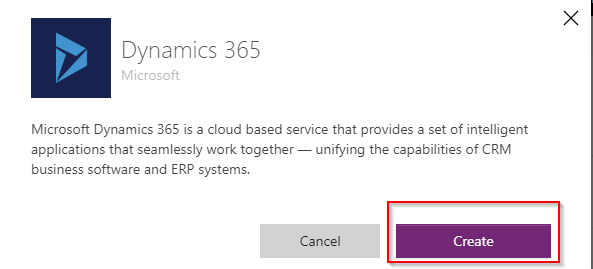
- Following screen will be visible, select the “Dynamics 365” connection. When clicked on the Dynamics 365 popup window will appear asking whether to create connection or not. Click on create and enter the credentials
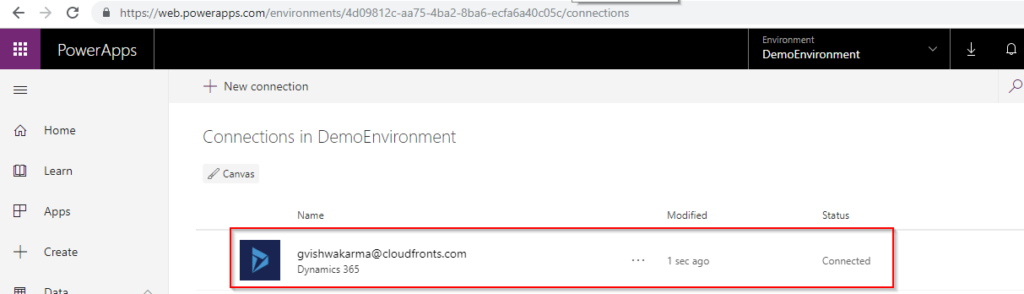
And finally source connection gets created
Now create the Destination connection
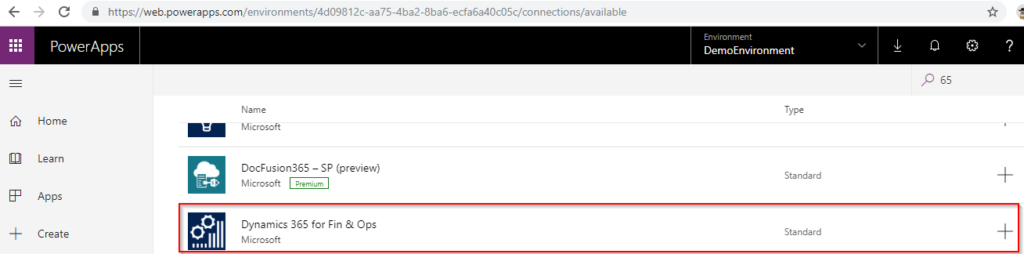
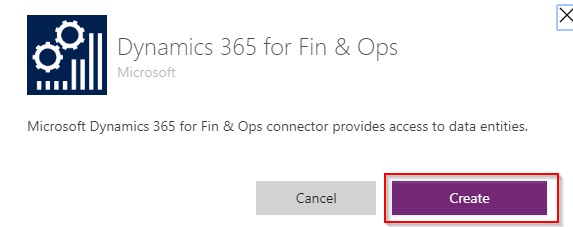
- In the connections search for “Dynamics 365 for Fin & Ops”, when clicked it will ask whether to create connection or not click on create and then enter the credentials and finally connection will be created
Once we created the Environment and connections now create Connection sets and create project
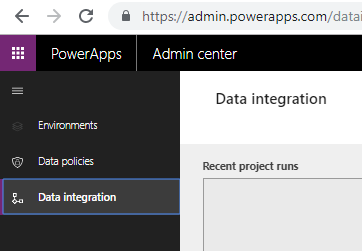
- Go to https://admin.powerapps.com and open the Data Integration tab.
2. Click on the connection set section and click on the “New Connection Set” following popup window will appear and click on Create
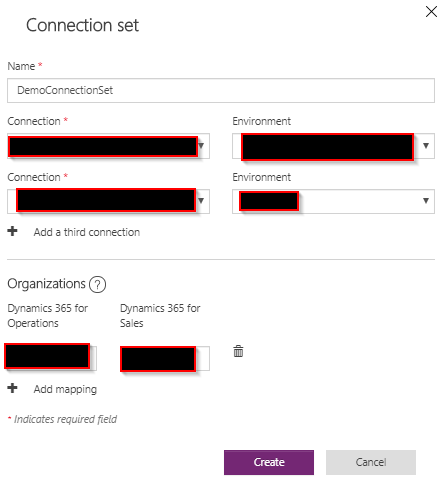
Step3: Once Connection set gets created now let’s create the Project
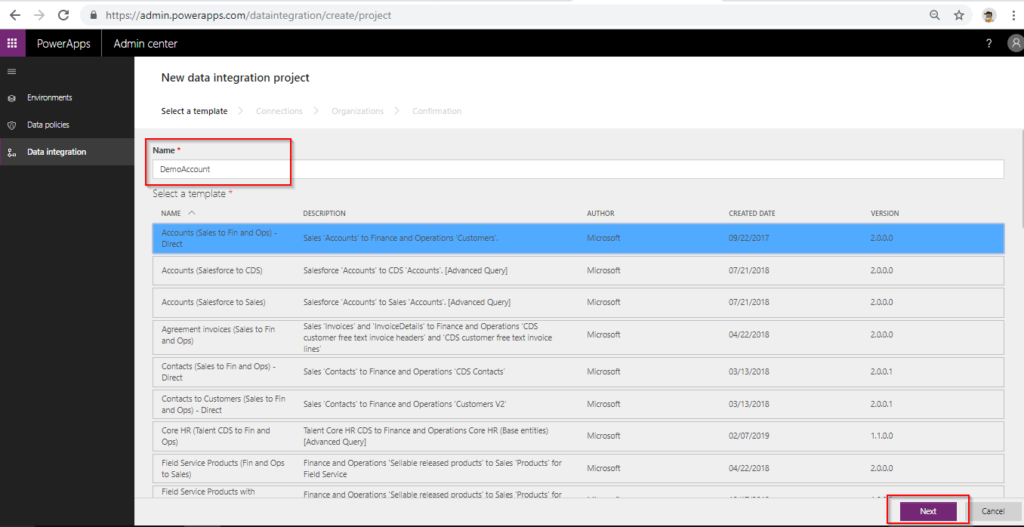
- Go to project section and click new project and following form will be visible and enter the Integration project name and select the ready made template available or create custom integration project. In this case we are selecting ready made template for account and click on next.
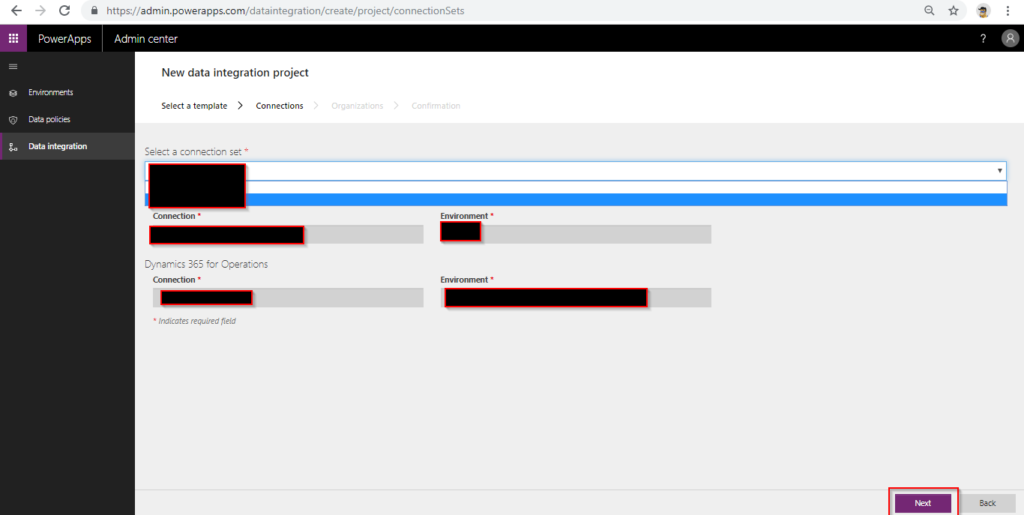
- Select the connection set from the drop down
select the connection set which we have created earlier: DemoConnectionSet and click on next
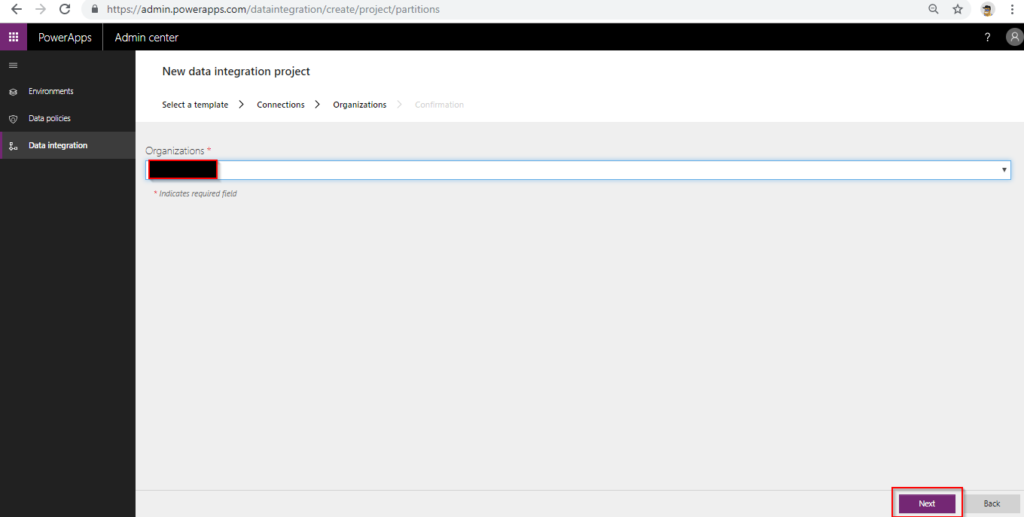
- Select organization and click next and finally click on create
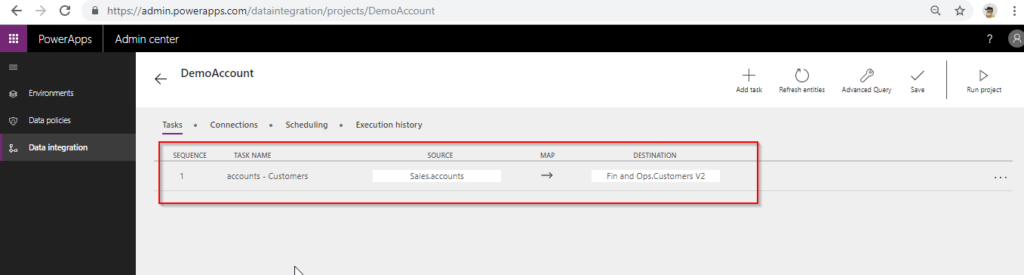
- So now we have created accounts integration project
Hope the above helps!
The post Environment Setup for PSA to F&O integration with CDS appeared first on Cloudfronts - Microsoft Dynamics 365 | Power Bi | Azure.
*This post is locked for comments