




 Like
Like Share
Share
 Report
Introduction:
Create and edit public or system views by using the app designer
Description:
Dynamics 365 sales app designer allow us to create/edit system view using the app designer. In this example we will use the sales app and account entity for view design.
Design:
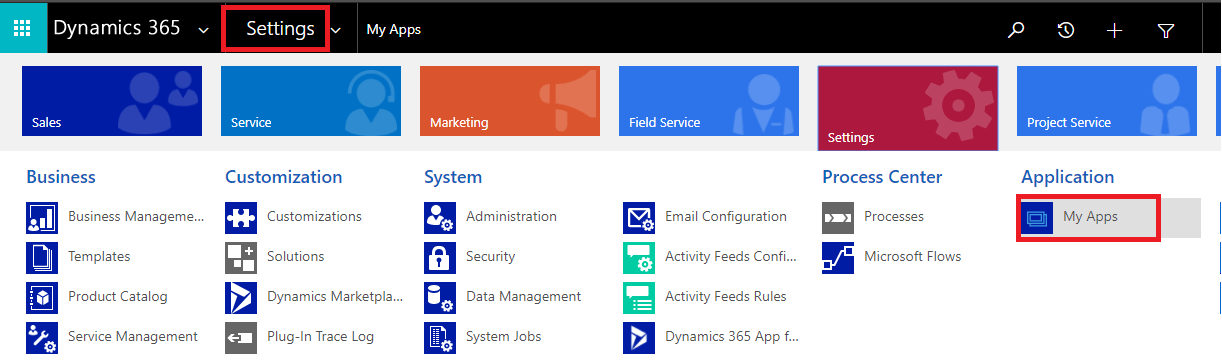
- Go to Setting > select My Apps.
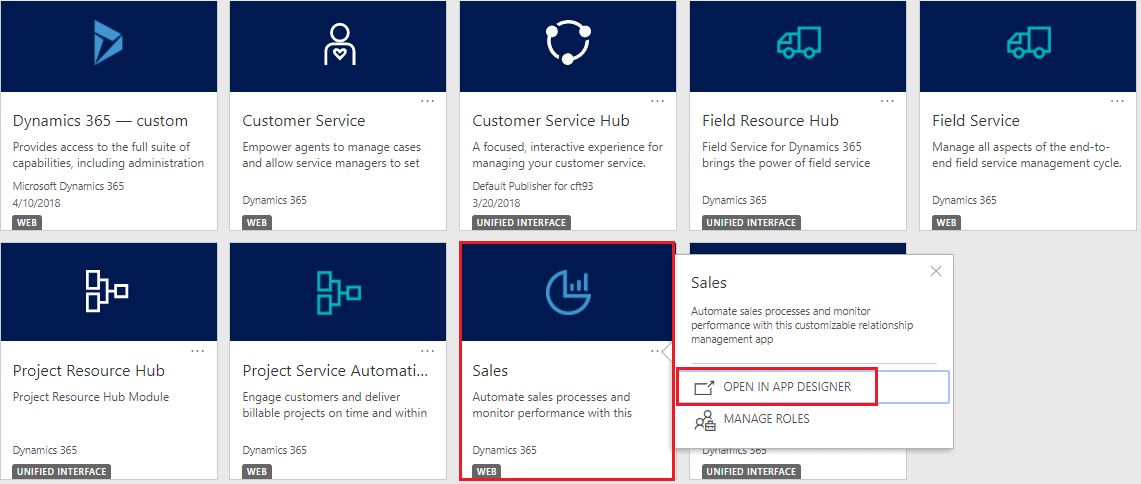
- And open the sales app in app designer.
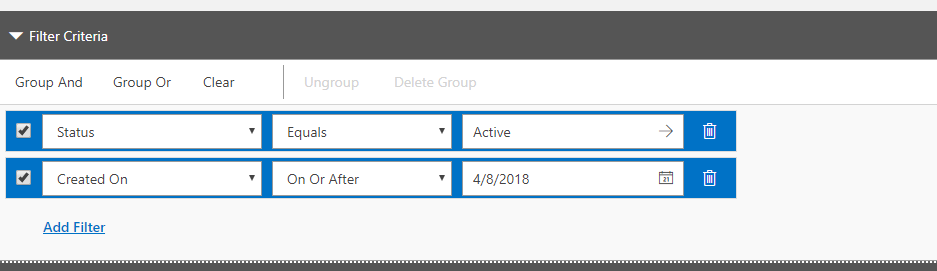
- We can define the filter criteria with and/or condition.
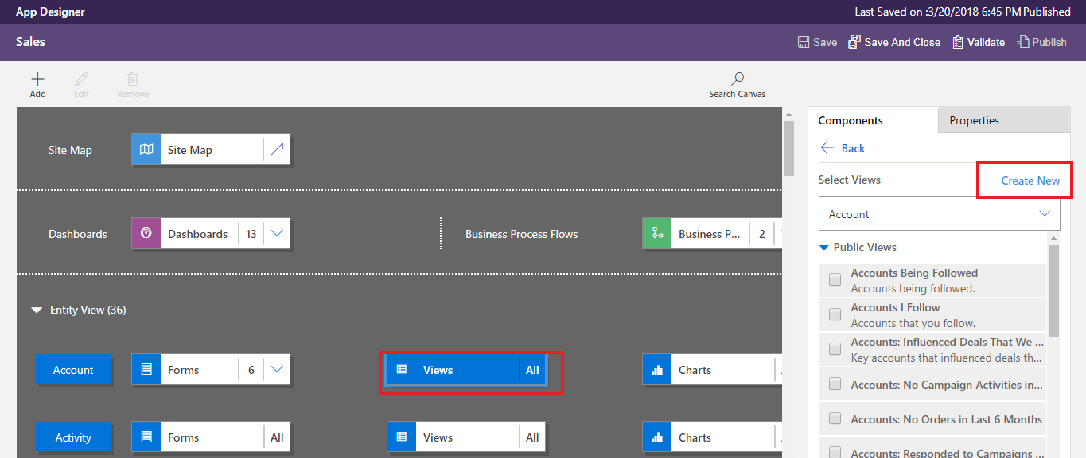
- Select the account view and click on the create new view from the components tab.
Adding Column:
- Now you will able to see the designer page of a view.
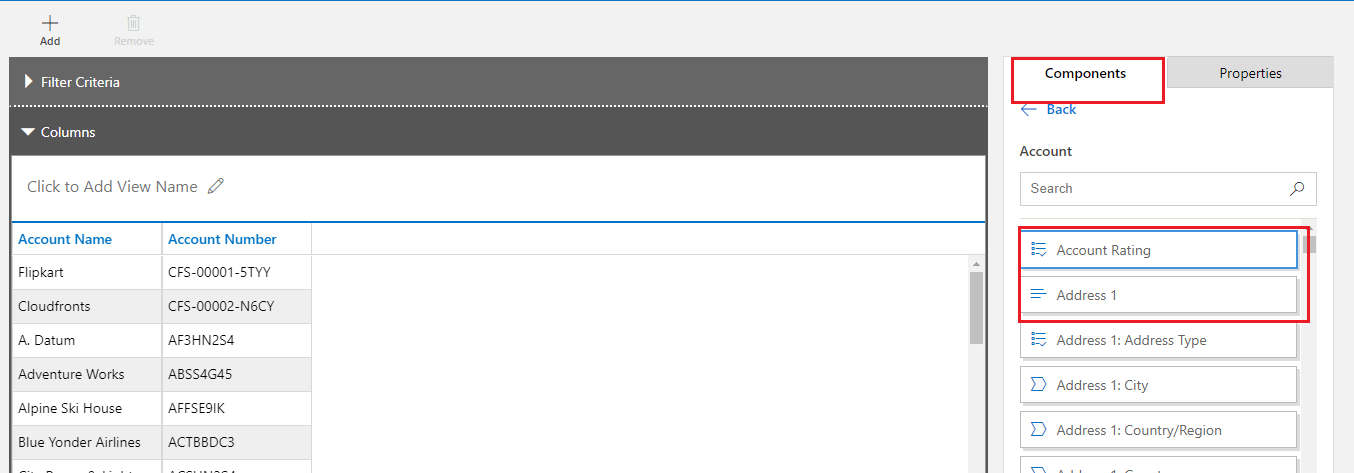
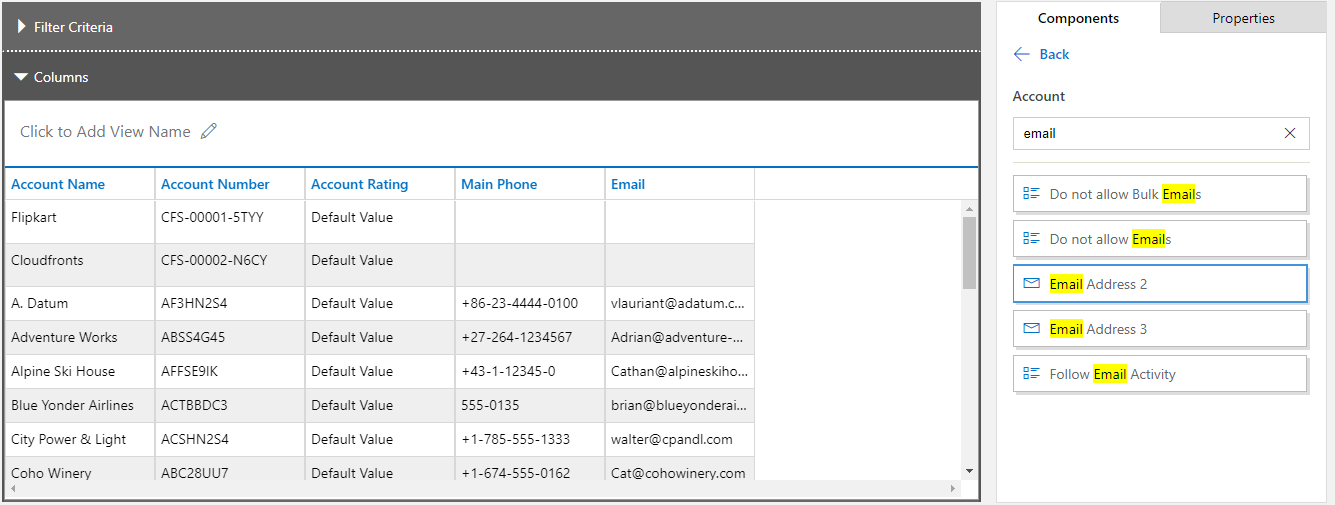
- You can add the column to the view from the components tab I have added the account number column. You need to drag and drop.
- After adding few columns.
Adding Filter:
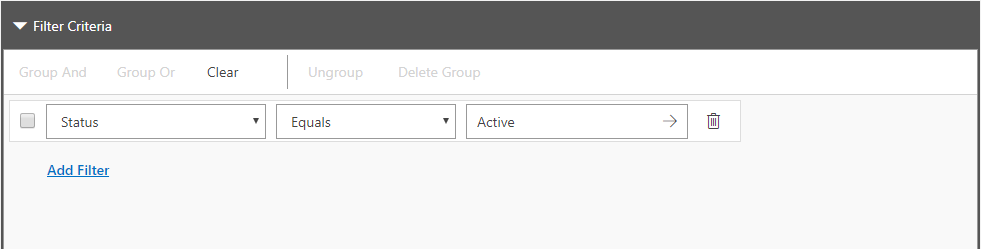
- We can add the filter criteria which will show only related record.
- We can define the filter criteria with and/or condition
Save the view:
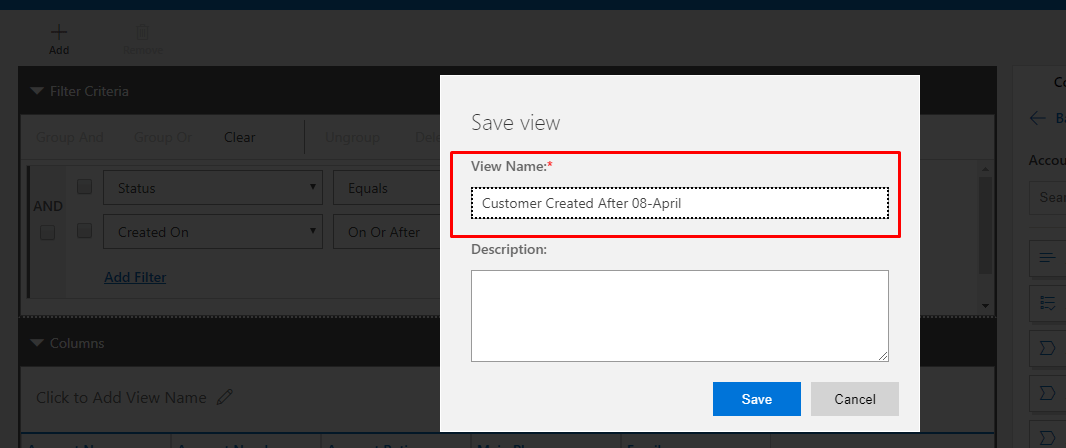
- Provide the view name and save it
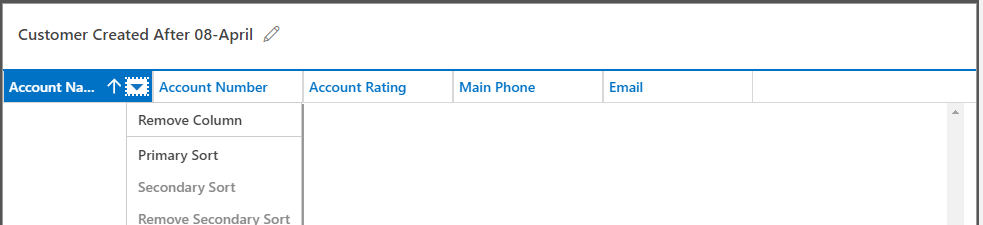
Column Sorting:
- You can define the primary and secondary sorting column
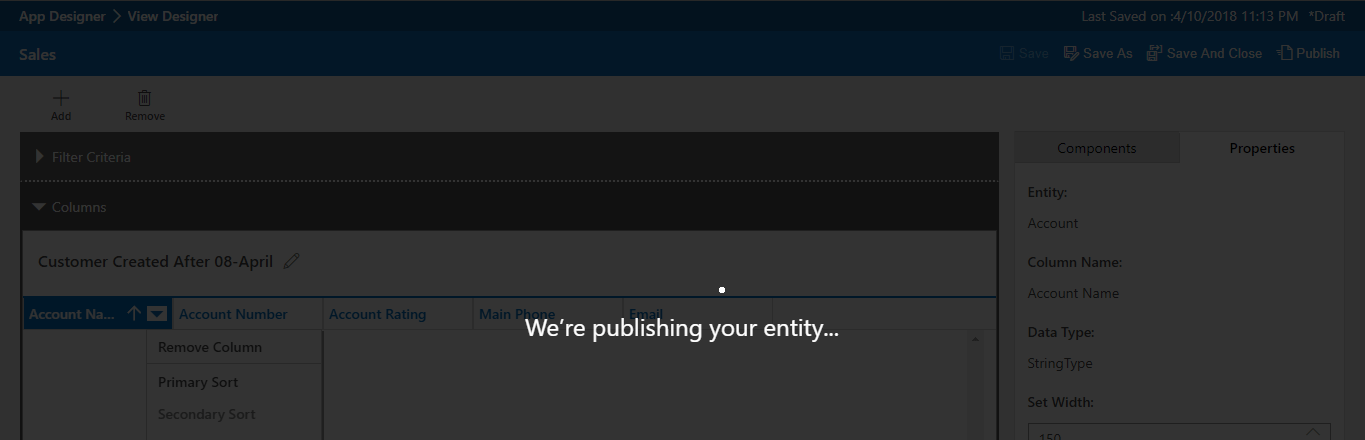
Publish:
- Finally, you need to publish the view as shown
Conclusion:
So, this is another quick way you can create Views than just traditionally creating from within Solutions in D365.
The post Design Views in App Designer – D365 appeared first on .
*This post is locked for comments