




 17,887
 Like
Like Share
Share
 Report
Vendor prepayment functionality divide into 2 parts as the following:
A-prepayment from payment journal
B-prepayment from purchase order
A-prepayment from payment journal
1-create prepayment posting profile
Go to accounts payable /setup/vendor posting profile
you can create prepayment posting profile per (vendor group /specific vendor /all vendors) from Account code

2-Setup Accounts payable parameters to use prepayment posting profile
Go to accounts payable /setup/Accounts payable parameters/ledger and sales tax tab

3-create payment journal
Go to accounts payable/payments /payment journal
create payment journal and select the Amounts include sales tax check box if you want to post the prepayment journal voucher with sales tax amounts in the setup tab

click lines and select enter the vendor and amount with the offset account for your prepayment
then go to payment tab and check vendor profile with the prepayment and click prepayment journal voucher

post the payment journal
B-prepayment from purchase order
1-to create prepayment from the purchase order, you must set up prepayment for item
go to inventory management /setup/posting/posting /purchase order tab
click prepayment checkbox to set up prepayment per (item/item group/all items /category) as the below

Note:
(in Dynamics AX 2012, you can access category from procurement and sourcing /set up /categories/procurement categories)
or (product information management/set up/categories /categories hierarchy)


2-create purchase order
go to accounts payable /purchase order/all purchase order
click new purchase order and select your vendor, and add your items
click prepayment

you can create prepayment as a percent of the net amount or fixed amount
select the prepayment category id and click save
confirm the purchase order
3-create prepayment invoice
click invoice tab and click prepayment invoice

enter number and invoice date
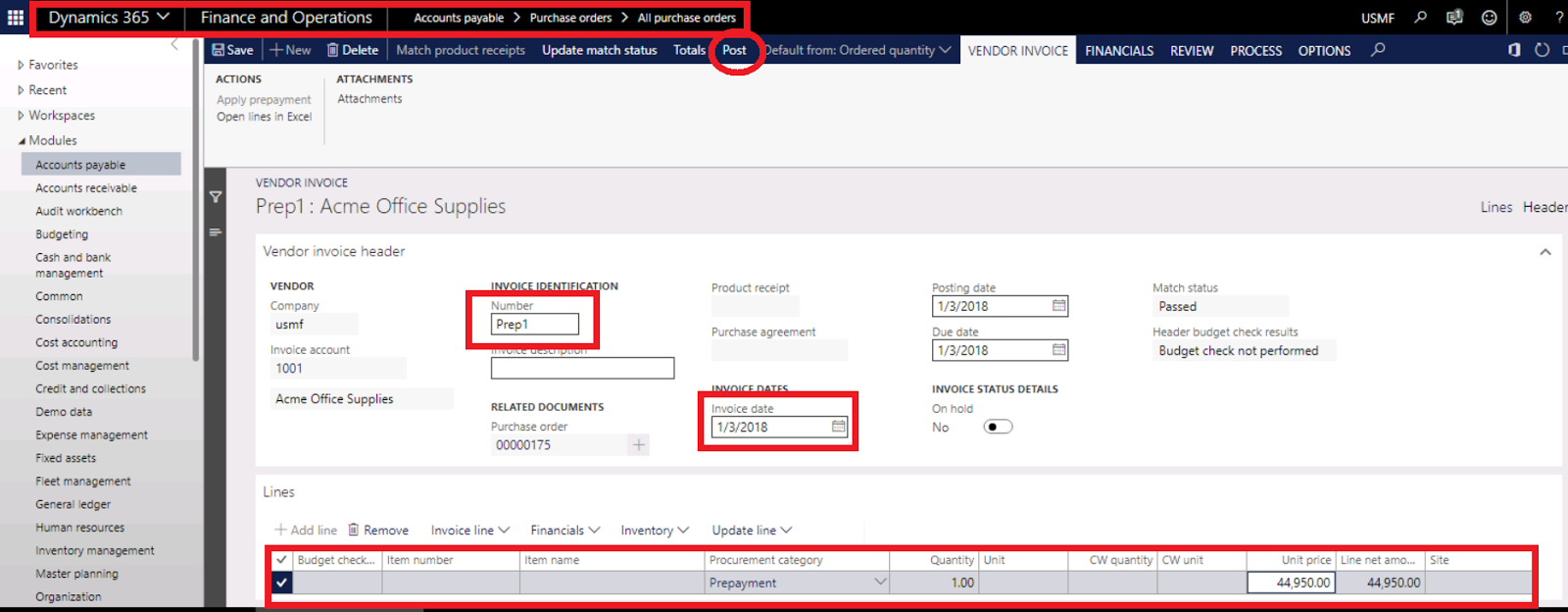
click post
to view prepayment invoice click invoice tab and click the invoice button in journals

4-create payment journal for prepayment
Go to accounts payable /payments/payment journal
create payment journal and click lines to select your vendor

click settle transaction to select your prepayment and click ok

click post
5-Create prodct receipt

enter product receipt number and click ok to post product receipt

6-invoice purchase order and apply the prepayment
click invoice in invoice tab


Thanks.
*This post is locked for comments