




 34,477
 Like
Like Share
Share
 Report
If you are working in the online environment where authentication requirements have started to shift towards the MFA, you might be noticing that tools like XrmToolBox (or even the SDK itself) are not always that MFA-friendly.
To begin with, MFA is always interactive – the whole purpose of multi-factor authentication is to ensure that you are who you are, not just somebody who managed to steal your username and password. Hence, there are additional verifications involved – be that an SMS message, an authenticator app on the phone, or, if you are that unlucky, a custom RSA token validation.
There are different ways to bypass the MFA.
If your organization is willing to relax security restrictions, you might get legacy authentication enabled, so you would be able to get away authenticating the old way – by providing a login/password within the connection string. Having had some experience with this, I think this solution is not quite viable. Security groups within the organizations will be cracking down on this approach, and, sooner or later, you may need something else.
Besides, MFA is not, always, Azure-based. In the hybrid environments where authentication is done through the on-premise ADFS, there could be other solutions deployed. To be fair, having to figure out how to connect XrmToolBox to the online org in this kind of environment is exactly why I ended up writing this blog post.
But the final explanation/solution is applicable to the other scenarios, too.
To be more specific, here is the scenario that did confuse XrmToolBox to the point of no-return:
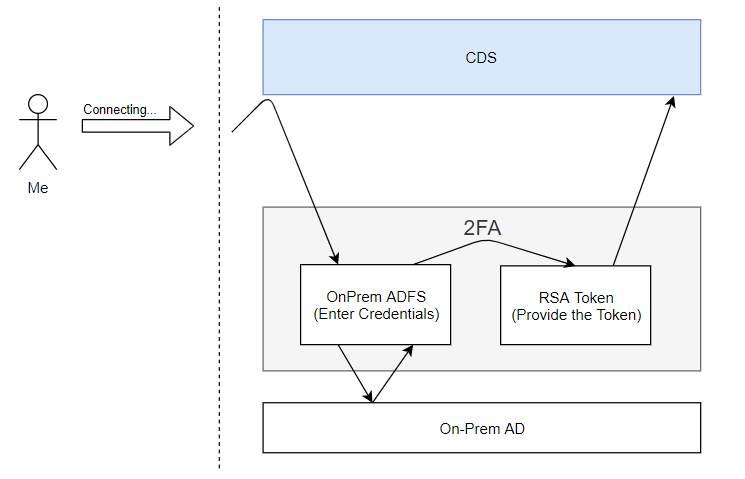
It was all working well when I was connecting to CDS in the browser, but, as far as XrmToolBox was concerned, somehow it just did not want to work with this pattern.
The remaining part of this post may include some inaccuracies – I am not a big specialist in OAuth etc, so some of this might be my interpretation. Anyway, how do we make everything work in the scenario above?
This is where we need to look at the concept of OAuth applications. Basically, the idea is that we can register an application in the Azure AD, and we can give permissions to that App to use Dynamics API-s:
This would be great, but, if we wanted to bypass all the 2FA above, we would have to, somehow, stop using our user account for authentication.
Which is why we might register a secret for our new Azure App. However, application secrets are not supported in the XrmTooling connection strings:
So, what was the point of registering an app you may ask?
There is another option where we can use a certification instead, and you may want to have a look at the following url at some point:
https://docs.microsoft.com/en-us/powerapps/developer/common-data-service/authenticate-oauth
If you look at the samples there, here is how it all goes:
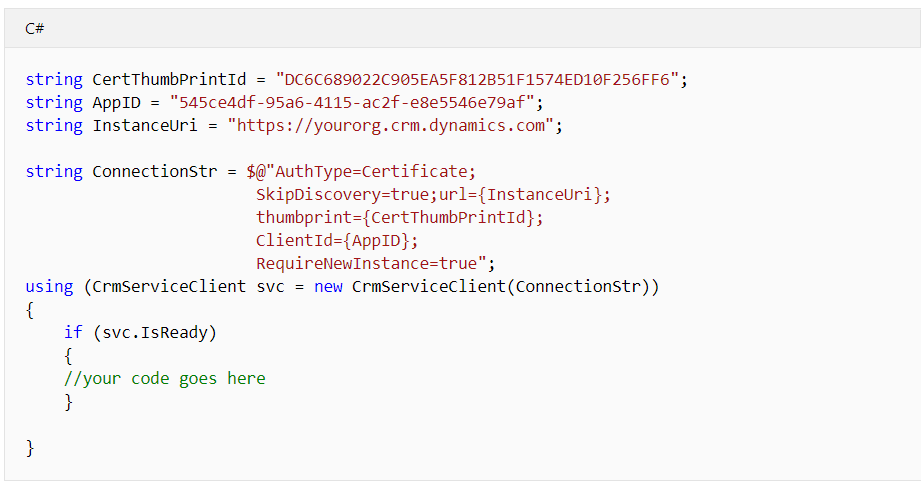
It’s a special AuthType (“Certificate”), and the whole set up process involves a few steps:
- Registering an application in Azure AD
- Uploading a certificate (I used one of those I had in the certificate store on my windows laptop. It does not even have to be your personal certificate)
- Creating an application user in CDS
- Creating a connection string for XrmToolBox
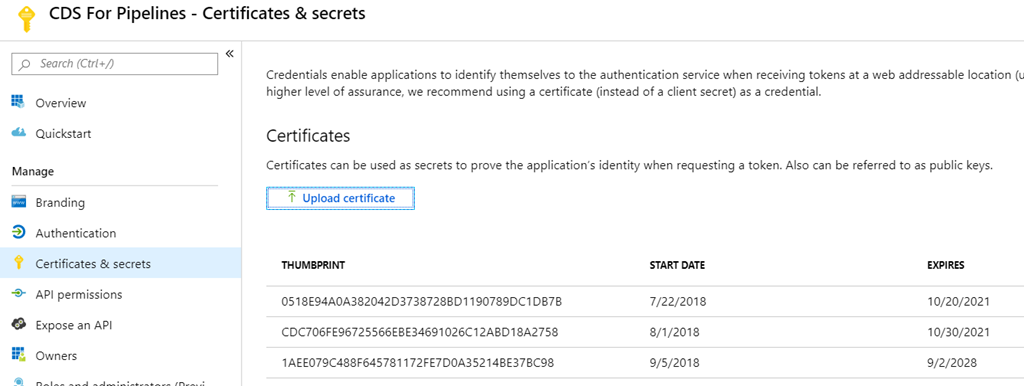
To register an app, you can follow one of the links above. Once the app is registered, you can upload the certificate – what you’ll see is a thumbprint which you will need to use in the connection string. Your XrmTooling client, when connecting, will try to find that certificate on the local machine by the thumbprint, so it’s not as if you were able to use the thumbprint without a certificate.
While trying to make this work, I’ve uploaded a few certificates to my app, so here is how it looks like:
What’s that with the application user in CDS? I think I heard about it before, I just never realized what’s the purpose of this. However:
- Application users are linked to the Azure applications
- They do not require a license
How do you create one? In the CDS instance, go to Settings->Security->Users and make sure to choose “Application Users” view:
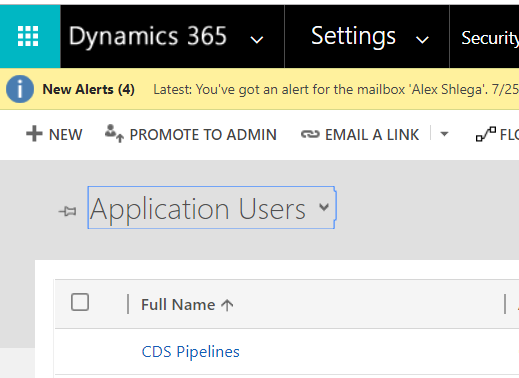
Surprisingly, you will actually be able to add a user from that view and the system won’t be suggesting that you need to do it through the Office admin center instead. Adding such a user is a pretty straightforward process, you just need to make sure you are using the right form (Application User):
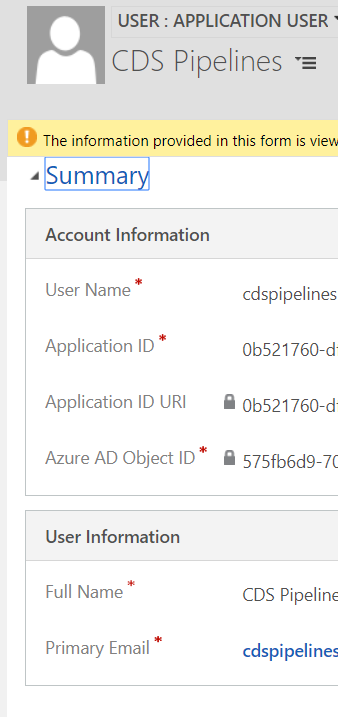
For the email and user name, user whatever you want. For the application ID, make sure to use the actual application ID from the Azure AD.
Don’t forget to assign permissions to that user (in my case, I had to figured I’d have that user as System Admin)
Once you have reached this point, the rest is simple.
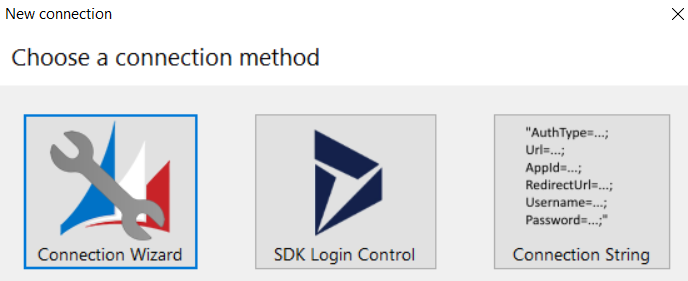
Go to the XrmToolBox and start creating a new connection. Make sure to choose “Connection String” option:
Set up the connection string like this (use your certificate thumbprint and your application’s appid):
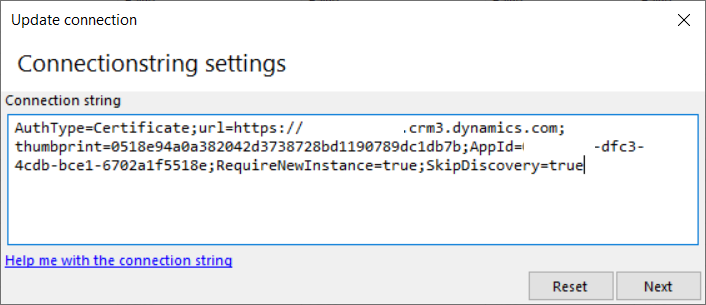
Click next, give that connection some name, and voila… You should be able to connect without the MFA under that special application user account now.
*This post is locked for comments