




 17,887
 Like
Like Share
Share
 Report
but in dynamics 365, you have multiple options
1-you can browse table from the Visual Studio as the following
create a project and search on your table in application explore
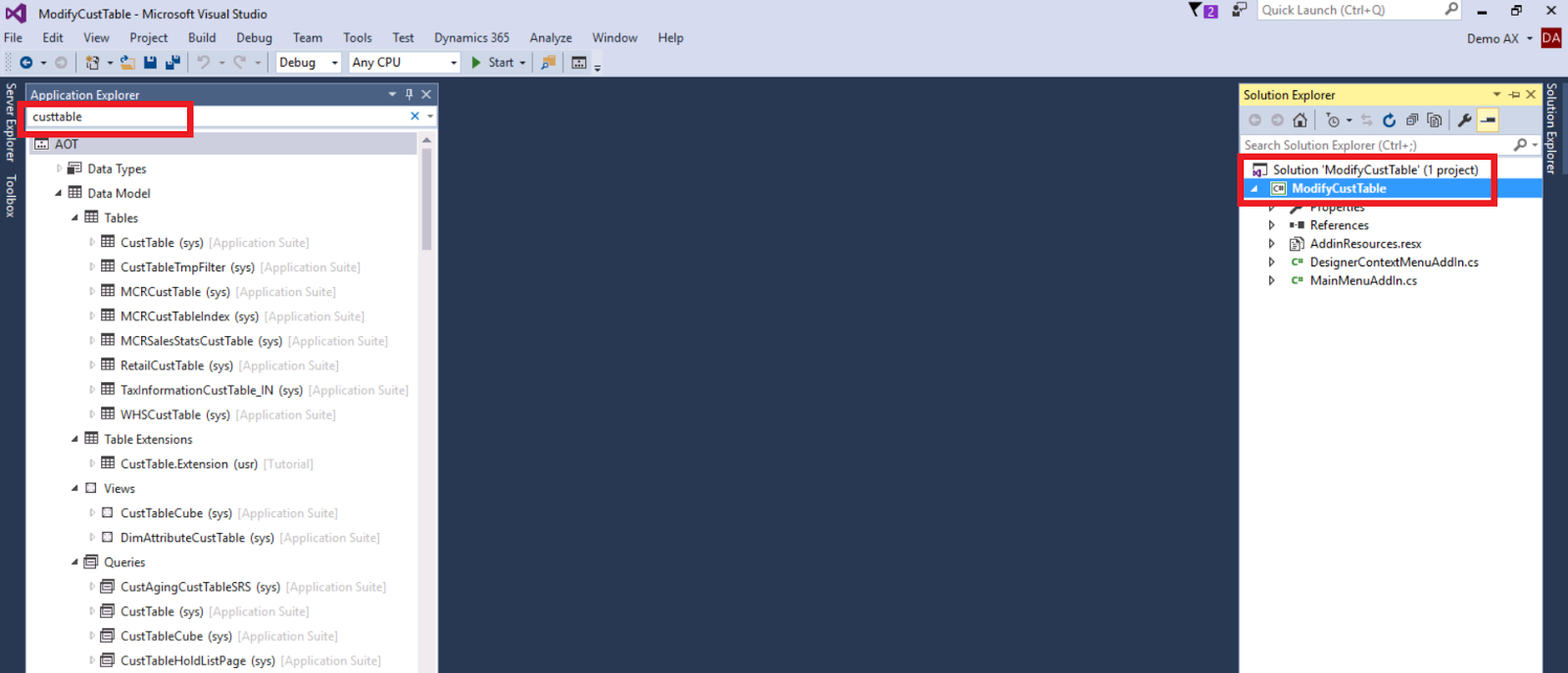
as you see, after the search, you will find all objects that contain this name (Web application)
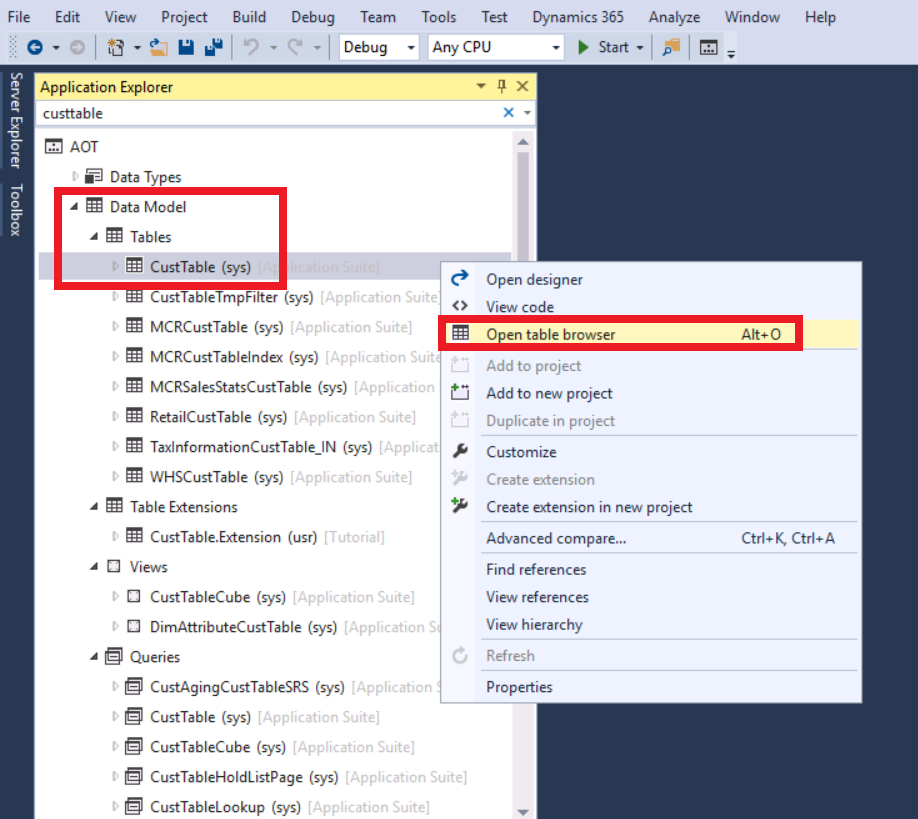
to open your table, just right click and click open table in browser or click ALT+O
2-you can call the Menuitem SysTableBrowser.
One of the available URL Parameters is to call the Menuitem SysTableBrowser.
Knowing the table name is essential to use this syntax, otherwise no success. Finding the right table allows editing in free text fields or choosing from underlying master table values.
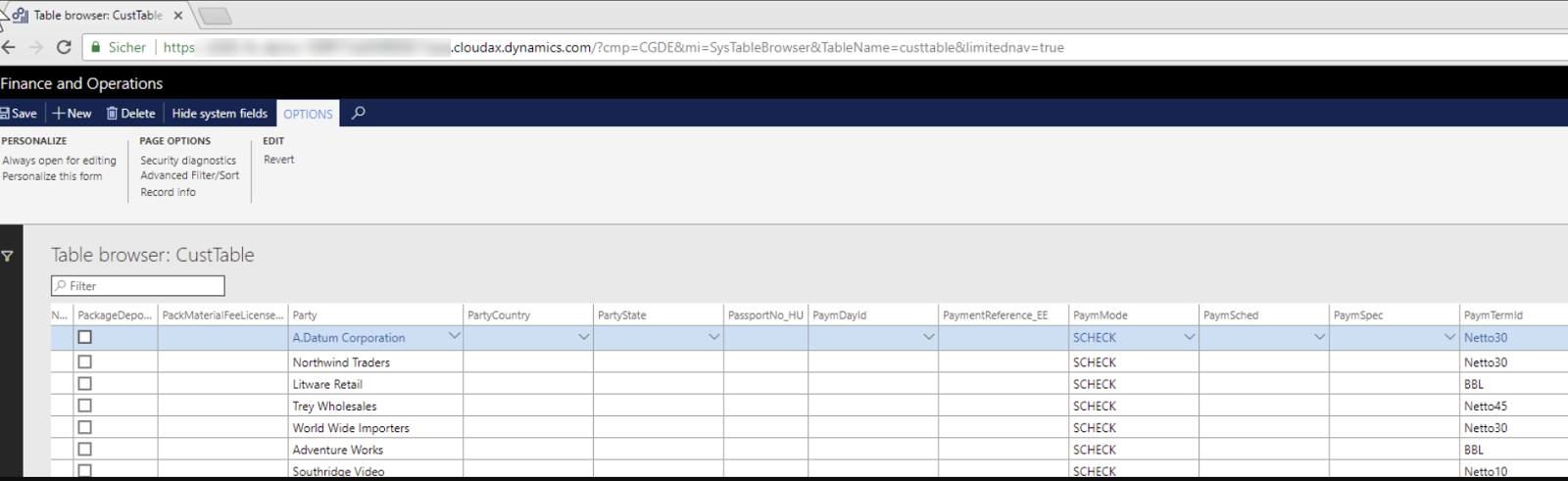
To access to table data you need the appropriate user rights inside your environment. Once you reach the table browser you can personalize the form as used for each table you call. So adjust and hide columns as you need it for your task.
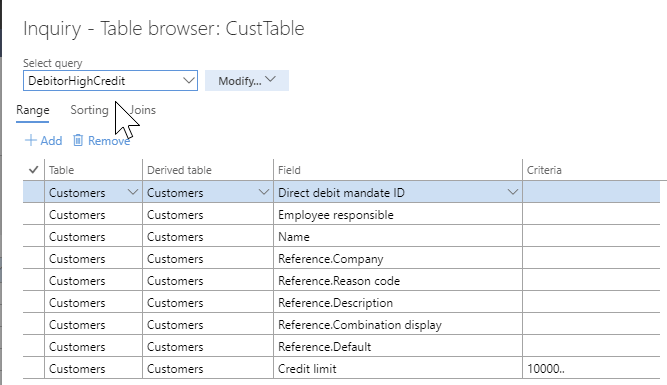
3-you can access the table from the chrome table browser table tool
it is currently available for the Chrome browser only

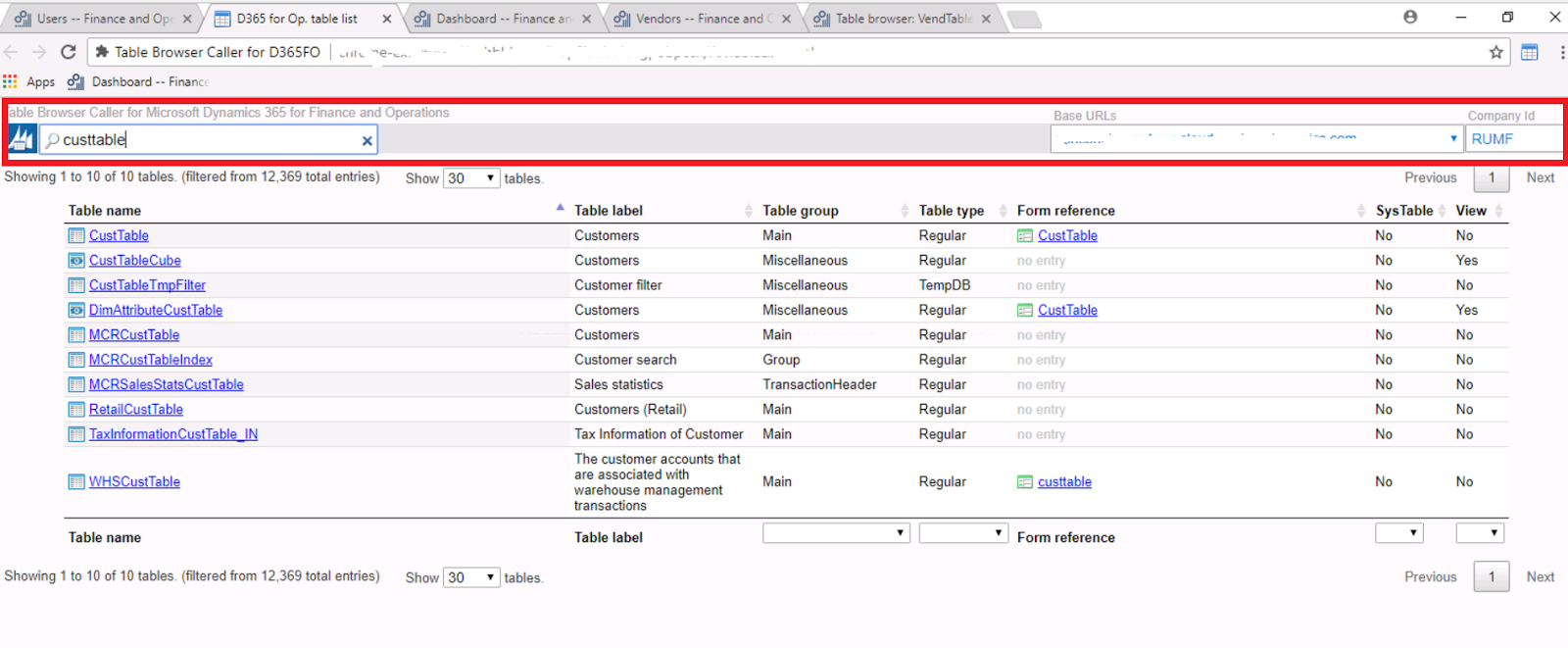
also after the search, you apply some filters to the retrieved data as the below
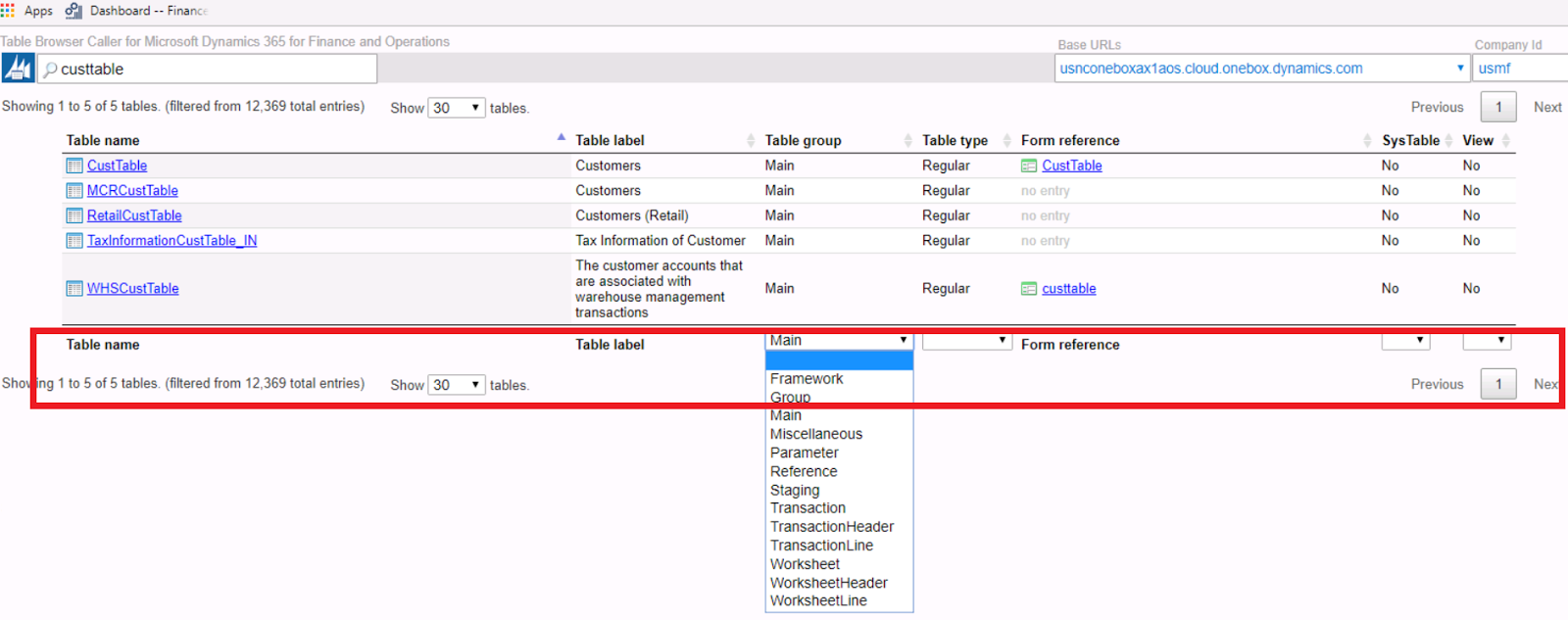
You can browse the entire built-in table list with links to open Table browser directly.
You can view/edit records using Table browser without opening the Visual Studio.
You can hide system field using Table browser without opening the Visual Studio.

note: The access permissions can be controlled by setting up roles from within AX.
*This post is locked for comments