




 Like
Like Share
Share
 Report
Introduction:
Companies want to record some of contacts as customers, vendors, or bank accounts. Creating a customer, vendor, or bank account from a contact enables you use existing data. When you create a customer, vendor, or bank account this way, it is synchronized with the contact.
Prerequisite:
- Setup Business relations
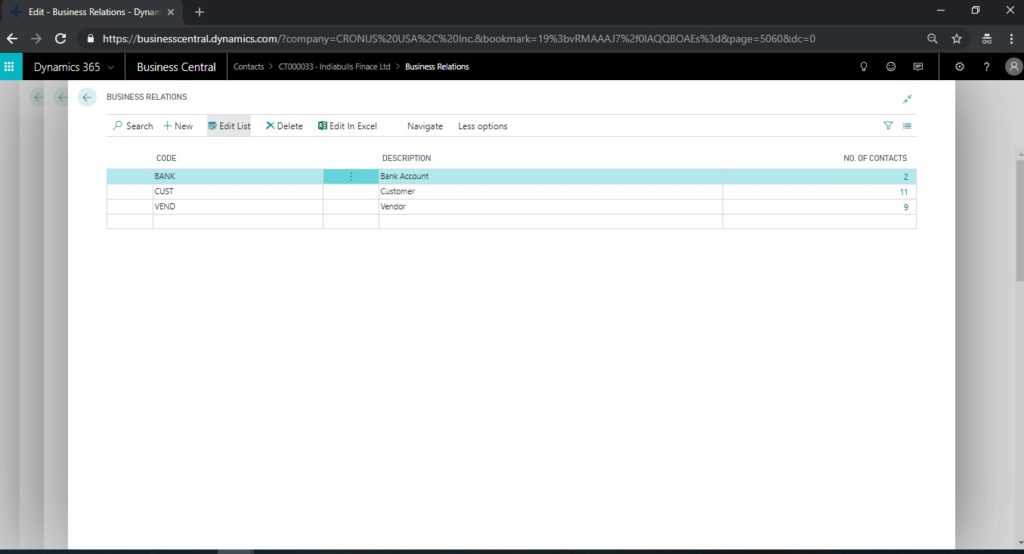
- Select Business relation codes in Marketing setup in Interaction section.
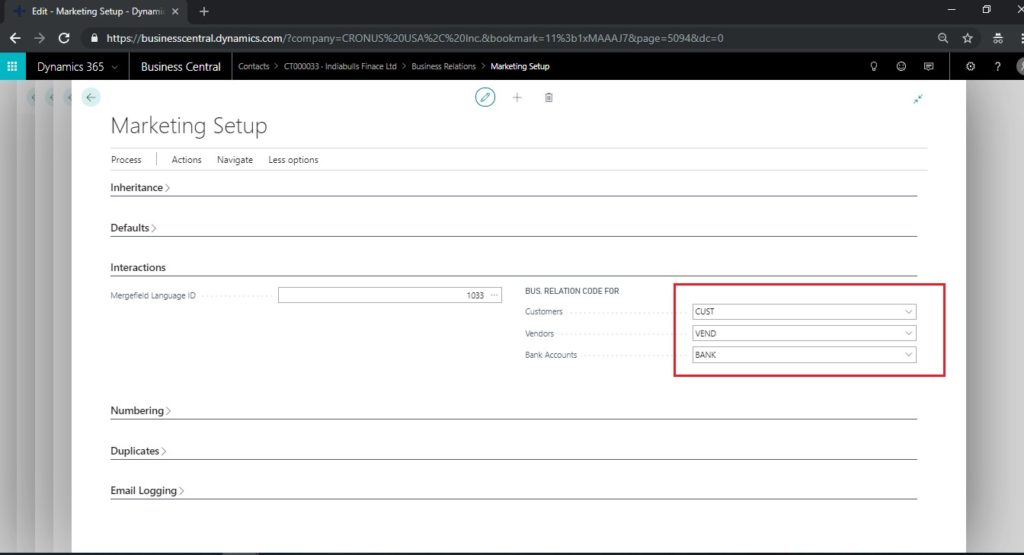
- Specify number series for Vendor Customer and bank account
Steps:
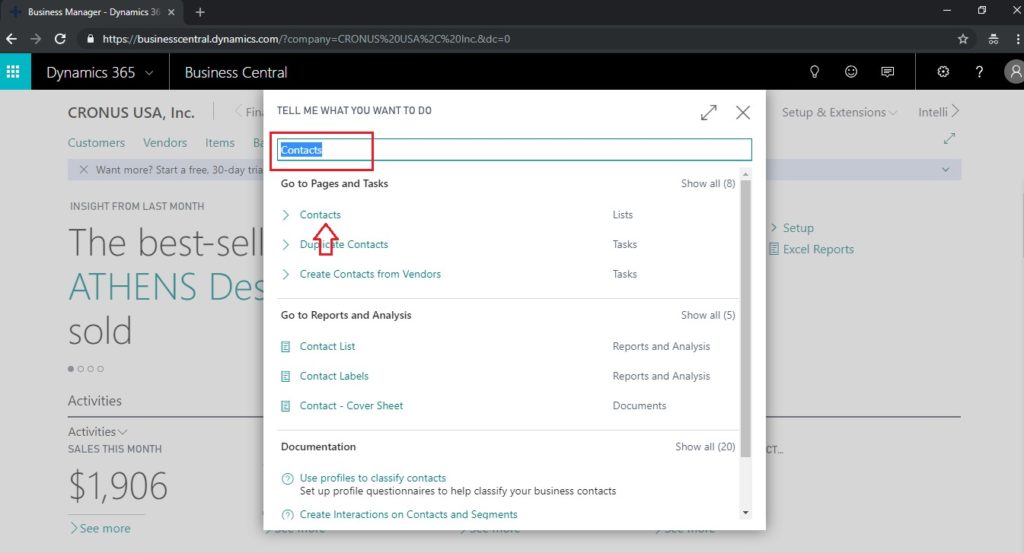
- In search option type Contact and choose related link.
- Create new contact and specify Name, Address and other data which are required.
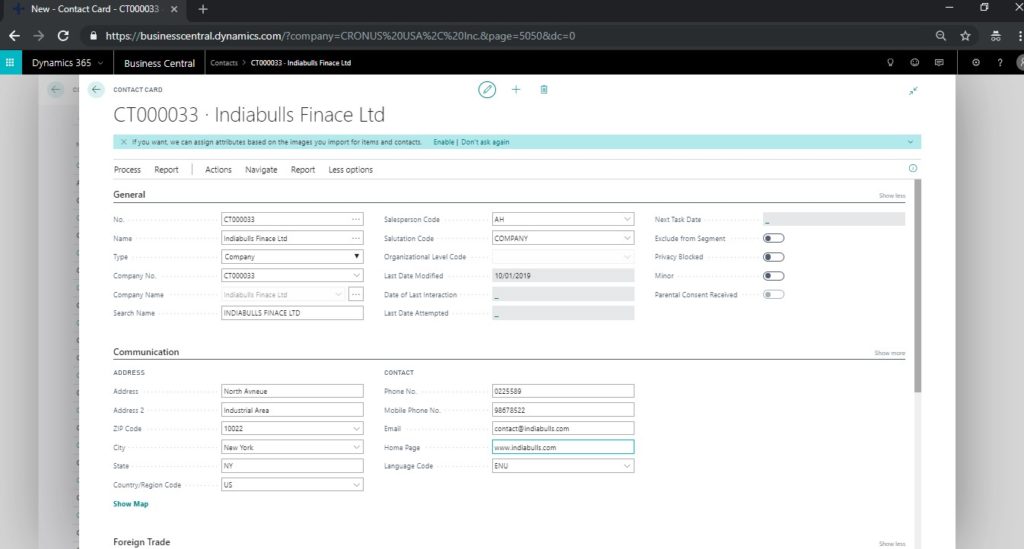
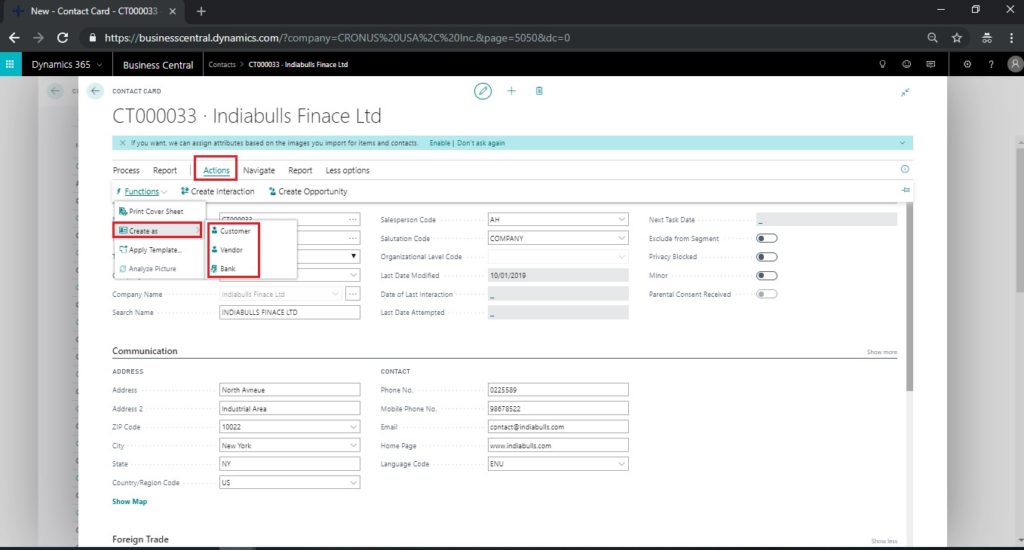
- Choose the Create As action, and then choose either Customer, Vendor, or Bank.
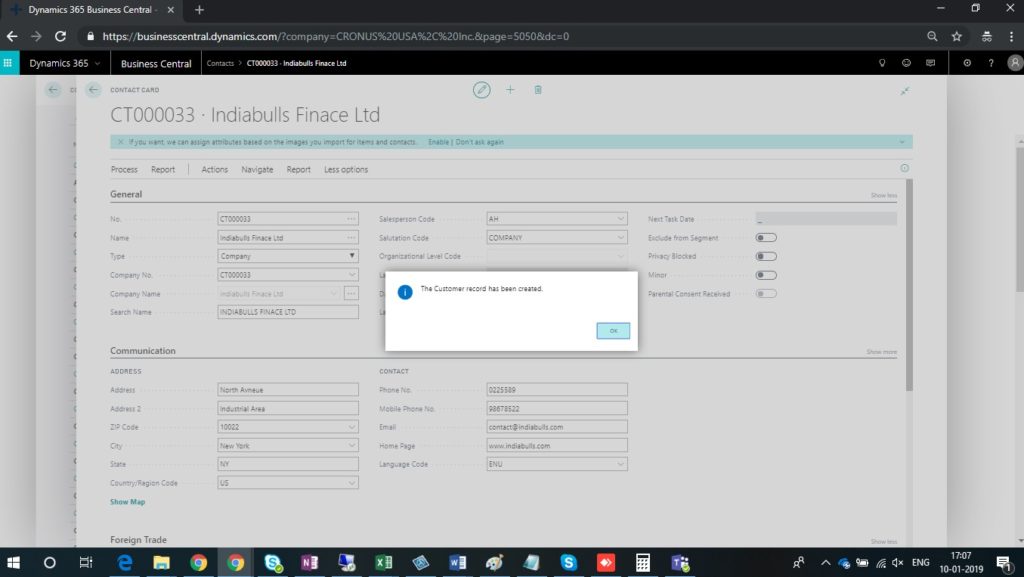
- You will get below pop up once Customer, Vendor and Bank account has been created.
- The contact information is transferred from the Contact card to the Bank Account card, the Customer card, or the Vendor card. You may want to add specific information to each of the cards, such as invoicing and payment details.
The post Create a Customer, Vendor, or Bank Account from a Contact appeared first on CloudFronts - Microsoft Dynamics 365 | Power BI | Azure.
*This post is locked for comments