




 22,805
 Like
Like Share
Share
 Report
Hello Microsoft Dynamics Lovers,
Today I will show, how the Automated Write Off function in D365 F&O is used and how the Configuration can be done to deploy the function for usage.
The Business scenario is- We sold product to customer, however due to some reason, the money can not be gained and that will be in Write-off Expense account (kind of bad debt).
Pre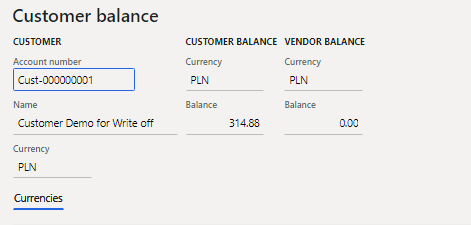
After write off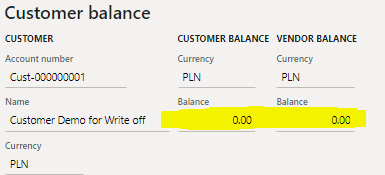
The accounting entry will be below, however this will be auto created in GL journal

This setup is done with very basic configurations, Lets explore together.
1: Create a Journal Name and assign a voucher series by standard way.
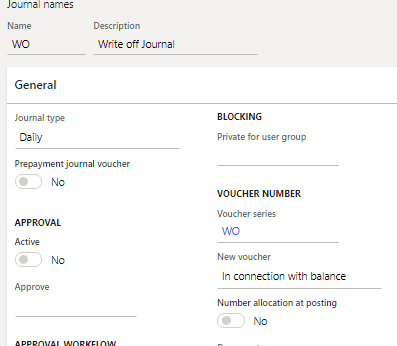
2:Create a BAD debt loss in P&L expense account (If your business has a expense account for bad debt, you can use that)
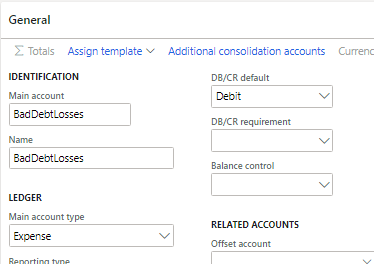
3: Create reason code

4:Add the reason code & Main account for bad debt and make the same default in "Customer write-off reason codes" ( Credit & Collections->Setup->Customer write-off reason codes)
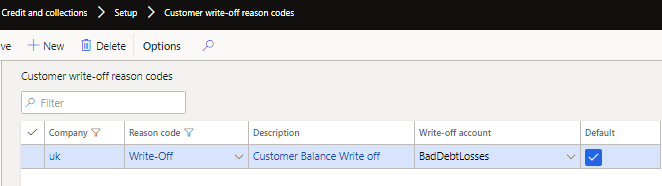
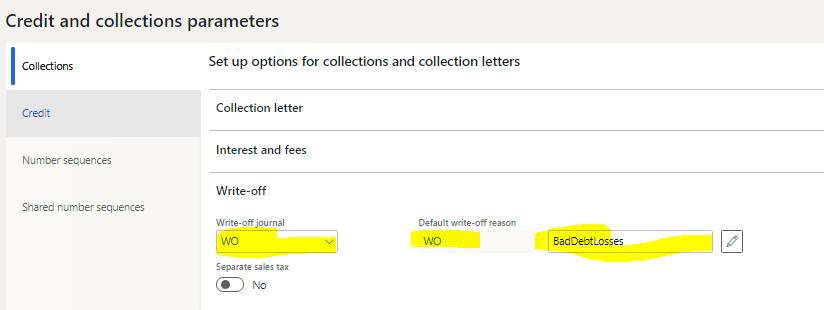
5: Configure Credit and Collection-> Setup-> Credit and Collection parameter
a) Add the journal name you created in "Write off journal" field
b) Add the Write off reason and main account in respective fields ( in most of the cases it auto populates after your have made account as default in step 4.
c) you can make "separate sales tax" to yes if your client wants this amount to be added to sales tax settlement return or for legal requirement, by this the sales tax amount will be debited.
Testing Scope
1: Select the customer which you want to make write off and then from "Collect", select the write off.
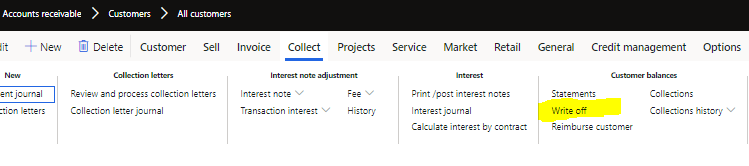
2: The window will pop up, select the write off date and ok
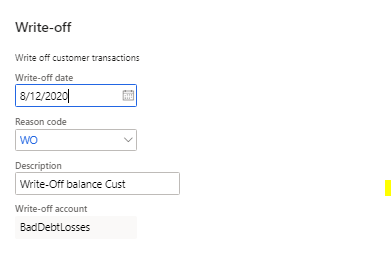
3: Now the automatic general journal has been created

4: Check the journal and post the same

5: Check the balance and make sure it is now zero for this case
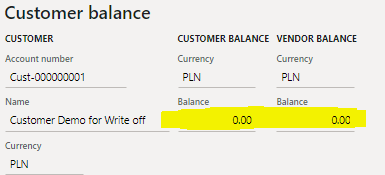
Thank you for going through, I hope it will add some value to you, any feedback is appreciated
*This post is locked for comments