




 17,021
 Like
Like Share
Share
 Report
To add custom portal into online CRM
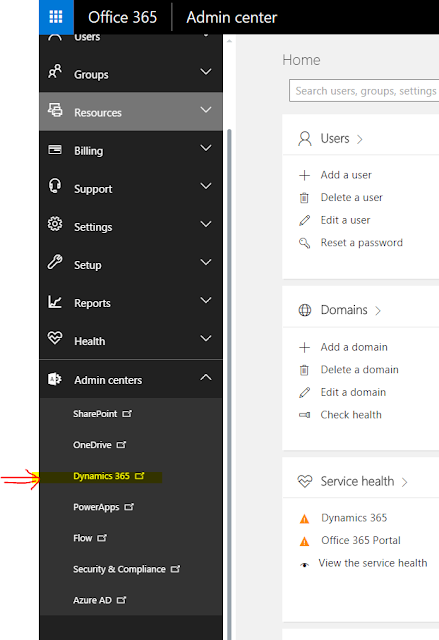
1. Go to Admin portal, either from dynamics CRM or directly into Admin portal.




1. Go to Admin portal, either from dynamics CRM or directly into Admin portal.

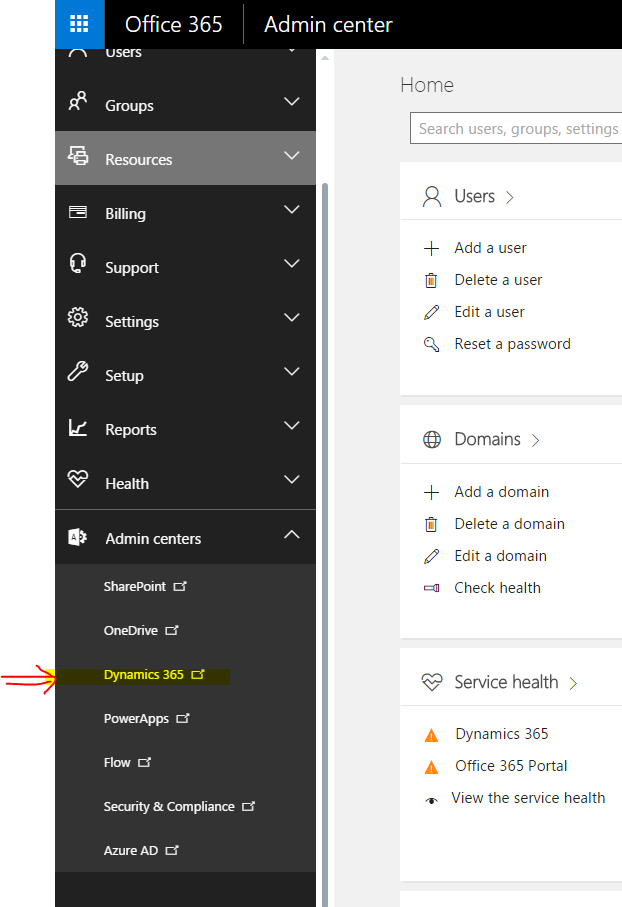
2. Then go to Admin Centers and click on Dynamics 365, as shown below
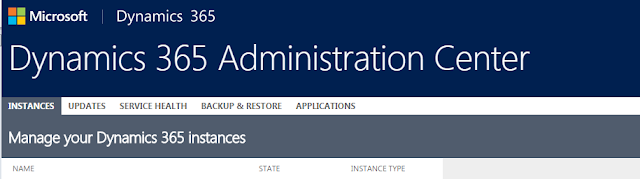
3. Dynamics 365 Administration Center will be opened in new window.

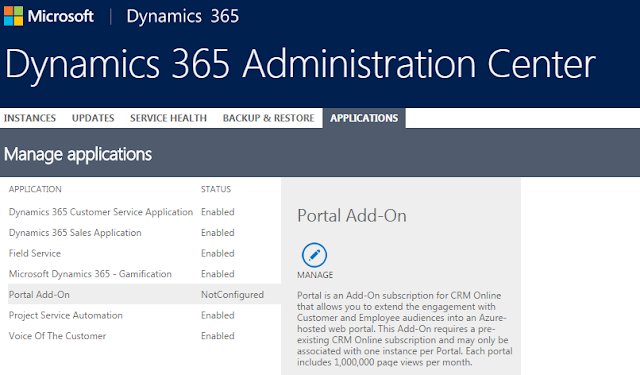
4. Click on Applications tab in Administration Center.

5. Select Portal Add-On and click on Manage, new window will be opened to configure portal

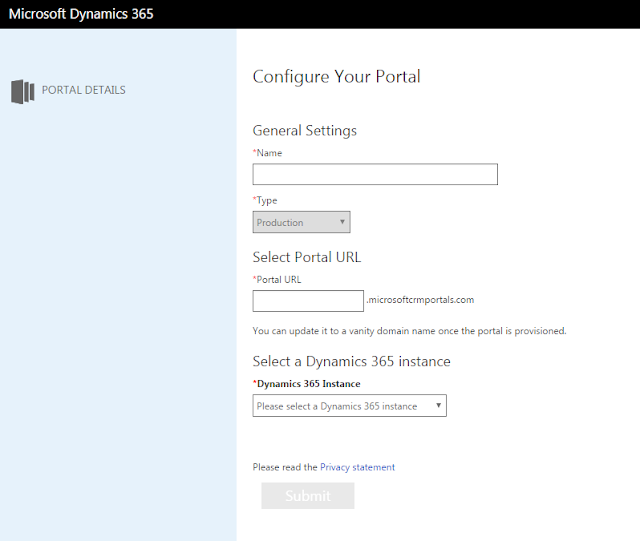
6. Configure your portal, by entering name, portal type (Production / Trail), portal URL.
7. Then select Dynamics 365 instance
8. Once Dynamic 365 instance selected, you need to select portal language, portal administrator

When selecting portal administrator
- Portal Administrator must be CRM user with System Administrator role.
- User added as contact in CRM with Web role "Administrator"
- Login to the portal using "Sign in with an external account" option with user CRM credentials.
Portal audience once set for portal cannot be changed later from UI. Portal choices are tailored based on the selection of the audience.
For Partner / Employee audiences, user license required for internal users (customer employees, contactors, agents) dependent on entities exposed.
Depending on audience, we will get different options for portal to be deployed.
10. Submit your request.
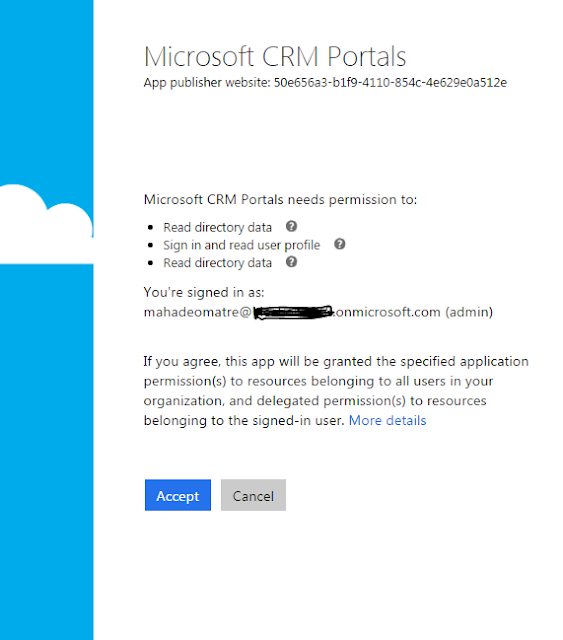
11. After submit and accept page, provisioning begins. You will see following screen

12. Once you accept, portal creation request will be submitted.

It will take around 30 minutes to complete. After provisioning package installation begins.

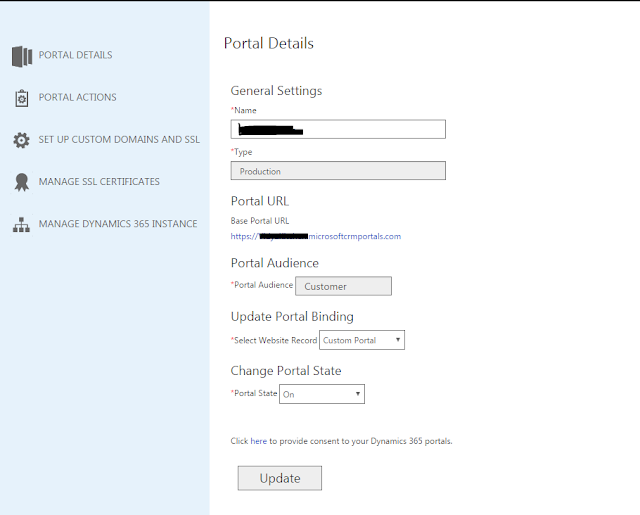
13. Once package installation completed you will see portal details, and you are ready to configure your portal.

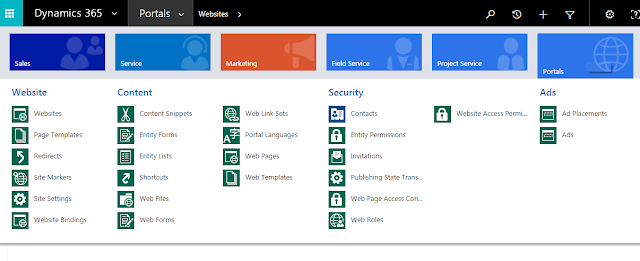
14. In your CRM instance you will see one area for portal, you can manage your custom portal from there.

*This post is locked for comments