




 401
401 Like
Like Share
Share
 Report
Change log is a useful tool to track data changes s in your Dynamics 365 Business Central database. Use this feature to record when data is inserted, modified, or deleted on specific tables.
First, on the Change Log Setup Page, select BC tables that you would like to set to record insert, modify and delete logs. You can filter the tables by ID or name.
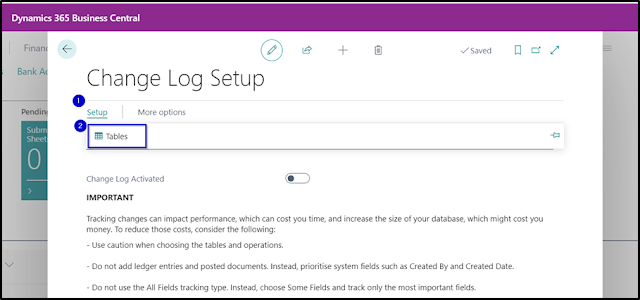

Once you are all set up, go back to the Edit – Change Log Setup page and click on the Change Log Activated button as shown below. It is important that the BC session to be closed and re-opened so the change log will start recording as per the setup.

To review change log entries, navigate to Change Log Entries page will show you the change records for the table fields that have been activated. You can also print the change log entries by clicking the Print button.

The following information can be used for filtering purposes and be able to report from it:

#businesscentral #dynamics365 #microsoft #erpconsulting #changelog #audittrails
#changedata #datatracking
*This post is locked for comments