




 Like
Like Share
Share
 Report
D365 gives us a functionality to assign a record to a group of users which can be archived by using a D365 Team these users then are know as members of that respective team, due to functionality restrictions we cannot send an email to a D365 team, however there are a few workarounds by which we can achieve this functionality.
Lets consider a case.
Suppose we have a D365 team called as “Accounts Associates” we have added a set of users in this team. Now if an invoice milestone is in the ready state i.e. “Ready For Invoicing” we need to send a reminder email to this “Accounts Associates” team to take an action regarding the ready invoicing.
Solution :-
The following case can be achieved by using an Out of the box functionality i.e. By using a distribution list
Note :- (we must have an Microsoft Exchange License).
Lets Begin with the implementation.
Step – 1 Creating a Distribution List
Login to your admin center (Link –https://admin.microsoft.com/)
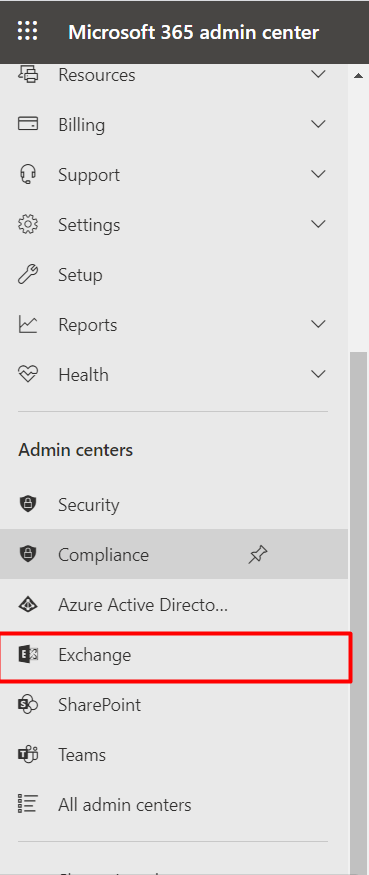
In the Admin center Section of the Left navigation bar select “Exchange”.
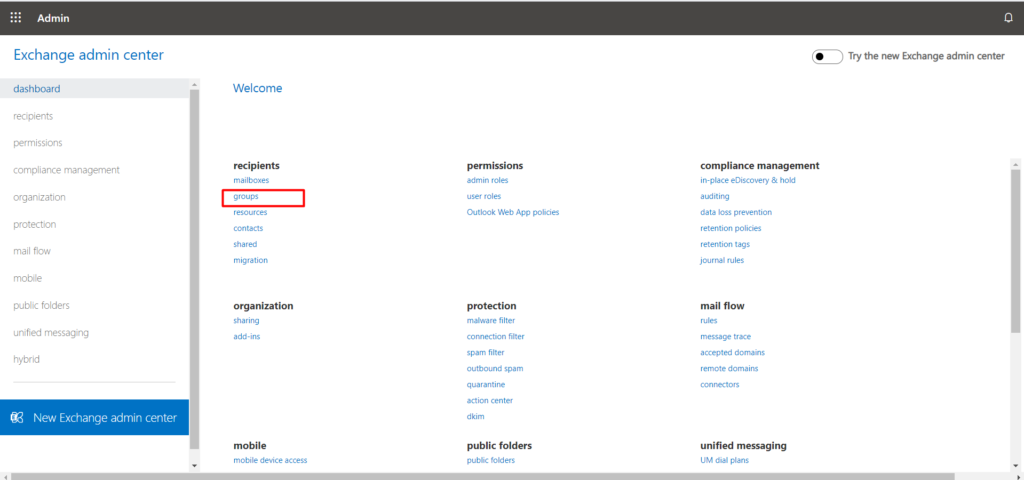
Under the “recipients” select “groups”.
In the “+ New Microsoft 365 Group” pull down the dropdown and add the distribution list.
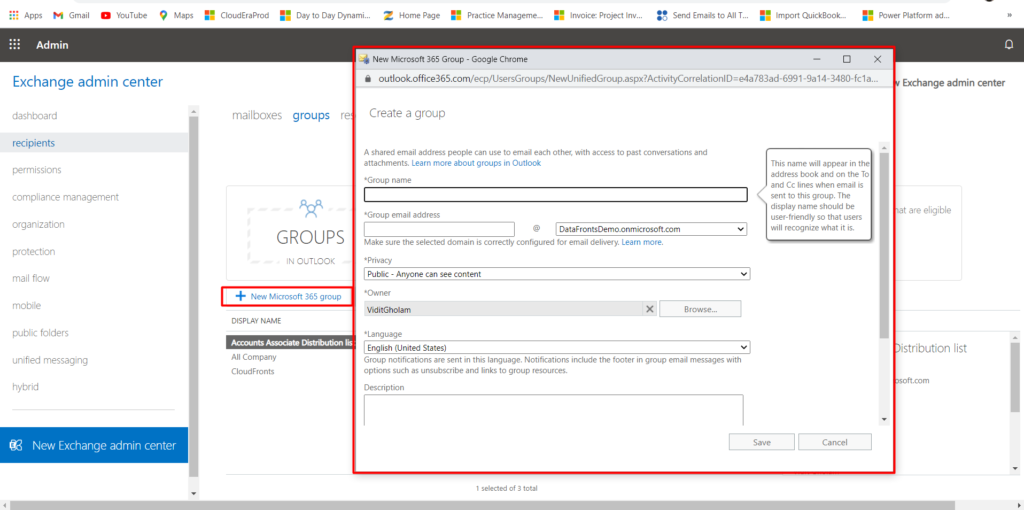
Add the Display name and the “Alias” and save the Distribution list.
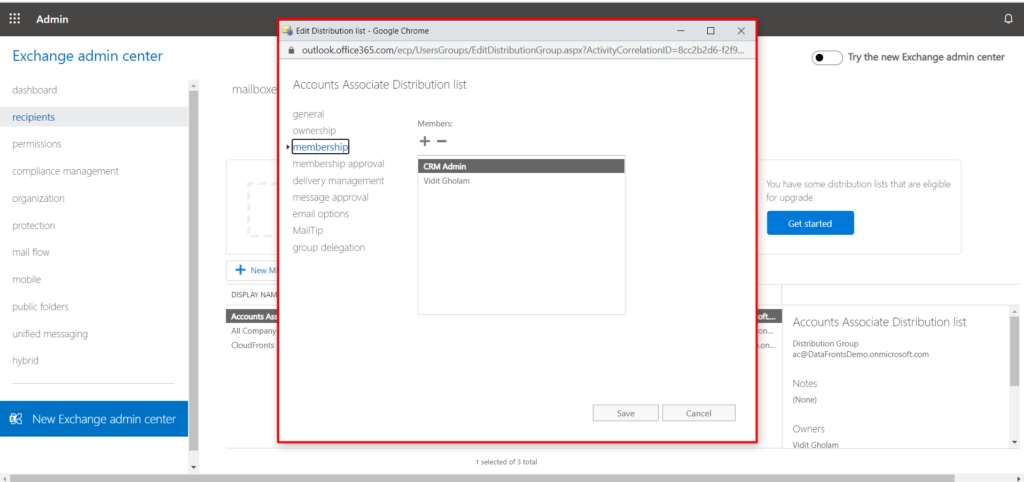
Add same users which are present in the teams to this Distribution list.
Step – 2 Creating a Queue in D365
Go to “Settings” -> “Service Management” ->” Queues” and click on “+NEW” -> give it a name -> “Save”
A mailbox would be created with the same name that of the queue.
Open the mailbox. The Email address field will be blank, add the Distribution List’s email address created in Step 1.
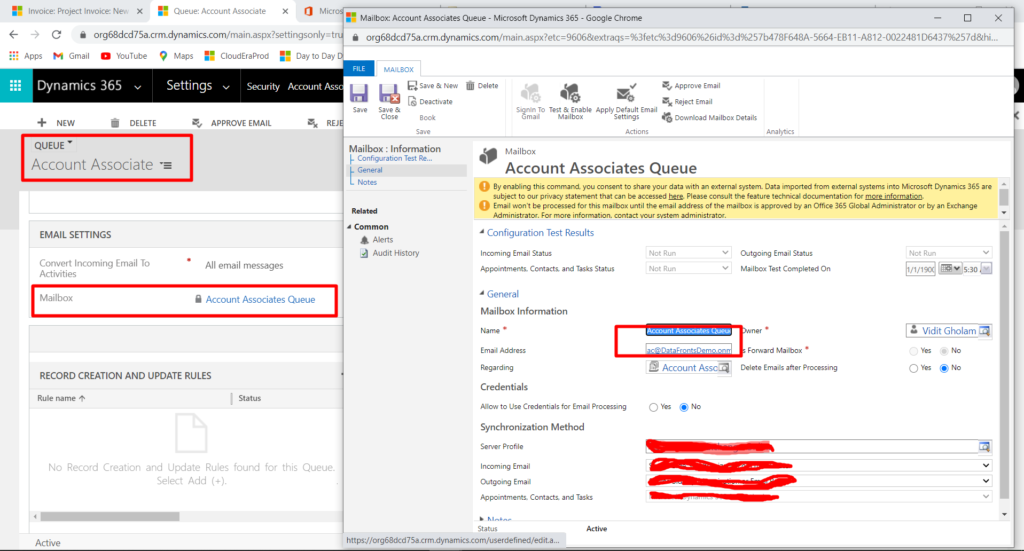
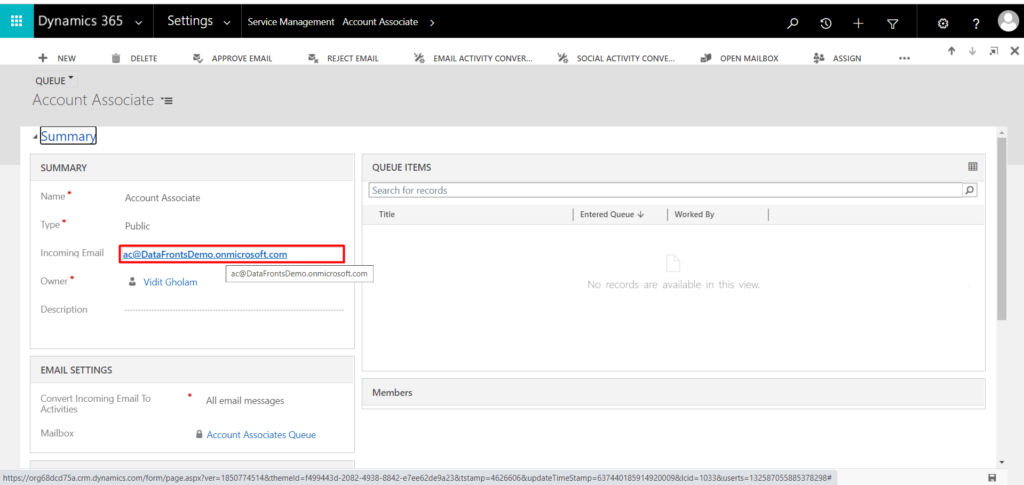
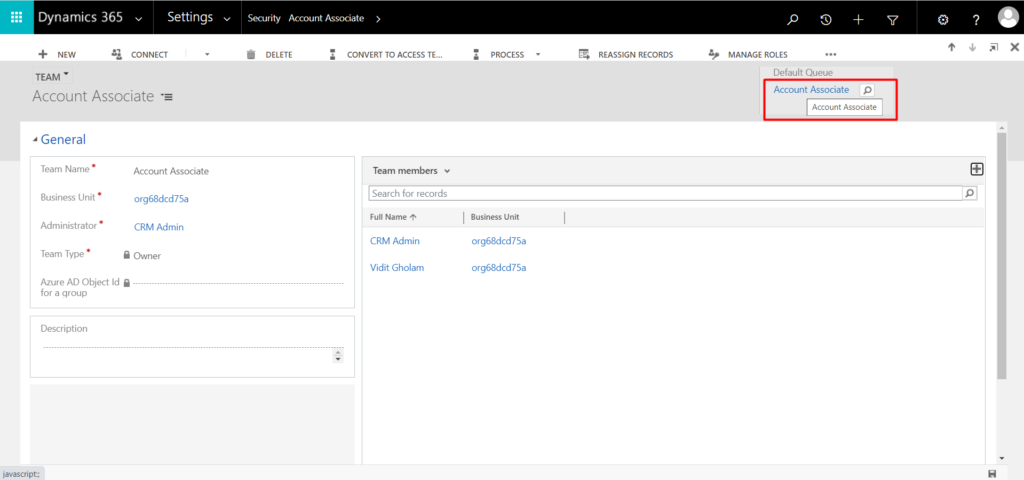
Step -3 Create a New Team or select an Existing Team. In the Default Queue lookup, select the Queue created in Step 2.
Step – 4 Create a Flow which triggers on update of a project contract line milestone i.e. When status is ready for invoicing
- Flow triggers when Project Contract Line is Updated, Condition Invoice Milestone is Ready for invoicing for which click on the “…” select settings and add the following condition in the trigger sectio
- Get the Teams ID in this case I have hardcoded the ID as no record was associated with it to retrieve it
- Get the Teams Details.

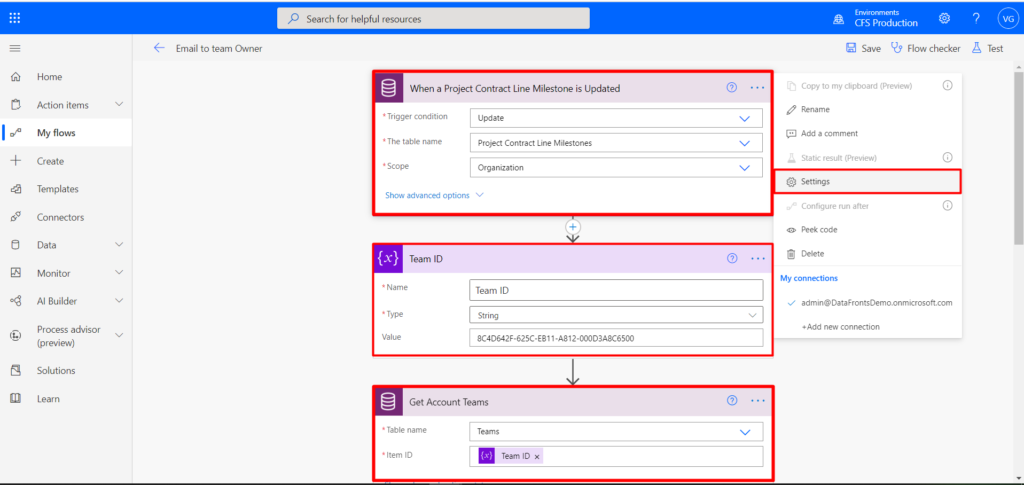
- Get the Default Queue to which the email will be triggered .
- Send an Email to the Incoming Email of that Queue which is Email ID set on the Distribution list.
- Note : (We will have to Manually add or remove the users from both the Distribution list and the Teams. i.e.

both the team and the distribution list must be sync,
- if a member is added or removed from the team the same should be done in the distribution list )
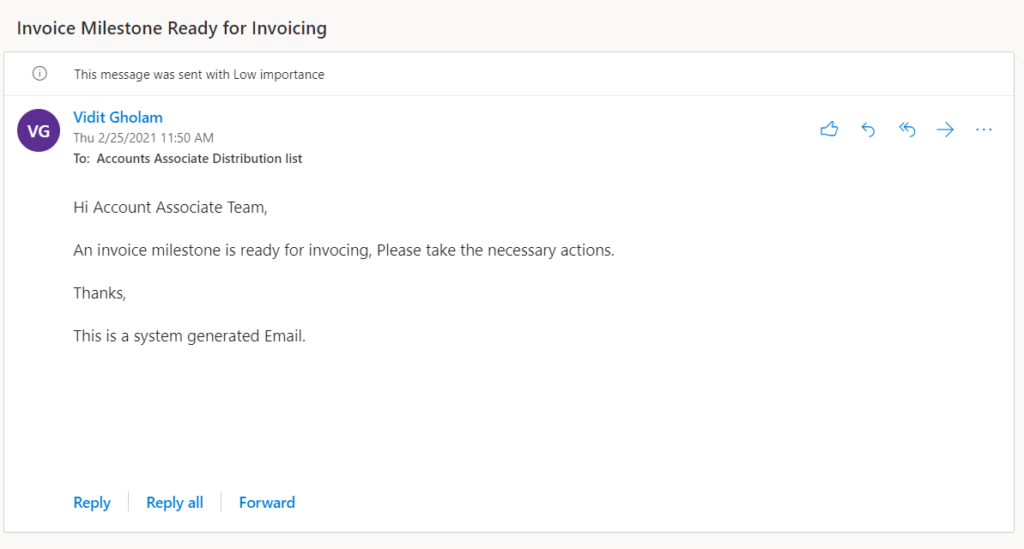
- Output .
Hope this helps.!
The post Send an Email to all users in a D365 Team using power automate. appeared first on Cloudfronts - Microsoft Dynamics 365 | Power BI | Azure.
*This post is locked for comments