web
You’re offline. This is a read only version of the page.
close
Skip to main content

Notifications

Announcements

No record found.

Community site session details

Community site session details

Session Id :
Small and medium business | Business Central, N...
Answered

Cannot Edit in Excel the Sales Lines table

(4) ShareShare
ReportReport
Posted on by 160
We need to correct a number of open Sales Orders (we made a mistake and added the wrong Location Code). We noticed that on the Sales Line table the button "Edit in Excel" is present (in addition to "Open in Excel"). However, once the table is opened in Excel for Editing, it says "Read Only Data Source".
  1. It would be very helpful to be able to edit Sales Orders in the Sales Lines table to apply bulk changes such as the one we need to apply. Any suggestion on a workaround?
  2. Most tables that cannot be edited do not have the button "Edit in Excel" but on "Open in Excel", so this is very confusing in my opinion. Is there a reason why the option is there?
  3. A member of the team says he was able to edit Sales Lines in Excel, is he mistaken or there was a change?
Thank you in advance for your replies,
Giovanni
I have the same question (0)
  • Verified answer
    BR-24120642-0 Profile Picture
    80 on at
    Hi Giovanni,
     
    1. Have you tried utilizing a Configuration Package? Microsoft Dynamics 365 Business Central: How to Export and Import Data (Using Configuration Packages) | Dynamics 365 Lab You can do bulk edits to the Sales Line table that way.
    2. I am just guessing, but it could just be an oversight by the development team.
    3. You can make edits to the Excel file and save it, but the changes cannot be published back to Business Central. Perhaps they were talking about modifying the data in the file and saving a copy of it?
     
    Hope some of this helps.
     
     
    Benito
  • Verified answer
    keoma99 Profile Picture
    138 on at
    Important:
    For changing the data in Excel the 3 key fields are needed when re-importing the data to BC. 

    Solution 1:
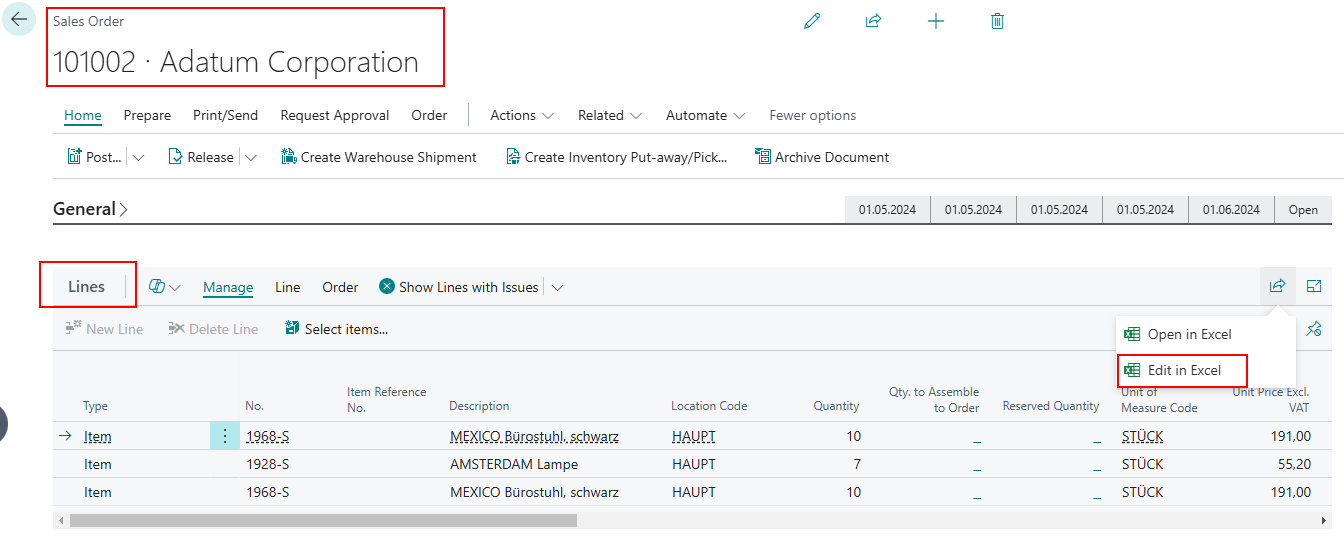
    That can be done from the Lines part in the Sales Order page. There is a button in the right corner above of the Lines part with Menu "Edit in Excel". When using that the Sales Lines of the Sales Order are opened in Excel. It works when the O365 user in Excel (in Windows) is the same as in BC. Then and only then there is the Publish button shown in the Excel Data Connector Window right of the Lines in Excel for updating th data from Excel back to BC. Click it. After that close Excel with or without out saving the document, doesnt matter, go back to BC and reload the Sales Order page to show the changes.
    ​​​​​​​


    I tested that stuff also using page 516 "Sales Lines". That did not work, the Publish button was not shown in the Excel Data Connector page. That means you have to do that Order by Order or use solution 2.
     
    Solution 2:
    Export the Sales Line data using Config. Packages (RapidStart).
    Create new package, use table 37 Sales Line, filter by Document Type=Order, Type=Item. Do not add the connected tables.
    Select fields to export: The key fields Document Type, Document No., Line No., then the field Location and some more fields to identify the lines in Excel eg. No., Description, aso.
    Export the table data to Excel, change the data in Excel, re-import to Excel file to BC.
    Thats maybe the fast solution.
     
    Solution 3:
    A simple Batch Job (Report) or Codeunit which does the needed changes.
    Can be done by a developer.

    Solution 4:
    Ask your ERP Partner.

    cheers

    Dipl.Ing. Franz Kalchmair
     
     
  • Suggested answer
    YUN ZHU Profile Picture
    95,331 Super User 2025 Season 2 on at
    I tried it and it worked. Is it a licensing or permissions issue?
    Please note that some fields cannot be modified by themselves. This is defined in AL as editable=false. Even if you add the field to the page, it cannot be edited.
     
    Hope this helps.
    Thanks.
    ZHU
  • BR-24120642-0 Profile Picture
    80 on at
    @YUN ZHU, I believe that he means from here:
  • giovanni79 Profile Picture
    160 on at
    Yes, I mean from the Sales Lines table.
     
    Yes, the alternative solution is configuration packages, but they are more intimidating for regular users (plus I really don't want regular users to have access to this feature).
     
    I just find it confusing that they left the "Edit in Excel" available in the menu. However, the best thing would be that the lines can actually be edited (at least for Sales Orders), hopefully for a future release.
  • Suggested answer
    keoma99 Profile Picture
    138 on at
  • TB-17061650-0 Profile Picture
    32 on at
    Hi,
     
    sorry I'm a little late to the party. We also have a similar problem. Edit in Excel is available on the dedicated Sales Line page but not within a Sales Order. There we only have Open in Excel. Can't be a permission issue, I'm a super user.
     
    Is there anything I'm missing?
     
    Thank in advance.
     
    EDIT: The Edit in Excel function is present in Sales Quotes but not in Sales Orders

Under review

Thank you for your reply! To ensure a great experience for everyone, your content is awaiting approval by our Community Managers. Please check back later.

Helpful resources

Quick Links

Responsible AI policies

As AI tools become more common, we’re introducing a Responsible AI Use…

Neeraj Kumar – Community Spotlight

We are honored to recognize Neeraj Kumar as our Community Spotlight honoree for…

Leaderboard > Small and medium business | Business Central, NAV, RMS

#1
OussamaSabbouh Profile Picture

OussamaSabbouh 3,143

#2
Jainam M. Kothari Profile Picture

Jainam M. Kothari 1,694 Super User 2025 Season 2

#3
YUN ZHU Profile Picture

YUN ZHU 1,067 Super User 2025 Season 2

Last 30 days Overall leaderboard

Featured topics

Product updates

Dynamics 365 release plans



