Ashutosh,
It sounds like you are Manufacturing an Item that has a Prod. BOM with 1 Purchased Component and Routing of 3 steps, all being Subcontractor Manufacturing to create the Finished Good. In your example, here is my sample Prod. BOM:
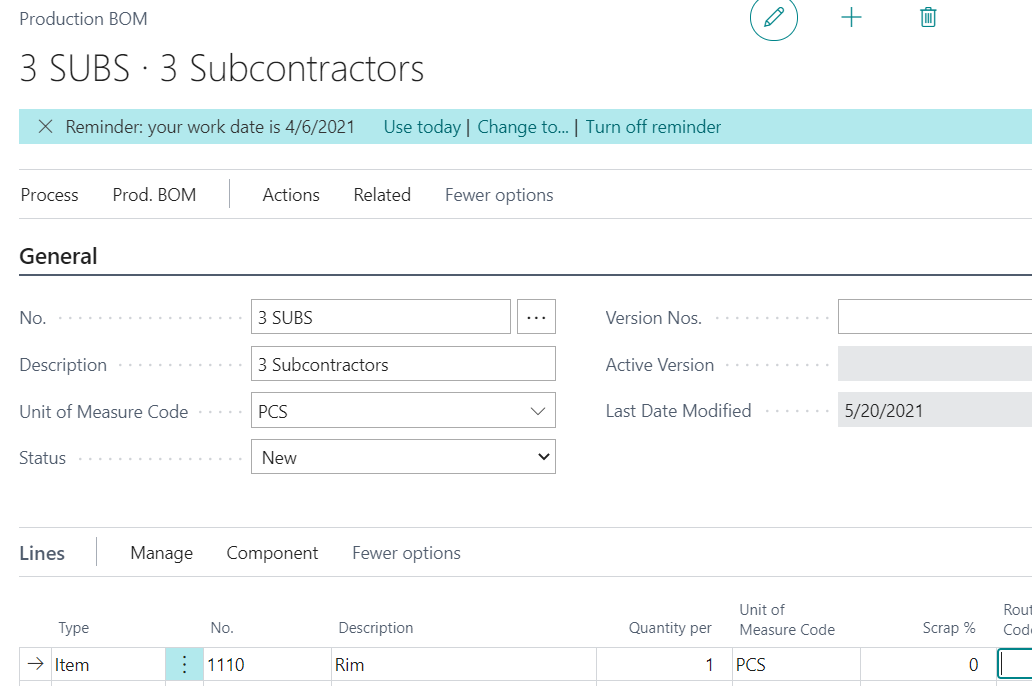
Now my Routing. I show 3 Subcontractors that will work on the Manufactured Item one after the other. Running the Subcontracting Worksheet will produce the PO's needed against the Production Order.
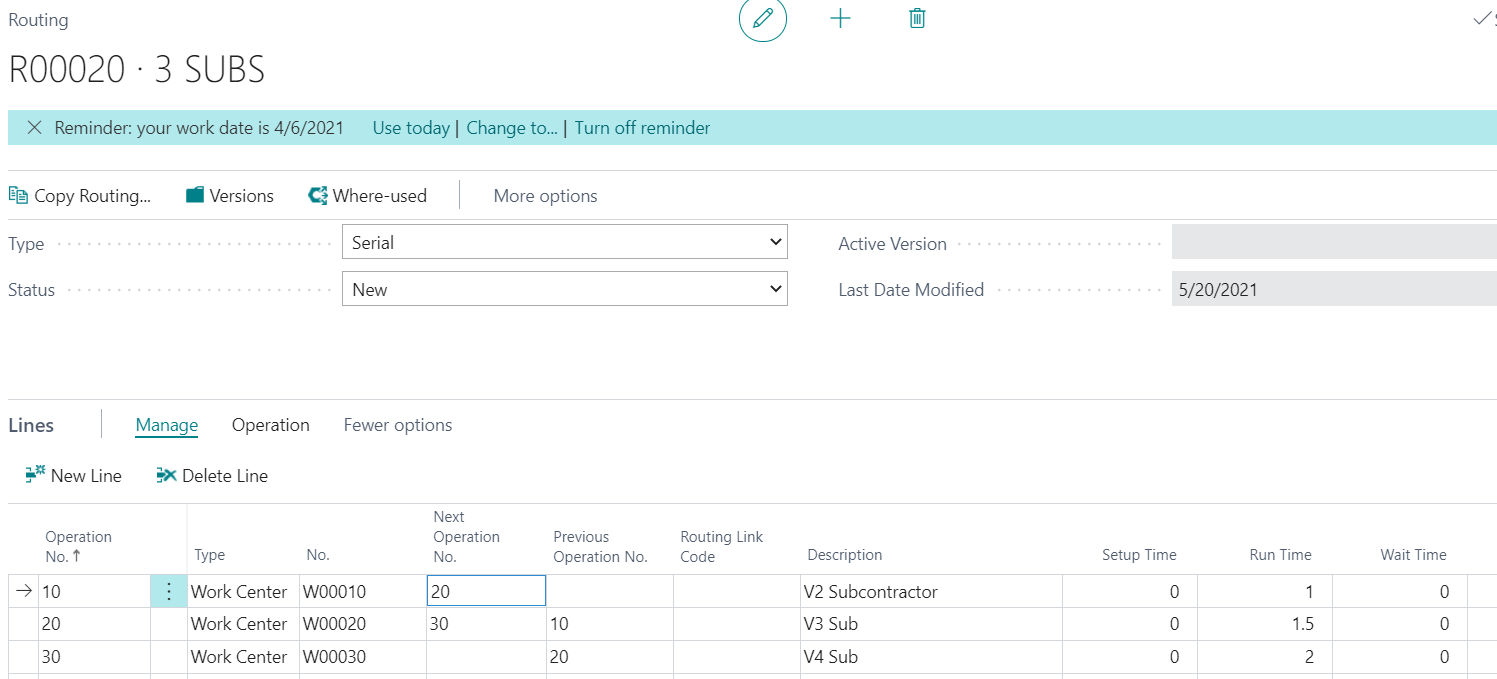
Here is some general info on Subcontracted Manufacturing - Subcontracting selected operations to vendor is common in many manufacturing companies. Subcontracting can be a rare occurrence or can be an integral part of all production processes.
Business Central provides several tools for managing subcontract work:
- Work Centers with assigned vendor: This feature enables you to set up a work center that is associated with a vendor (subcontractor). This is called a subcontract work center. You can specify a subcontract work center on a routing operation, which allows you to easily process the subcontracted activity. In addition, the cost of the operation can be designated at the routing or the work center level.
- Work Center cost based on units or time: This feature enables you to specify whether costs associated with the work center are based on the production time or a flat charge per unit. Although subcontractors commonly use a flat charge per unit to charge for their services, the application can handle both options (production time and flat charge per unit).
- Subcontracting Worksheet: This feature allows you to find the production orders with material ready to send to a subcontractor and to automatically create purchase orders for subcontract operations from production order routings. The application automatically posts the purchase order charges to the production order during the posting of the purchase order. Only production orders with a status of released can be accessed and used from a subcontracting worksheet.
Subcontract Work Centers
Subcontract Work Centers are set up the same as regular work centers with additional information. They are assigned to routings in the same manner as other work centers.
Subcontract Work Center Fields
This Subcontractor No. field designates the work center as a subcontract work center. You can enter the number of a subcontractor who supplies the work center. This field can be used to administer work centers, which are not in-house but perform processing under contract.
If you subcontract with the vendor for a different rate for each process, then select the Specific Unit Cost field. This lets you set up a cost on each routing line and saves the time of re-entering each purchase order. The cost on the routing line is used in processing instead of the cost on the work center cost fields. Selecting the Specific Unit Cost field calculates costs for the vendor by the routing operation.
If you subcontract at a single rate per vendor, leave the Specific Unit Cost field blank. The costs will be set up by filling in Direct Unit Cost, Indirect Cost %, and Overhead Rate fields.
Routings that use Subcontract Work Centers
Subcontract work centers can be used for operations on routings in the same way as regular work centers.
You can set up a routing that uses an outside work center as a standard operational step. Alternatively, you can modify the routing for a particular production order to include an outside operation. This might be needed in an emergency such as a server not working correctly, or during a temporary period of higher demand, where the work generally performed in-house must be sent to a subcontractor.
Calculate Subcontracting Worksheets and Create Subcontract Purchase Orders
Once you have calculated the subcontracting worksheet, the relevant document, in this case a purchase order, is created.
The Subcontracting Worksheet page functions like the Planning Worksheet by calculating the needed supply, in this case purchase orders, which you review in the worksheet and then create with the Carry Out Action Message function.
Note - Only production orders with status Released can be accessed and used from a subcontracting worksheet.
To calculate the subcontracting worksheet
-
Choose the  icon, enter Subcontracting Worksheet, and then choose the related link.
-
To calculate the worksheet, choose the Calculate Subcontracts action.
-
On the Calculate Subcontracts page, set filters for the subcontracted operations, or the work centers where they are performed, to calculate only the relevant production orders.
-
Choose the OK button.
Review the lines on the Subcontracting Worksheet page. The information in this worksheet comes from the production order and production order routing lines and flows to the purchase order when that document is created. You can delete a row from the worksheet without affecting the original information, just as you can with the other worksheets. The information will reappear the next time you run the Calculate Subcontracts function.
To create the subcontract purchase order
- Choose the
 icon, enter Subcontracting Worksheet, and then choose the related link.
- Choose the Carry Out Action Message action.
- Select the Print Orders field to print the purchase order as it is created.
- Choose the OK button.
If all subcontracted operations are sent to the same vendor location, then only one purchase order is created.
The worksheet line that was turned into a purchase order is deleted from the worksheet. Once a purchase order is created, it will not appear in the worksheet again.
Posting Subcontract Purchase Orders
Once the Subcontractor Purchase Orders have been created, they can be posted. Receiving the order posts a Capacity Ledger Entry to the production order and invoicing the order posts the direct cost of the purchase order to the production order.
To post a subcontract purchase order
-
Choose the  icon, enter Purchase Orders, and then select the related link.
-
Open a purchase order that is created from the subcontracting worksheet.
On the purchase order lines, you see the same information that was in the worksheet. The Prod. Order No., Prod. Order Line No., Operation No., and Work Center No. fields are filled in with the information from the source production order.
-
Choose the Post action.
When the purchase is posted as received, then an output journal entry is automatically posted for the production order. This only applies if the subcontract operation is the last operation on the production order routing.
Caution - Posting output automatically for an ongoing production order when subcontracted items are received may not be desired. Reasons for this could be that the expected output quantity that is posted may be different from the actual quantity and that the posting date of the automatic output is misleading.
To avoid that the expected output of a production order is posted when subcontract purchases are received, make sure the subcontracted operation is not the last one. Alternatively, insert a new last operation for the final output quantity. When the purchase order is posted as invoiced, then the direct cost of the purchase order is posted to the production.
Hope this helps.
Thanks,
Steve


