web
You’re offline. This is a read only version of the page.
close
Skip to main content

Announcements

No record found.

News and Announcements icon
Community site session details

Community site session details

Session Id :
Small and medium business | Business Central, N...
Suggested Answer

Cannot change payment method codes.

(4) ShareShare
ReportReport
Posted on by 113

UPDATE: When using the config package, I have been able to update all my payment method codes. However, the check printed flag is now unchecked. I am editing the Check Printed column to the value true so that it is checked. This give me the below error. I have this field in the configuration package set to no validation. How can I get this to update?
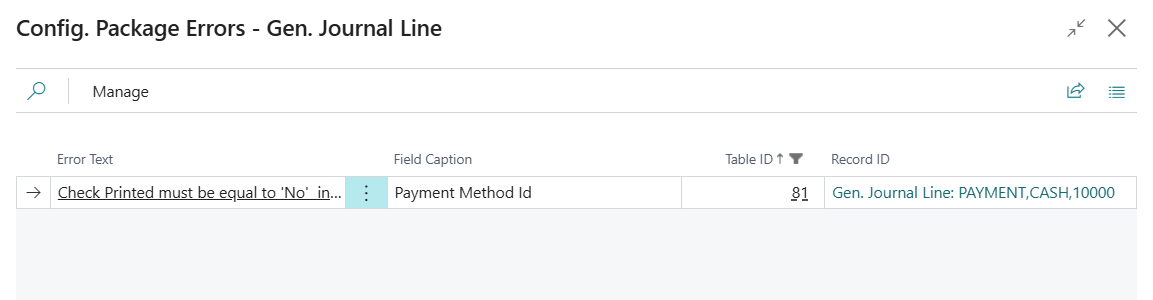
 

I have several payment journal lines where checks have already been printed, but I need to update their Payment Method Code from BILL.COM to CHECK. When attempting to make this change in the payment journals module, I receive the following error:

Check Printed must be equal to 'No' in Gen. Journal Line: Journal Template Name=PAYMENT, Journal Batch Name=CASH, Line No.=100000. Current value is 'Yes'.

I understand why this restriction exists, but I need to find a way to update the Payment Method Code while ensuring that the check numbers remain the same.

Additionally, I am unable to void these checks from the Check Ledger Entries because I receive this error:

Entry Status must be equal to 'Posted' in Check Ledger Entry: Entry No.=178. Current value is 'Printed'.

Is there a way to update the Payment Method Code for these payment journal lines, or alternatively, void the check while manually re-entering the same check number? The checks have already been sent, so maintaining the existing check numbers is crucial.

Thank you all for your help.


I have the same question (0)
  • Suggested answer
    Suresh Kulla Profile Picture
    50,278 Super User 2026 Season 1 on at
    You can update it using Config Package without doing the Validation, or write a process report to do the same. But all the business logic will be skipped and also the method code will be different on the ledger entries and this?  
     
    Since the journal will be deleted and if the check are good why you want to update it ? If this is because of an integration then above is the approach.
     
  • Suggested answer
    YUN ZHU Profile Picture
    100,214 Super User 2026 Season 1 on at
    Hi, hope the following helps.
    Dynamics 365 Business Central: Can we skip/ignore field validation errors?
     
    Thanks.
    ZHU
  • Suggested answer
    Saif Ali Sabri Profile Picture
    2,360 Moderator on at

    My response was crafted with AI assistance, tailored to provide detailed and actionable guidance for your query.
    In Dynamics 365 Business Central, the restriction exists to maintain data integrity, ensuring that once a check is printed, key financial details (like the Payment Method Code) remain unchanged. However, since you need to update the Payment Method Code while keeping the same check numbers, here are your options:

    Option 1: Use a Configuration Package (Skipping Validation)

    You can bypass the validation by using a Configuration Package to update the Payment Method Code without triggering Business Central’s standard checks.

    Steps to use Configuration Package:

    1. Go to "Configuration Packages" in Business Central.
    2. Create a new package and add the table 81 (Gen. Journal Line).
    3. Export the data and modify the Payment Method Code in Excel.
    4. Import the updated file back into Business Central.
    5. Apply the package to update the journal lines.

    âš  Warning: This method skips validation, meaning it will update the data directly without Business Central enforcing its usual rules. If the payment is already posted, this might cause discrepancies in the ledger entries vs. journal entries.


    Option 2: Reverse and Re-enter with Same Check Number

    If you want to maintain proper audit trails:

    1. Void the check properly (if possible) by resolving the Entry Status = "Printed" issue.
      • Navigate to Bank Account Ledger Entries and locate the check.
      • If the check is stuck in Printed status, ensure the related payment journal is deleted.
      • Then, attempt to void the check.
    2. Re-enter the payment manually using the correct Payment Method Code but keep the same check number.

    âš  Issue: If the check remains in "Printed" status, you may not be able to void it until it's fully posted.


    Option 3: Custom Development (Process Report)

    If this is a recurring issue or an integration-related problem, consider a Process Report that:

    • Updates the Payment Method Code directly.
    • Ensures that the corresponding ledger entries are aligned.

    This requires a developer with AL programming skills to write a small extension.


    Which Option is Best?

    • If data consistency is critical, use Option 2 (reverse and re-enter).
    • If you just need a quick fix without validation, use Option 1 (Configuration Package).
    • If this is part of an integration issue, consider Option 3 (custom process report).
  • Suggested answer
    Khushbu Rajvi. Profile Picture
    22,342 Super User 2026 Season 1 on at
  • Suggested answer
    Nitin Verma Profile Picture
    21,812 Moderator on at
    In that case you need to write an AL extension to directly put the Payment method code into the Record. As system checks and will not allow you to in front.
  • Suggested answer
    Valentin Castravet Profile Picture
    32,666 Super User 2026 Season 1 on at
    You will need to void the check, change the payment method code, and then re-print the checks. However, you can also edit this field directly in the vendor ledger entries. This means you can post your checks with the incorrect payment method and then update it later in the vendor ledger entries. Keep in mind, this field is primarily for informational purposes in the payment journal.
     

Under review

Thank you for your reply! To ensure a great experience for everyone, your content is awaiting approval by our Community Managers. Please check back later.

Helpful resources

Quick Links

Introducing the 2026 Season 1 community Super Users

Congratulations to our 2026 Super Stars!

Meet the Microsoft Dynamics 365 Contact Center Champions

We are thrilled to have these Champions in our Community!

Congratulations to the April Top 10 Community Leaders

These are the community rock stars!

Leaderboard > Small and medium business | Business Central, NAV, RMS

#1
OussamaSabbouh Profile Picture

OussamaSabbouh 1,948 Super User 2026 Season 1

#2
YUN ZHU Profile Picture

YUN ZHU 936 Super User 2026 Season 1

#3
Teagen Boll Profile Picture

Teagen Boll 616 Super User 2026 Season 1

Last 30 days Overall leaderboard

Featured topics

Product updates

Dynamics 365 release plans
