web
You’re offline. This is a read only version of the page.
close
Skip to main content

Notifications

Announcements

No record found.

Community site session details

Community site session details

Session Id :
Small and medium business | Business Central, N...
Answered

How to include Promised receipt date & Planned receipt date on Purchase orders screen

(0) ShareShare
ReportReport
Posted on by 192

Dear All,

One of my customers is wanting to utilise both the Promised receipt date & planned receipt date on purchase orders so that she can have a list of orders that need to be chased or identified where they have not been received on the planned or promised date. But both of them are missing from the Personalise screen. On both the purchase lines or the purchase order screens. How can I get them on there? 

pastedimage1683204696103v1.png

Kind regards,

Kelly

I have the same question (0)
  • Verified answer
    Govinda Kumar Profile Picture
    2,304 Moderator on at

    Hi Kelly,

    You can easily add both fields to your list page by doing some customization.. you just need to create a page extension for your 'Purchase Order List' page and add the fields to the layout.. like this.

    pageextension 50143 "Ext Purchase Order List" extends "Purchase Order List"
    {
        layout
        {
            addafter("Amount Including VAT")
            {
                field("Promised Receipt Date"; Rec."Promised Receipt Date")
                {
                    ApplicationArea = All;
                }
            }
        }
    }

    pastedimage1683207043331v3.png

    You can do the same for your other field as well.
    Regards.

  • Verified answer
    TabrezAjaz Profile Picture
    202 on at

    Hi, it's very easy,

    I have below suggestions for you:

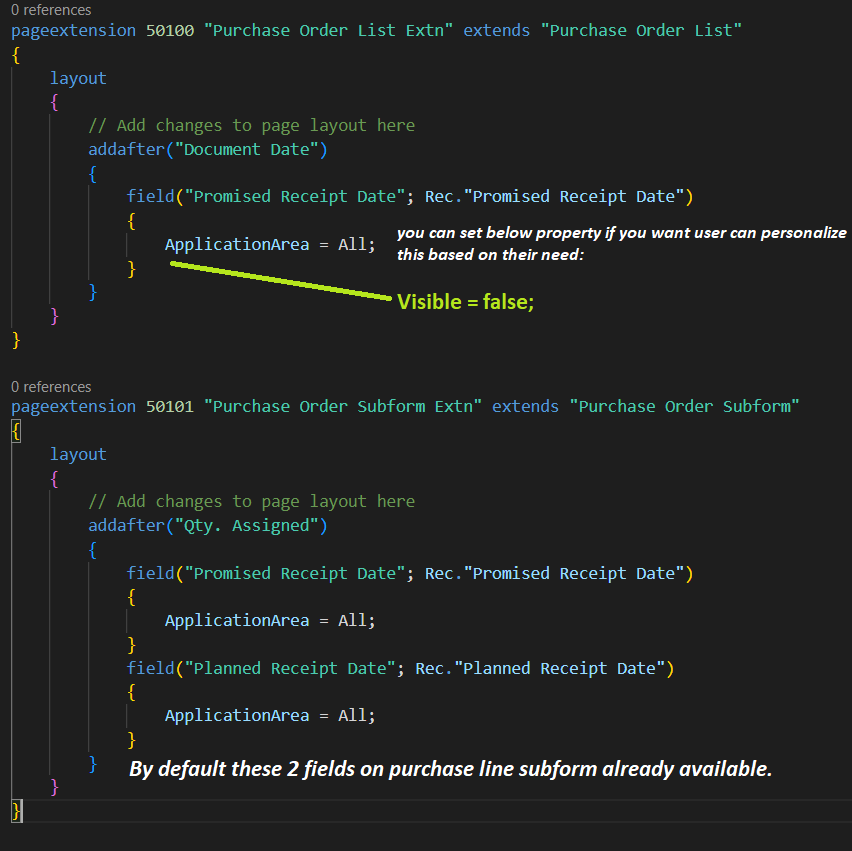
    1. If you have any Customized extensions on your environment, then in that extension you can create you new al object for the page extension - but this will add these 2 fields for the user but you can handle this by extending the page and setting Visible = false in the extension, later the user personalizes these fields based on their requirement.

    2. If you don't have any customized extension and you want to do it from UI then make sure you have proper permission so you can use Design instead of Personalize, and add the fields on the page, by default this will add the fields for every user.

    If you are using suggestion no. 1 then here is the code:
    1537.reply.png

    Make sure to verify, if it helps.

  • Suggested answer
    Inge M. Bruvik Profile Picture
    1,111 Moderator on at

    If you wait for the 2023 release wave 1 update you should be able to put the fields on the page using personalization only.

    That will save you some code changes.

    learn.microsoft.com/.../add-existing-table-fields-optimize-pages

  • Jun Wang Profile Picture
    8,202 Super User 2025 Season 2 on at

    check the user profile, those fields are standard order promising fields and shouldn't require customization  

    it might be missing cause user is under the incorrect profile

Under review

Thank you for your reply! To ensure a great experience for everyone, your content is awaiting approval by our Community Managers. Please check back later.

Helpful resources

Quick Links

Responsible AI policies

As AI tools become more common, we’re introducing a Responsible AI Use…

Neeraj Kumar – Community Spotlight

We are honored to recognize Neeraj Kumar as our Community Spotlight honoree for…

Leaderboard > Small and medium business | Business Central, NAV, RMS

#1
OussamaSabbouh Profile Picture

OussamaSabbouh 2,116

#2
Khushbu Rajvi. Profile Picture

Khushbu Rajvi. 764 Super User 2025 Season 2

#3
YUN ZHU Profile Picture

YUN ZHU 635 Super User 2025 Season 2

Last 30 days Overall leaderboard

Featured topics

Product updates

Dynamics 365 release plans


