web
You’re offline. This is a read only version of the page.
close
Skip to main content

Notifications

Announcements

No record found.

Community site session details

Community site session details

Session Id :
Small and medium business | Business Central, N...
Answered

Dynamics 365 on-prem Outlook Add-in

(0) ShareShare
ReportReport
Posted on by 57

Hello,

My company is wanting to use the Outlook Add-in. We are using the the April 2019 build 14.0.29530.0 version. I'm currently trying to test this out on a test instance using a self-signed certificate (won't do this for production). 

After creating the self-signed cert I applied the certificate thumbprint to the test instance under "General". This allowed me to install the "Set up your Business Inbox in Outlook" in assisted setup. 

After this I created a web client for the test instance in IIS under "Microsoft Dynamics 365 Business Central Web Client" site. Then under "Bindings" use the self-signed cert for port 443. Was able to browse to the web client using https. 

Under "Client Services" for the test instance I set the Web Client Base URL to https://<hostname>:443/<server instance>/WebClient 

Under "SOAP Services" I checked the "Enable SSL" and for the SOAP Base URL I set it to https://<hostname>:11047/<server instance>/WS/

Under OData Services I set the OData Base URL to https://<hostname>:11048/<server instance>/ODataV4/ 

For the ports on this instance I'm using the following:
Management Services - 11045
Client Services - 11046
SOAP Services - 11047
OData Services - 11048
Development - 11049

I have made sure it wasn't a firewall issue as well. 

In the Outlook client when I click on "Contact Insights" or "New" I'm getting the following error message:
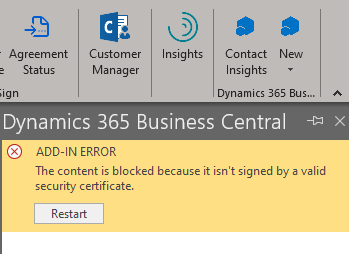
Outlook-Add_2D00_in-error.png

The self-signed cert is valid and I have read the Microsoft documentation https://docs.microsoft.com/en-us/dynamics365/business-central/dev-itpro/deployment/configure-ssl-web-client-connection... Am I missing something hear?

Edit: Forgot to mention we are using Office 365 for our exchange server. 

I have the same question (0)
  • Suggested answer
    Marco Mels Profile Picture
    on at

    Hello,

    There can be multiple possible reasons for this issue. E.g. Chrome does require the SSL to contain a SubjectAlternateName, so you should have added this to your self signed cert. The host name should match the CN name of the cert or you need to set the DNS Identity.

    That said, CN name on your subject is bla.123.local while you logon with nav as the hostname will probably not work. But you also state that it does work without issues when using the WebClient which does make this second suggestion less probably cause.

    How did you create the SSL cert? makecert is deprecated. We do recommend to do this via PowerShell. E.g.:

    New-SelfSignedCertificate -KeyUsageProperty All -KeyExportPolicy Exportable -HashAlgorithm SHA256 -KeyDescription "COMMUNITY SAMPLE" -KeyFriendlyName `

    "COMMUNITY SAMPLE" -FriendlyName "COMMUNITY SAMPLE" -Subject "*.yourdomain.com.com" -DnsName "localhost", "*.yourdomain.com.com" -CertStoreLocation "cert:\LocalMachine\My"

    Hope it does help.

  • Brad403 Profile Picture
    57 on at

    Hi Marco,

    Thank you for the reply. I didn't get a notification that this was replied to.

    I made the a self-signed cert from within IIS, but I also used from my AD CS. I did make sure that when creating the cert that the CN matched the URL of the WebClient.

    I will try making one via PS like you suggested and see if that helps.

    I also did make sure to go into the C:\inetpub\wwwroot and make the changes to the web server instance for:

    Microsoft.Dynamics.Nav.Client.ClientService.dll and changed the client services port to the port that I'm using and did the same for navsettings.json file for the client services port, the management services port and made sure the Server Instance was pointing to the test instance I was using.

    Thanks again for the reply and I will reply back once I have tested the new cert via PS.

  • Brad403 Profile Picture
    57 on at

    That PS script worked very nicely and the connection when using a web browser is now showing secure. Just getting the following message now:

    Outllok-Add_2D00_in-message.png

    Will see what I can find out about this. Once I find the solution I will be sure to post on here for anybody who comes across this in the future. Hard to find documentation for D365 Business Central On-prem. Almost all of it is for the cloud. 

  • Suggested answer
    Marco Mels Profile Picture
    on at

    Hi,

    You may want to raise a support request for this issue via your CSP / partner. We will ask for customsettings.config, navsettings.json and the two manifest files. Last but not least the application event log files.

    Thanks.

  • Verified answer
    Brad403 Profile Picture
    57 on at

    Okay, will do.

    Thank you again for the help. Much appreciated.

  • Suggested answer
    Brad403 Profile Picture
    57 on at

    Okay, so I got the outlook add-in working in my test environment. Spoke to our D365 partner and they advised me on how to get it setup to work. I did create another instance and just had it use the cronus database.

    What I needed to do was:

    Under client services for the web client base url I needed to enter the following: https://<FQDN of the server>/BC140 - The FQDN was what my ssl cert was issued to. 

    For SOAP Services I just check marked "Enable SSL" 

    For OData Services I just checked marked "Enabled SSL" 

    Then under inetpug > wwwroot > BC140 I opened up the "navsettings.json" file in notepad (as administrator) and changed the "ServerInstance" to the name of my instance. Then changed the "ClientServicesPort" and "ManagementServicesPort" to the ports I assigned for that instance. I also had to change the "ClientServicesCredentialType" to NavUserPassword and the same under the General settings for that instance. 

    Then I logged into the instance via IE and went to my user setup and under Office 365 Authentication I put in my email address for the Authentication email

    In the instance under Assisted Setup I completed the setup for Set up email and Set up you Business Inbox in Outlook

    Now after doing all this it did work, but not at first and that was because before when I was trying to get this to work for the Set up your Business Inbox in Outlook what I had originally done was enabled it for my whole organization. What I ended up having to do to finally make this work was login to Office 365 and go to the Exchange Admin Center and delete the Document View for Dynamics 365 Business Central and Business Central add-in. After that I went and setup the Set up your Business Inbox in Outlook and just enabled it for myself and then the add-in in my Outlook client worked. 

Under review

Thank you for your reply! To ensure a great experience for everyone, your content is awaiting approval by our Community Managers. Please check back later.

Helpful resources

Quick Links

Responsible AI policies

As AI tools become more common, we’re introducing a Responsible AI Use…

Neeraj Kumar – Community Spotlight

We are honored to recognize Neeraj Kumar as our Community Spotlight honoree for…

Leaderboard > Small and medium business | Business Central, NAV, RMS

#1
OussamaSabbouh Profile Picture

OussamaSabbouh 2,238

#2
YUN ZHU Profile Picture

YUN ZHU 773 Super User 2025 Season 2

#3
Sumit Singh Profile Picture

Sumit Singh 630

Last 30 days Overall leaderboard

Featured topics

Product updates

Dynamics 365 release plans
