Hi Jay1,
There are two methods of adjusting leases within the Asset Leasing module - through the Adjust Lease form or using the adjustment wizard. The Adjustment Wizard is a newer feature and can be enabled through feature management. https://docs.microsoft.com/en-us/dynamics365-release-plan/2021wave1/finance-operations/dynamics365-finance/adjustment-wizard-asset-leases#:~:text=The%20adjustment%20wizard%20lets%20you,information%20before%20processing%20the%20adjustment.
Adjust Lease Form
If the adjustment wizard is not yet enabled, navigate to the lease you wish to adjust and click "Adjust lease" in the ribbon.

This will open a page similar to the Add Lease form where the fields are now editable. I'd recommend first scrolling down to the payment schedule lines to adjust those first. The payment schedule lines should be added on a prospective basis meaning only those payments on or after the modification date of the lease should be entered. All previously paid payment amounts should be removed from the payment schedule lines. Note - one benefit of the adjustment wizard is that it does this step for you automatically. Next, scroll up to the General tab and enter your adjustment date in the Commencement Date field and any other new adjustment information. Click Create Schedules and navigate to the lease.
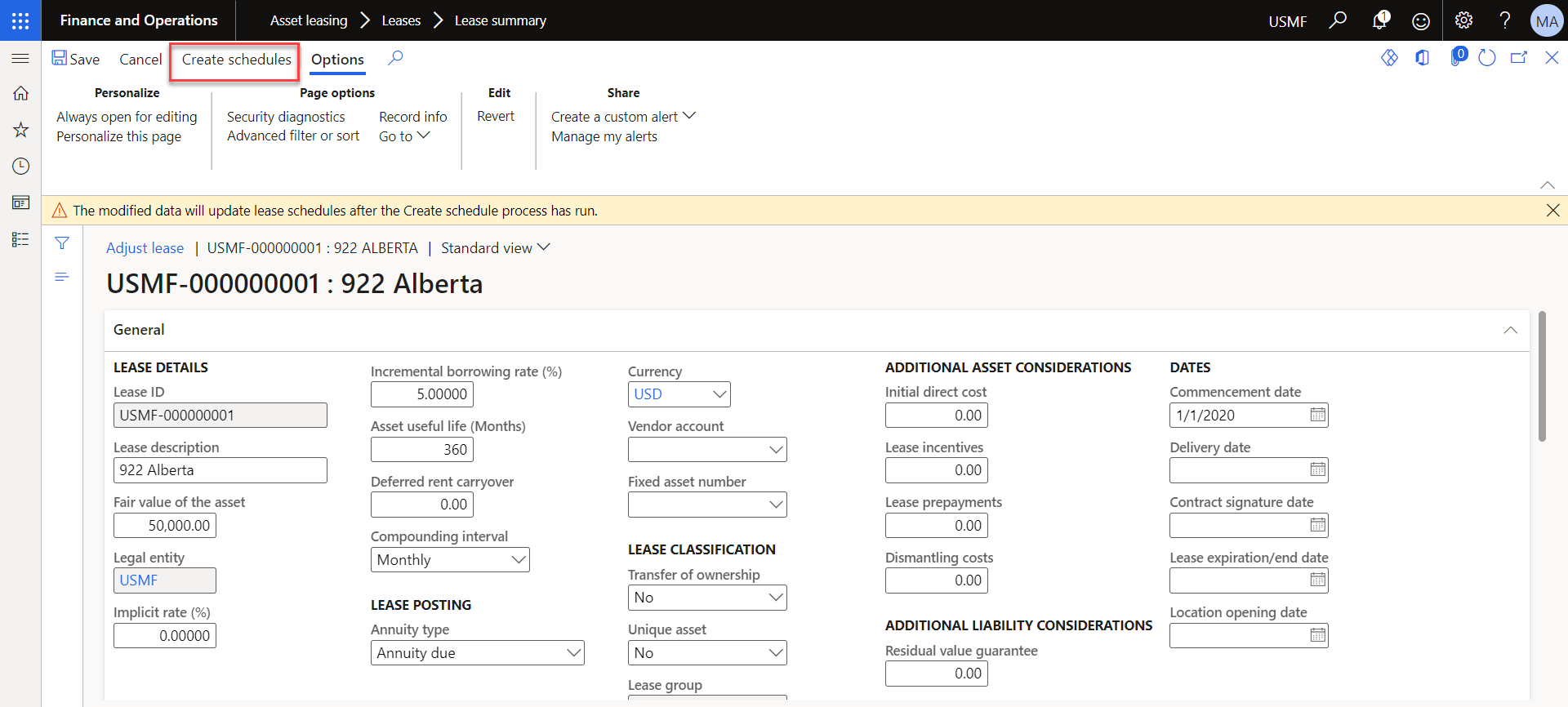
Like when you create a lease for the first time, you will have to navigate into the books of that lease and confirm the payment schedules.

Once the payment schedules are confirmed, you will click "Lease adjustment" in the ribbon to generate the adjustment journal entry. To post the entry, navigate to the Asset Leasing journals and post.

Adjustment Wizard
To use this feature, the Adjustment Wizard feature must be enabled:
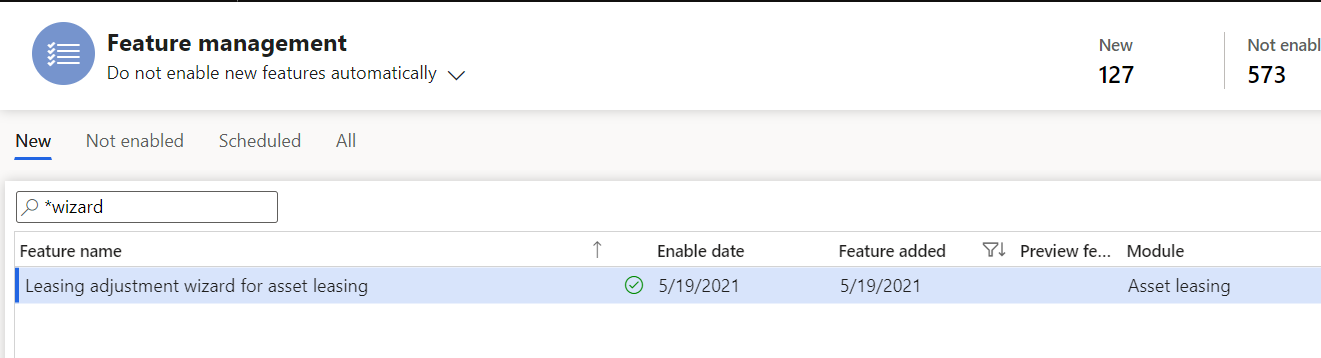
Once it is enabled, navigate to the lease you wish to adjust and click "Adjustment wizard".

The wizard will first ask for key dates and run validations to ensure the lease has been processed up until the time of the adjustment and that there are no unposted journal entries.

Once you advance from this page, you will see the editable lease fields. Note that the payment schedule lines are now shown for only those payment schedule lines from the modification date forward.

Once you have filled out the proper information, click next where you will see a preview of the adjustment journal entry and the carrying values of the asset and liability prior to the adjustment and after the adjustment. To confirm the adjustment and automatically post the adjustment entry, click Finish:

The adjustment wizard makes adjusting a lease easier and more intuitive so I would recommend enabling that feature to avoid many of the common mistakes users may make while adjusting their leases.
The Microsoft functional documentation for adjusting leases can be found here: https://docs.microsoft.com/en-us/dynamics365/finance/asset-leasing/adjust-lease
Thanks!


