web
You’re offline. This is a read only version of the page.
close
Skip to main content

Notifications

Announcements

No record found.

Community site session details

Community site session details

Session Id :
Small and medium business | Business Central, N...
Answered

How to add Column in Posted Purchase Invoice list?

(0) ShareShare
ReportReport
Posted on by 29

Hello all,

I'm brand new to this forum, and new to NAV so if I have posted in the wrong place, please let me know :-)

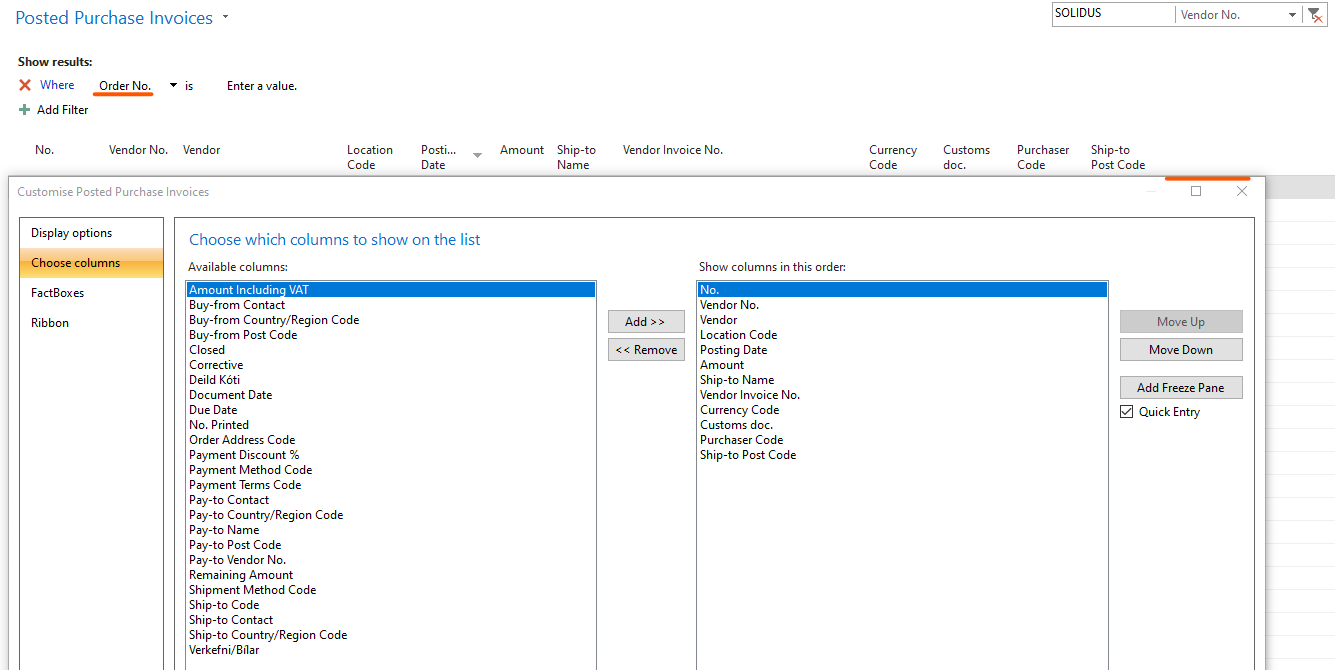
I want to add a column to my list of Posted Purchase invoices, so that I can pull out a list in Excel.

The field is Order No, that being where the associated purchase order number is filled (although I know that it isn't always populated).

I can see that it's possible to use Advanced Filter to filter by individual order number, but I would rather have the column Order No included in the list.

However I don't see it in the Choose Columns List.

Can anyone advise?

Thanking you in advance for reading,
pastedimage1643201034641v1.png

I have the same question (0)
  • Suggested answer
    Inge M. Bruvik Profile Picture
    1,105 Moderator on at

    Then you should implement a page extention for the Posted sales invoice like this:

    pageextension 50101 PostedSalesInvoiceExt extends "Posted Sales Invoices"

    {

       layout

       {

           addafter("No.")

           {

               field("Order No.";rec."Order No.")

               {

                   ApplicationArea = all;

                   Visible = true;

               }

           }

       }

    }

  • Suggested answer
    Inge M. Bruvik Profile Picture
    1,105 Moderator on at

    And here is even one for the correct page - sorry:

    pageextension 50101 PostedPurchaseExt extends "Posted Purchase Invoices"

    {

       layout

       {

           addafter("No.")

           {

               field("Order No."; rec."Order No.")

               {

                   ApplicationArea = all;

                   Visible = true;

               }

           }

       }

    }

  • Verified answer
    YUN ZHU Profile Picture
    95,331 Super User 2025 Season 2 on at

    Hi, This is because the field is in the table, but not on the page.

    Igne introduced the method of using Extension. If you have a development license, you can also add fields in the development environment.

    pastedimage1643245598333v1.png

    Hope this will help.

    Thanks.

    ZHU

  • Lovisa LH Profile Picture
    29 on at

    Dear Inge,

    Thank you for the prompt response! Do you have some recommendation for a good place for a beginner to learn how to about use page extensions? There are so many bewildering resources available, it's hard to know where to start

    Thank you in advance!

  • Verified answer
    Lovisa LH Profile Picture
    29 on at

    Thank you Zhu for the advice. I will look into it more with this point in mind. First to find out if we have a Developer licence or not!

    Best,

    Louise

  • Lovisa LH Profile Picture
    29 on at

    Thank you Zhu! Once I found the right person to give me the required access, this was a very simple solution!

Under review

Thank you for your reply! To ensure a great experience for everyone, your content is awaiting approval by our Community Managers. Please check back later.

Helpful resources

Quick Links

Responsible AI policies

As AI tools become more common, we’re introducing a Responsible AI Use…

Neeraj Kumar – Community Spotlight

We are honored to recognize Neeraj Kumar as our Community Spotlight honoree for…

Leaderboard > Small and medium business | Business Central, NAV, RMS

#1
OussamaSabbouh Profile Picture

OussamaSabbouh 3,143

#2
Jainam M. Kothari Profile Picture

Jainam M. Kothari 1,694 Super User 2025 Season 2

#3
YUN ZHU Profile Picture

YUN ZHU 1,067 Super User 2025 Season 2

Last 30 days Overall leaderboard

Featured topics

Product updates

Dynamics 365 release plans
