web
You’re offline. This is a read only version of the page.
close
Skip to main content

Notifications

Announcements

No record found.

Community site session details

Community site session details

Session Id :
Microsoft Dynamics 365 | Integration, Dataverse...
Suggested Answer

Where can I find the real attribute names for web link objects?

(0) ShareShare
ReportReport
Posted on by 5

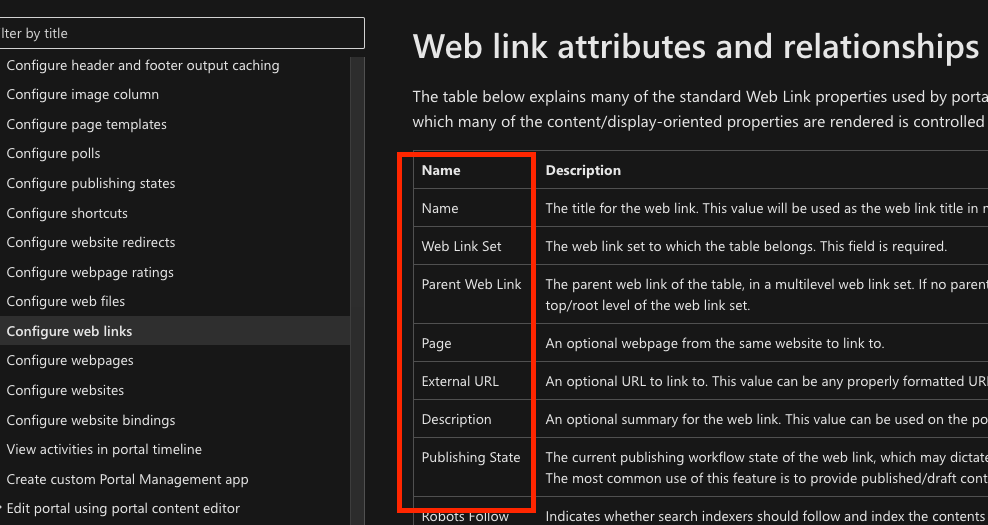
The tables in the Web Link section list the available attributes but they are not very helpful.

They list the attribute names in "display name format", but when it comes to writing liquid code we need the real attribute in the correct format.
Screenshot-2023_2D00_03_2D00_10-at-13.43.03.png

For example, if I want to target the External URL attribute, how do I know what format it should be?

{{ link.ExternalURL }} ?

{{ link.externalurl }} ?

{{ link.externalUrl }} ?

{{ link.external_url }} ?

{{ link.external-url }} ?


We need another column in the table with this information...
but until then, is there any way I can find out what the correct format is ?
I have the same question (0)
  • Suggested answer
    DAnny3211 Profile Picture
    11,397 on at

    hi

    you can find the correct format for the attribute by using the Liquid debugger. Follow these steps:

    Go to the web page where you want to use the liquid code.

    Add "?debug=liquid" to the end of the URL in the address bar.

    Load the page.

    Right-click on the web page and select "View Page Source".

    In the page source, search for "<!-- debug output start -->".

    Below that, you will find the Liquid code that is being used for the page. Look for the section that corresponds to the Web Link section and find the attribute you want to use.

    The Liquid code for the attribute will be in the format "{{ link.attribute_name }}". Use this format in your code.

    Using the Liquid debugger will allow you to see the actual Liquid code that is being used for the page and find the correct format for the attribute you want to use.

    DAniele

  • HTK421 Profile Picture
    5 on at

    Thanks for the reply Daniele, I really appreciate it,

    but it Im afraid didn't work for me.

    I have tried several pages that use Liquid code (in the web Templates) and the "?debug=liquid" query did not expose any liquid attributes in the source.

    Also, I need to use some attributes that I have not used before, so even if I can get the debugger to work, I think perhaps I will only see liquid attributes for objects that have been used in the page?  How would I see attributes that I have not used yet ?

  • HTK421 Profile Picture
    5 on at

    Ive found the reference table

    Just posting here to share the knowledge :-)

    I had originally been looking under [Learn > Power Platform > Power Apps > Manage Weblinks]

    learn.microsoft.com/.../manage-web-links

    However there is an almost identical page under [Learn > Power Platform > Power PAGES > Available Liquid Objects]

    learn.microsoft.com/.../liquid-objects

    This table actually has the proper code format for the object attributes

    so, in my case, the correct format for External URL is actually {{ link.url }}

Under review

Thank you for your reply! To ensure a great experience for everyone, your content is awaiting approval by our Community Managers. Please check back later.

Helpful resources

Quick Links

Responsible AI policies

As AI tools become more common, we’re introducing a Responsible AI Use…

Neeraj Kumar – Community Spotlight

We are honored to recognize Neeraj Kumar as our Community Spotlight honoree for…

Leaderboard > Microsoft Dynamics 365 | Integration, Dataverse, and general topics

#1
iampranjal Profile Picture

iampranjal 41

#2
Martin Dráb Profile Picture

Martin Dráb 38 Most Valuable Professional

#3
Satyam Prakash Profile Picture

Satyam Prakash 35

Last 30 days Overall leaderboard

Product updates

Dynamics 365 release plans



