web
You’re offline. This is a read only version of the page.
close
Skip to main content

Notifications

Announcements

No record found.

Community site session details

Community site session details

Session Id :
Microsoft Dynamics CRM (Archived)

Contacts syncing to Outlook - can you specify a contacts folder to sync with, rather than the default?

(0) ShareShare
ReportReport
Posted on by 110

So the deal is we're rolling out CRM to 300 users, all of which have existing contacts in Outlook. We're importing contact data from a legacy CRM which historically did not sync with Outlook. This means that when we do the import and sync for the 1st time, many users will end up with duplicates in their contacts folder if they had the contact there already.

Is there a way to specify a particular contacts folder in Outlook where CRM contacts would be synced? I was thinking we'd create a new Outlook folder called 'Dynamics Contacts' for every user, and then specify in CRM that synced contacts are to go into that new folder, and not the default contacts folder?

I could obviously do this manually but this would take quite some time, so I'm hoping there's a more elegant solution out there.

I hope that makes sense. Any help appreciated.

Thanks

*This post is locked for comments

I have the same question (0)
  • Suggested answer
    Drew Poggemann Profile Picture
    4 on at

    Hi Glasgow123,

    I have done something similar a couple times with different customers and followed this approach below.  I am sure there are other methods but I had challenges with other attempts I tried...
    7183.contacts.PNG

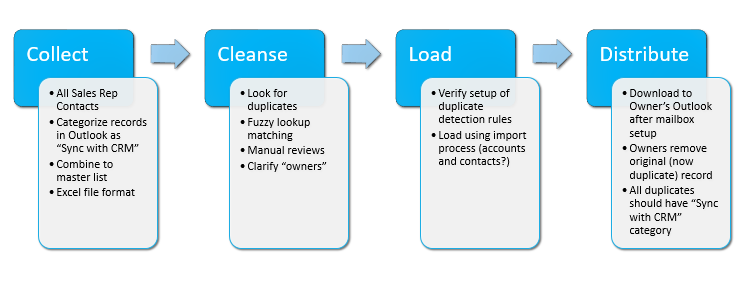
    ?Categorize all contacts in sales reps current Outlook clients as “Sync with CRM” to flag these contacts to synchronize into CRM or give them Excel file template to fill in their contacts if they do not have them in Outlook.
    ?In Outlook Client - Export all contacts from current Outlook “My Contacts” to CSV file with default columns – Note that the category will be used to grab these contacts to bring into CRM
    ?Pull all these contact lists together into a master spreadsheet and utilize matching algorithms to identify duplicates and manually reviewing and removing records that can be deleted
    ?Extract all accounts from CRM into spreadsheet which will be used to match company for the contacts
    ?Import to CRM – Create contacts into CRM and assign to appropriate accounts identified.  If no account associated then load the contact and do not set the account relationship.
    ?From this information, match the company names on the contact records with the accounts (fuzzy matching will be required)
    ?Contacts –  Import cleansed contacts into CRM with appropriate owner on the account identified as well (this would be the sales rep).  This means that the sales reps need to exist in CRM at the time we load this data. 
    ?Note:  Check duplicate matching rules in CRM and determine what you want to use:
    ?Contacts with same business phone number
    ?Contacts with the same e-mail address
    ?Contacts with the same first name and last name
    ?After importing these two entities the contacts will be downloaded to the “My Contacts” for the owning users after they have been setup successfully as a valid user in CRM and enabled. 
    ?NOTE:  This will mean that the users will have duplicate contacts for all the contacts that they sync’d to CRM. 
    ?Backup their PST to a file – in case any issues…
    ?Verify all contacts that were synchronized look correct
    ?Select all contacts with category “Sync with CRM” and delete these contacts

    Hope this make sense and helps!

    Thanks much,

  • Julie Glasgow Profile Picture
    110 on at

    Hello Drew,

    Thanks for your response, however it does not quite answer my question. Perhaps I didn't word the question correctly.

    I don't want to merge existing Outlook Contacts, but I want the CRM contacts to go into a specific Contacts folder in outlook to keep them separate. I know that by default, CRM will sync these contacts with the regular Outlook Contacts folder, but is there a way to specify a new folder to sync with?

    Thanks

    Julie

  • Verified answer
    Drew Poggemann Profile Picture
    4 on at

    Hi Julie,

    The approach we followed in this was for two customers with hundreds / thousands of contacts and multiple sales reps that had these contacts in Outlook and not in CRM at the time.  They were all coming on to CRM with this approach.  We did not use the folder in Outlook approach but utilized the Category concept to accomplish this and it worked well to upload all the contacts into CRM, verify they were synching correctly, and then clean up the originals.

    Based on what your challenge is it looked like this would work for you and that is why I suggested.  This was not really to merge existing Outlook contacts.

    Now, as far as the folder to sync in the question you provided, no, not that I know of.  It does not give you the option to select.

    Thanks much!

  • Community Member Profile Picture
    on at

    This might help:

    Identifying Synchronized Microsoft Dynamics CRM items in Outlook (https://us.hitachi-solutions.com/blog/identifying-crm-sync-items-after-crm-client-is-removed-or-changed/ )

Under review

Thank you for your reply! To ensure a great experience for everyone, your content is awaiting approval by our Community Managers. Please check back later.

Helpful resources

Quick Links

Responsible AI policies

As AI tools become more common, we’re introducing a Responsible AI Use…

Neeraj Kumar – Community Spotlight

We are honored to recognize Neeraj Kumar as our Community Spotlight honoree for…

Leaderboard > 🔒一 Microsoft Dynamics CRM (Archived)

#1
SA-08121319-0 Profile Picture

SA-08121319-0 4

#1
Calum MacFarlane Profile Picture

Calum MacFarlane 4

#3
Alex Fun Wei Jie Profile Picture

Alex Fun Wei Jie 2

Last 30 days Overall leaderboard

Featured topics

Product updates

Dynamics 365 release plans



