web
You’re offline. This is a read only version of the page.
close
Skip to main content

Notifications

Announcements

No record found.

Community site session details

Community site session details

Session Id :
Microsoft Dynamics CRM (Archived)

Automatic Record Creation Not Working

(0) ShareShare
ReportReport
Posted on by

Hello Community,

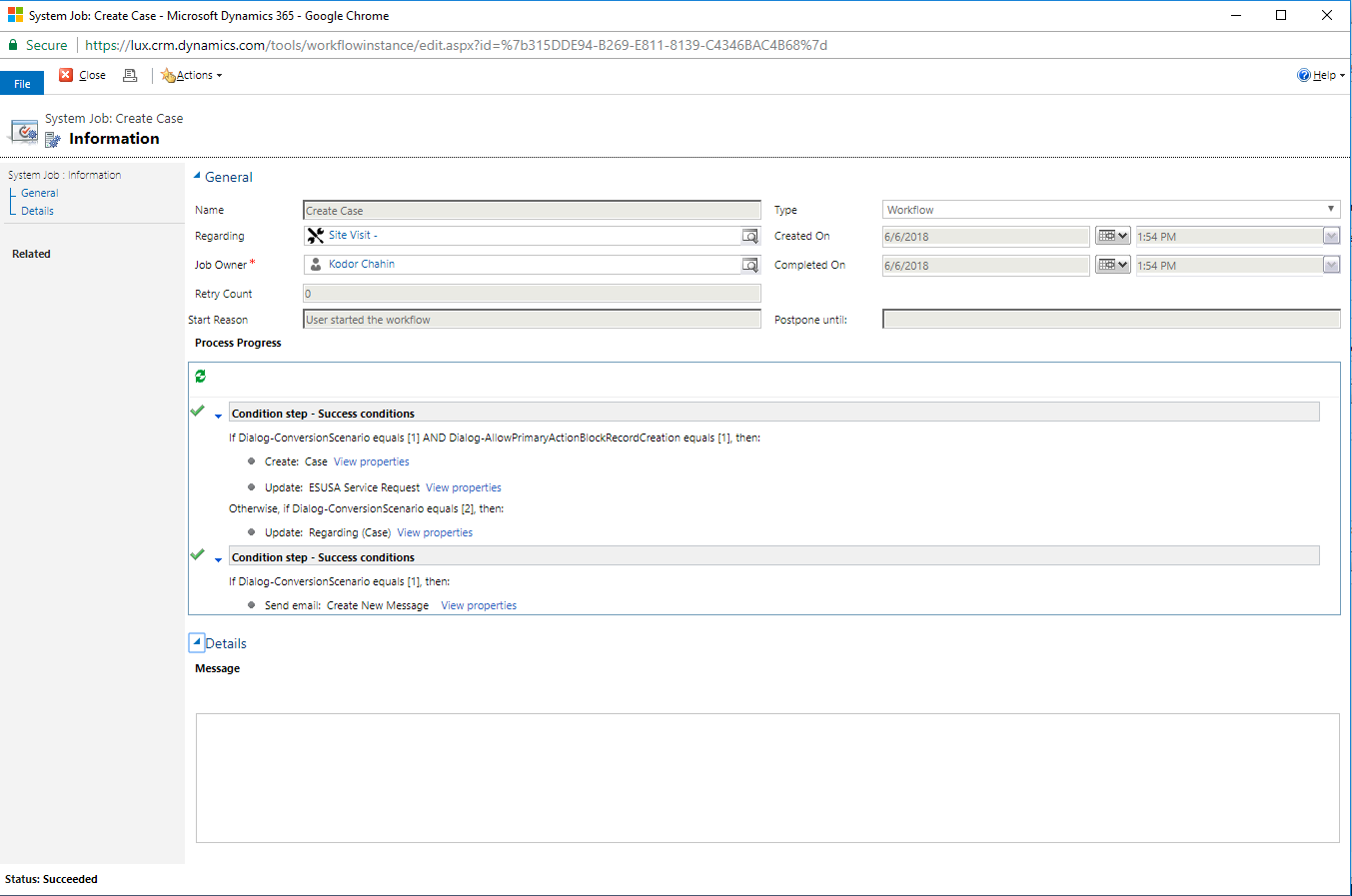
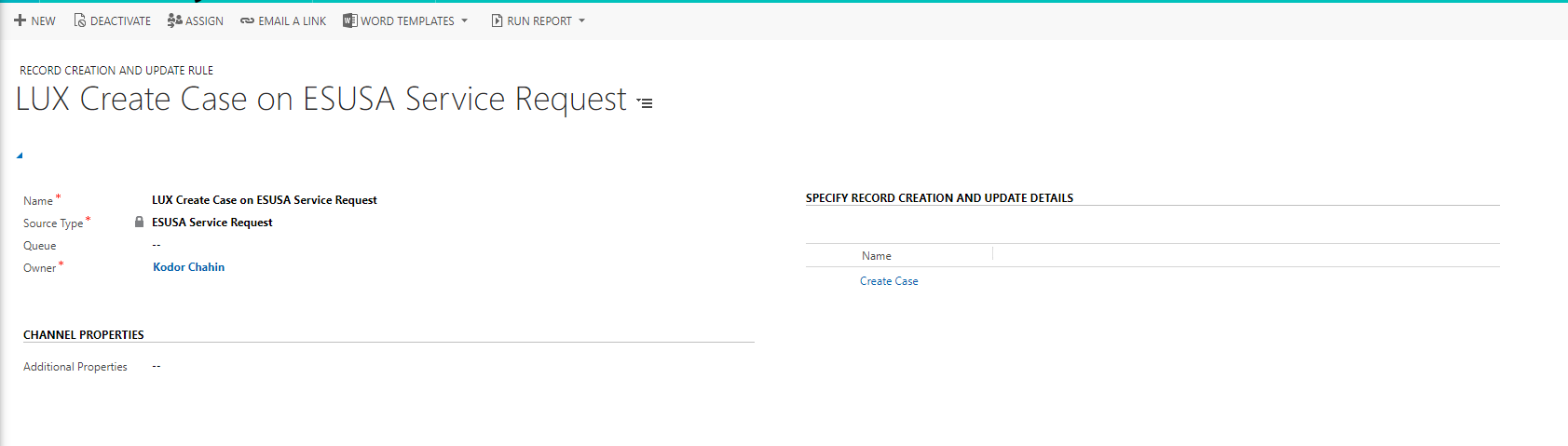
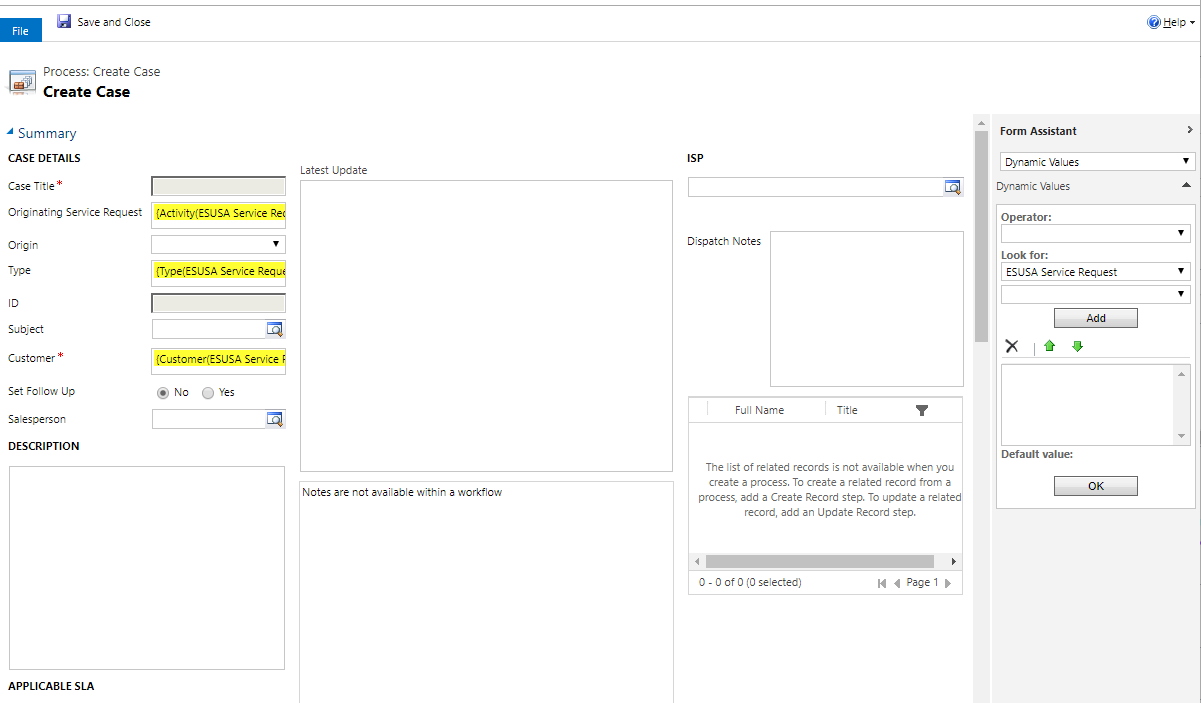
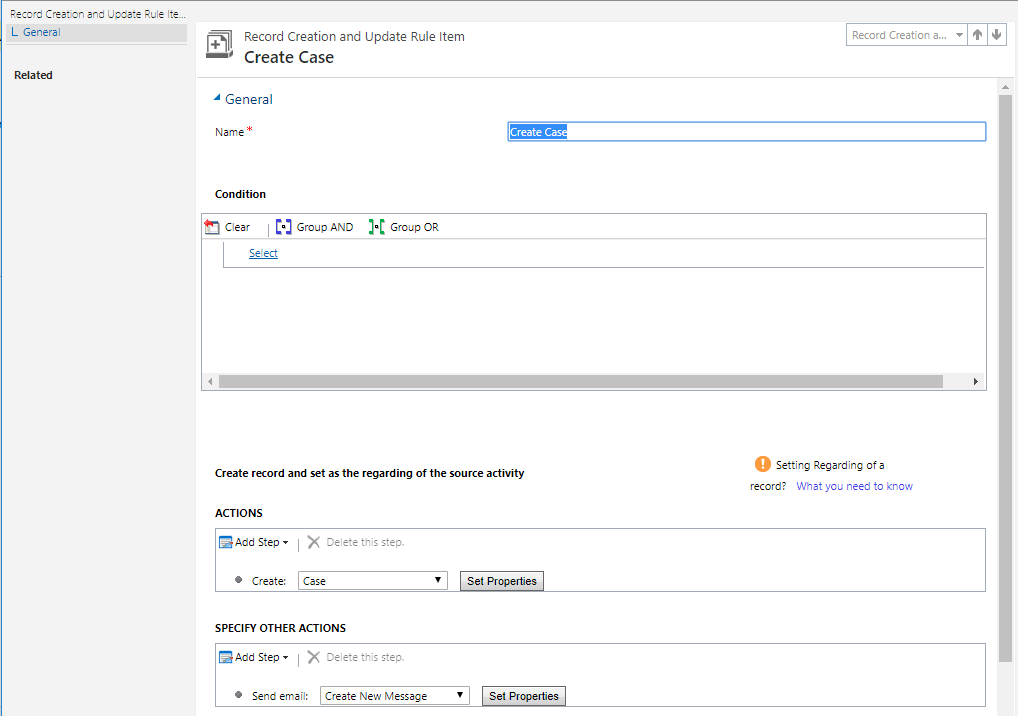
I am trying to make an automatic case creation rule whenever an ESUSA Service Request (Custom Entity) is created. The system job is marked as ran successfully but the case is not created and the email is not sent out. There are no errors or alerts when checking the background processes. I have no idea what the issue is. Attached are some images to help show all the details.
7827.case.PNG8715.create_2D00_case.PNG4431.systemjob.PNG4774.creation_2D00_rule.PNG

*This post is locked for comments

I have the same question (0)
  • Suggested answer
    Abby Kong Profile Picture
    6 on at

    Hello Kodor,

    From the screenshot of process progress, both If and Otherwise-If conditions are not met. I think if you have an Otherwise step, it would be triggered.

    6305.desktop.png

    Can you please check your conditions again?

    Regards,

    Abby

  • Suggested answer
    Alex Fun Wei Jie Profile Picture
    33,628 on at

    Hi,

    it means, your record doesn't meet the condition you set in rule, double check the conditions again.

  • Community Member Profile Picture
    on at

    Hello,

    as you can see, I did not put any conditions in the workflow.

    I tried adding a condition that will  always be true, and the issue is still the same.

    Thank you

  • Suggested answer
    Community Member Profile Picture
    on at

    Hi Kodor Chahin,

    I think I found the solution. I created a copy of your Record Creation and Update Rule Item by triggering it from a service activity's creation.

    I then setup a rule item, but instead of leaving the condition blank, I set it to be true only if the service activity is true:

    Successful-System-Job.jpg

    Thereafter, once I created a service activity, the system job ran (the note was created on the service activity and an email was sent to me):

    Successful-System-Job.jpg

    Try this out and let me know if it works on your side.

  • Community Member Profile Picture
    on at

    Hello Barry,

    I Tried putting in a similar conditional clause but still no luck.

    Thanks,

    Kodor

  • Community Member Profile Picture
    on at

    Hi Kodor Chahin,

    What I would suggest is try using one condition at a time. So for example, set your initial condition in place and then only create the case (remove the other steps all together). If that does not work, try a different condition like the one I set and again, try only creating the case.

    If this still does not continue to work, I would suggest opening a ticket with Microsoft Support.

  • Abby Kong Profile Picture
    6 on at

    Hello Kodor,

    Sorry, maybe I didn't make myself clear. I meant the conditions of If and Otherwise-If clause.

    As you can see in Barry's screenshot, there is a little green tick/check sign (whichever you call it :)) in front of 'Create Note', means the If condition 'Service Activity contains data and Dialog-ConverstaionScenario equals[1]' is true.

    However, in your workflow, both If and Otherwise-If are not triggered as there is no tick sign in front steps under them (please see the picture I posted above).

    Can you please check the conditions of 'Dialog-ConversationScenario equals[1] AND Dialog-AllowPrimaryActionBlockRecordCreate equals [1]' and 'Dialog-ConversationScenario equals [2]'?

    Maybe try removing 'AND Dialog-AllowPrimaryActionBlockRecordCreate equals [1]' to test?

    Regards,

    Abby

  • Community Member Profile Picture
    on at

    Hi Abby,

    I know and understand what you are saying,

    but how do I remove those conditions? I didn't

    add them so I don't know how they got there.

    Best,

    Kodor

  • Abby Kong Profile Picture
    6 on at

    Hello Kodor,

    https://technet.microsoft.com/en-us/library/dn531057.aspx

    To make change on activated workflow, you need to deactivate the workflow first.

    1. Find this workflow 'Create Case' trough 'Settings->Processes'

    2. Open  the activated workflow, click the 'Deactivate' ribbon button

    3. The workflow become editable after deactivated (status become draft), now you can open the if conditions and make changes

    4. Activate the workflow

    By the way, you can find related process sessions directly on the workflow page  processsessione.PNG

    Regards,

    Abby

  • Community Member Profile Picture
    on at

    Hi Abby,

    Even when deactivated, I cannot alter the workflow from the process section.

    Thanks,

    Kodor

    4503.createcase.PNG

Under review

Thank you for your reply! To ensure a great experience for everyone, your content is awaiting approval by our Community Managers. Please check back later.

Helpful resources

Quick Links

Responsible AI policies

As AI tools become more common, we’re introducing a Responsible AI Use…

Neeraj Kumar – Community Spotlight

We are honored to recognize Neeraj Kumar as our Community Spotlight honoree for…

Leaderboard > 🔒一 Microsoft Dynamics CRM (Archived)

#1
SA-08121319-0 Profile Picture

SA-08121319-0 4

#1
Calum MacFarlane Profile Picture

Calum MacFarlane 4

#3
Alex Fun Wei Jie Profile Picture

Alex Fun Wei Jie 2

Last 30 days Overall leaderboard

Featured topics

Product updates

Dynamics 365 release plans