web
You’re offline. This is a read only version of the page.
close
Skip to main content

Announcements

No record found.

News and Announcements icon
Community site session details

Community site session details

Session Id :
Customer experience | Sales, Customer Insights,...
Suggested Answer

Dynamics 365 Marketing " Go live" Security Role permission

(0) ShareShare
ReportReport
Posted on by 15

Is there a way to restrict which users can "go live" with a marketing email, page, or form in the permissions area of their security role in Dynamics 365 Marketing?

I have the same question (0)
  • Suggested answer
    cloflyMao Profile Picture
    25,210 on at

    Hi Kfaradie,

    You should download Ribbon Workbench to hide ribbon button.

    Please read article below for way of hiding the buttons without code:

    https://www.powerobjects.com/blog/2016/05/17/solving-security-headaches-display-rules-based-on-security-roles/

    You could take my steps if you would like to do it with code, which I thought it would be simple and straightforward.

    0. As marketing email entity as example.

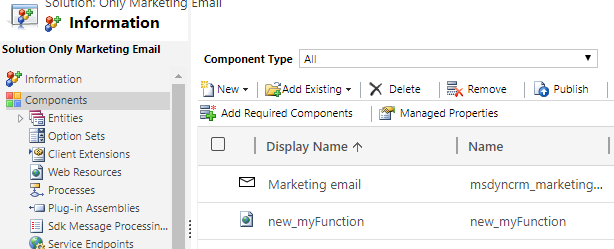
    1. Add Marketing email entity and our javascript web resource(optional if you had added in customization) into a new solution.
    4035.pastedimage1575516294887v1.png

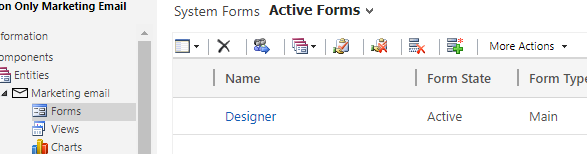
    2. Only add designer form. 

    2664.pastedimage1575516408338v2.png

    Notes for 1 & 2:

    -> Ribbon Workbench might be stuck and gets error if we added too many components in a solution

    -> We just add necessary components 

    -> 1 & 2 are also required if you want to do hide customization without code.

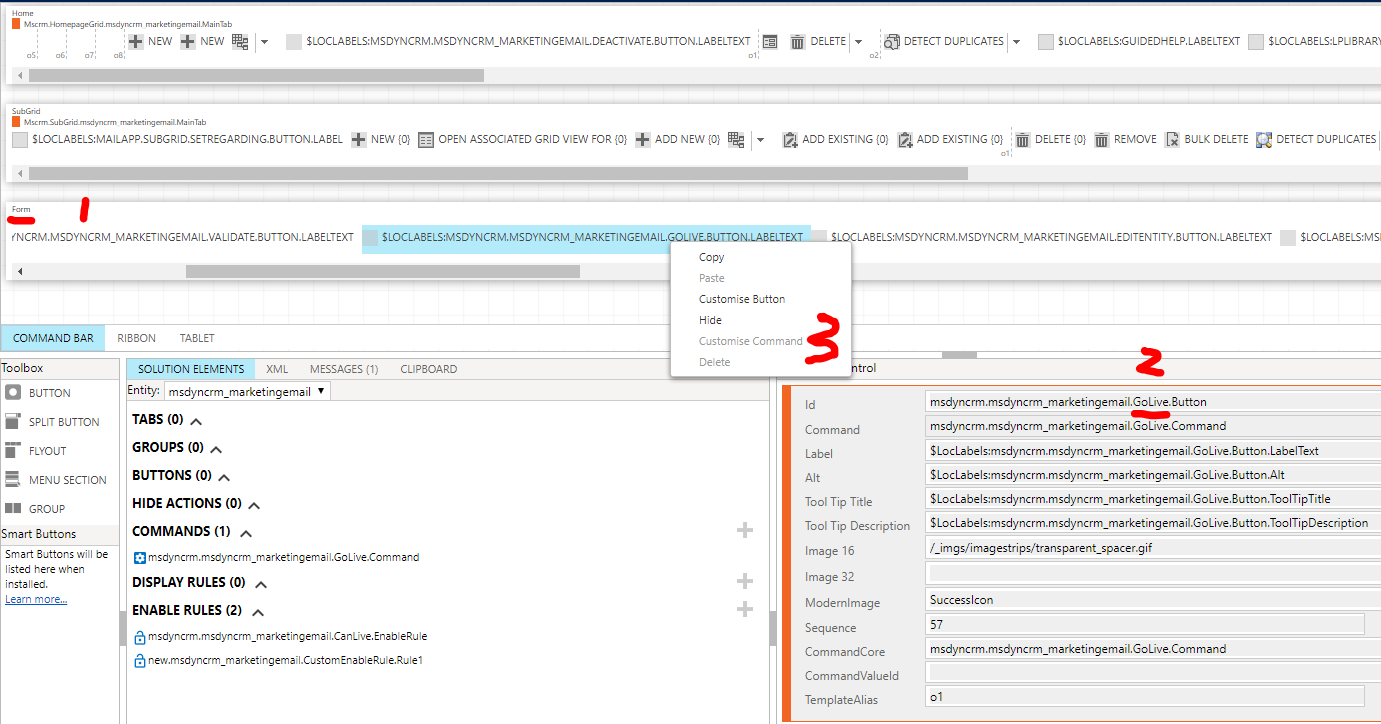
    3. In ribbon button editor page, go to Form section(1),

    find the Go Live button(2),

    click Customise Command(3, I've customised it)
    3022.pastedimage1575524235638v3.png

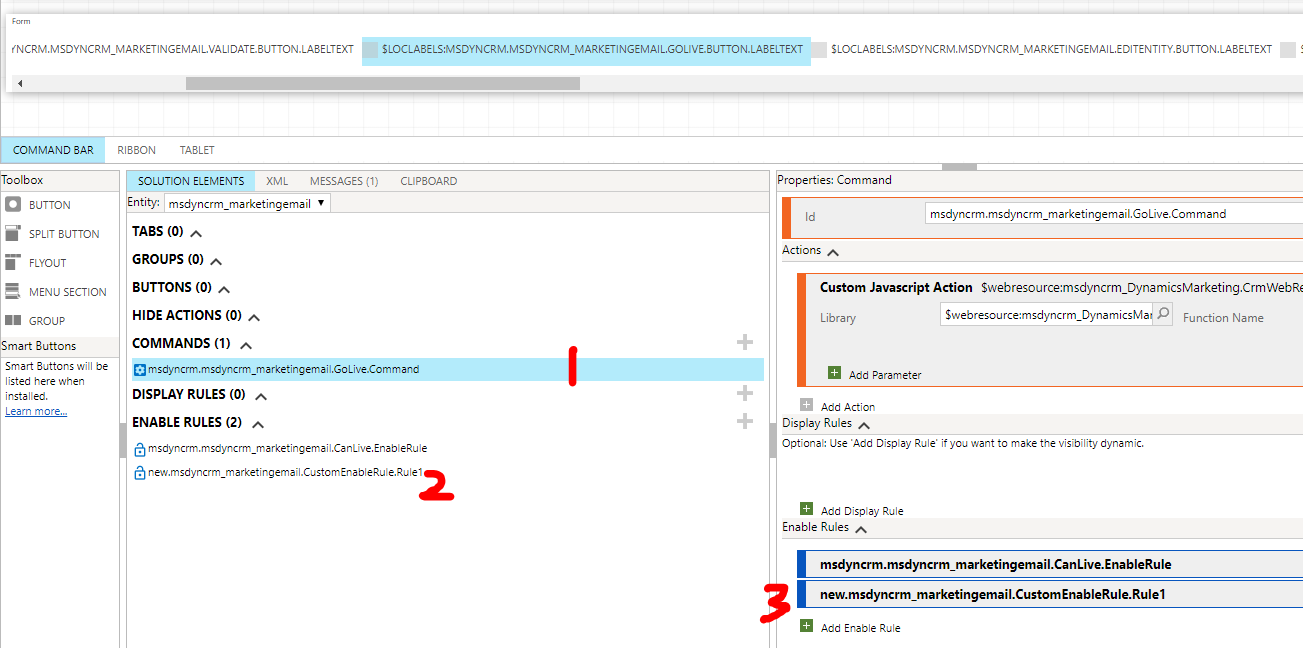
    4. select command on the button(1),

    add an Enable rule to the button(2),

    apply the rule to the button(3)
    6567.pastedimage1575524438338v4.png

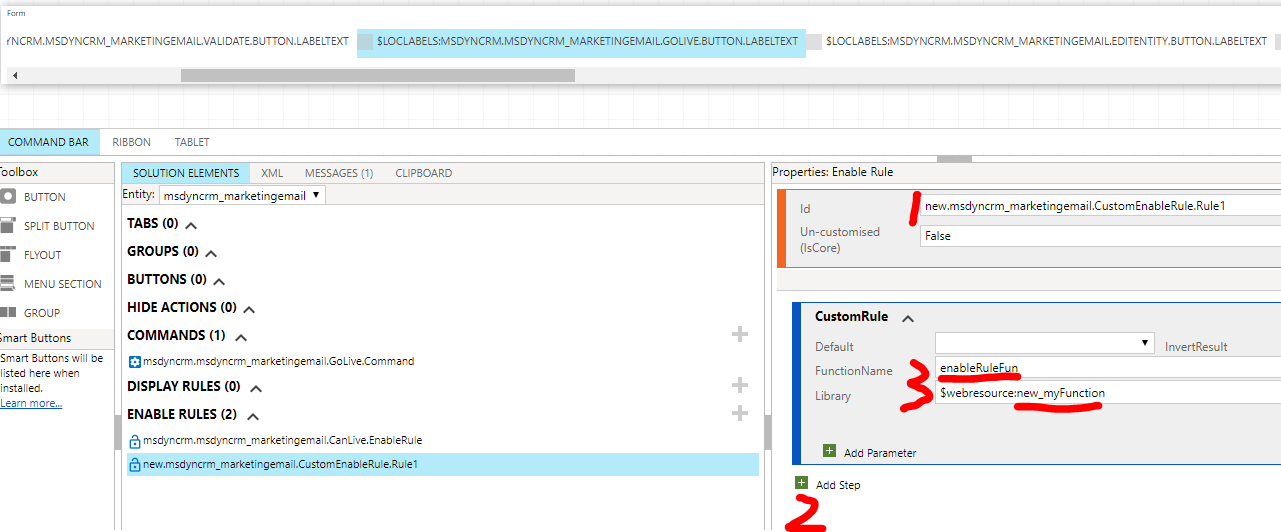
    5. give a custom name to Id property, that's our custom rule name(1),

    add a custom rule(2),

    add our hide function and its web resource.(3)
    3731.pastedimage1575524586183v5.png

    6. Web resource code(demo):

    function enableRuleFun() {
      var currentUser = Xrm.Utility.getGlobalContext().userSettings.userName;
      var permittedUsers = ["Admin"];
      //var permittedUsers = ["MOD Administrator"];
      if (permittedUsers.indexOf(currentUser) > -1) {
        return true;
      } else {
        return false;
      }
    }

    My current user name is MOD Administrator, because it not exists in permittedUsers array,

    so Go Live button will be hidden for me.(Unless there is a user named Admin)

    Hope above methods help.

    Regards,

    Clofly

  • Chris J Profile Picture
    Microsoft Employee on at

    One suggestion is after Wave 2 release, you can use Flow to request Approval before "Go Live" directly.

    docs.microsoft.com/.../support-approvals-using

  • Chris J Profile Picture
    Microsoft Employee on at

    One suggestion is after Wave 2 release, you can use Flow to request Approval before "Go Live" directly.

    docs.microsoft.com/.../support-approvals-using

  • cloflyMao Profile Picture
    25,210 on at

    Hi kfaradie,

    Please let us know whether your requirement could be met with our methods. :)

    Regards, 

    Clofly

Under review

Thank you for your reply! To ensure a great experience for everyone, your content is awaiting approval by our Community Managers. Please check back later.

Helpful resources

Quick Links

Introducing the 2026 Season 1 community Super Users

Congratulations to our 2026 Super Stars!

Congratulations to our 2025 Community Spotlights

Thanks to all of our 2025 Community Spotlight stars!

Leaderboard > Customer experience | Sales, Customer Insights, CRM

#1
ManoVerse Profile Picture

ManoVerse 189 Super User 2026 Season 1

#2
CU11031447-0 Profile Picture

CU11031447-0 100

#3
NeerajPawar Profile Picture

NeerajPawar 66

Last 30 days Overall leaderboard

Product updates

Dynamics 365 release plans