Hi,
I also posted this on Microsoft/AL (GitHiub). Any feedback here is appreciated.
**Describe the bug**
The app is published and works as expected (Payment Method Code for 8 Sales Orders for Adatum Corporation – and any other I try - are changed when the Customer Card Payment Method Code is changed), with below launch.json, app.json, and codeunit used to test the debugger.
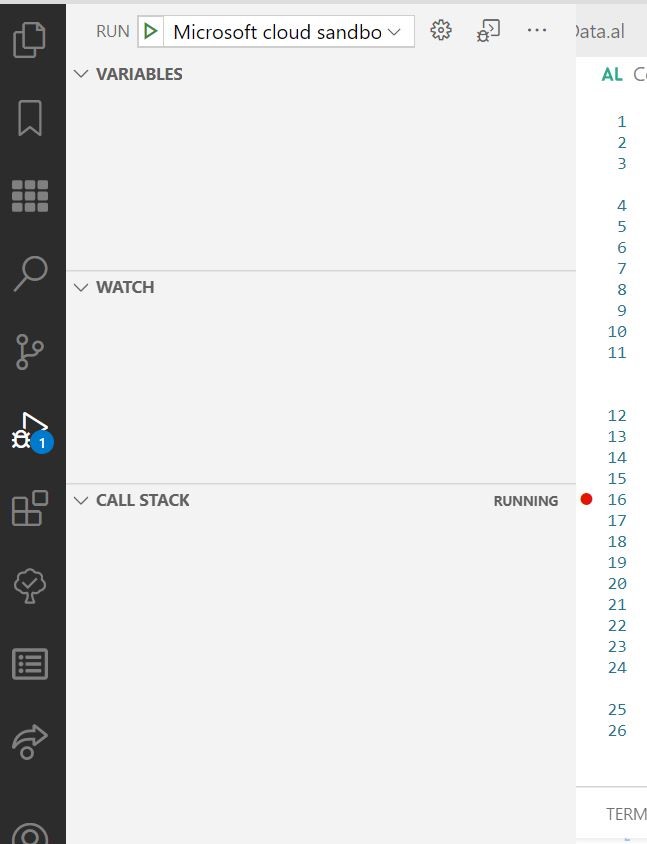
The debugger does not stop at breakpoints, or otherwise seem to work.
The only result I have seen in the debugger is that the CALL STACK will sometimes show “RUNNING.”
**To Reproduce**
Steps and to reproduce the behavior:
Aside from the below files, have also tried to use in settings.json:
`"al.editorServicesLogLevel": "Debug". (restarted VS Code to take effect)`
And then
`"al.editorServicesLogLevel": "Verbose" (restarted VS Code to take effect)`
EditorServices.log, and the debugger (DebuggerServices.log) are NOT output to the
C:\Users\<USER>\.vscode\extensions\... \bin directory.
The only new directory created in the path is 365businessdevelopment.bdev-al-xml-doc-1.0.2, which is empty.
There is this “Unknown Config Setting” added setting to settings.json:
`bdev-al-xml-doc.checkProcedureDocumentation": true, (tried true and false without causing an effect).`
Cleared browser cache.
Cleared .alchache in VS Code.
In total, no effect to get the debugger to pause on breakpoints.
``` AL Code to reproduce the issue ```
launch.json
```
{
"version": "0.2.0",
"configurations": [
{
"name": "Microsoft cloud sandbox",
"request": "launch",
"type": "al",
"environmentType": "Sandbox",
"environmentName": "XYZ -SANDBOX",
"startupObjectId": 22,
"startupObjectType": "Page",
"breakOnError": true,
"launchBrowser": true,
"enableLongRunningSqlStatements": true,
"enableSqlInformationDebugger": true
}
]
}
```
in launch.json had also tried:
`"breakOnRecordWrite": true (no effect)`
app.json
```
{
"id": "XYZ ID”
"name": "XYZ Name",
"publisher": "XYZ Publisher",
"version": "1.0.0.0",
"brief": "",
"description": "",
"privacyStatement": "",
"EULA": "",
"help": "",
"url": "",
"logo": "",
"dependencies": [],
"screenshots": [],
"platform": "17.0.0.0",
"application": "17.0.0.0",
"idRanges": [
{
"from": 60000,
"to": 60049
}
],
"contextSensitiveHelpUrl": "XYZ URL”
"showMyCode": true,
"runtime": "6.0"
}
```
codeunit
```
codeunit 60002 XYZEvents
{
trigger OnRun()
begin
end;
[EventSubscriber(ObjectType::Table, Database::Customer, 'OnAfterValidateEvent', 'Payment Method Code', true, true)]
local procedure XYZ_Customer_MethodPaymentCode_OnAfterValidate(var Rec: Record Customer)
var
SalesHeader: Record "Sales Header";
begin
**SalesHeader.SetRange("Sell-to Customer No.", Rec."No."); // breakpoint set here and every other line of code without effect**
if SalesHeader.FindSet(true, false) then
repeat
SalesHeader.Validate("Payment Method Code", Rec."Payment Method Code");
SalesHeader.Modify(true);
until SalesHeader.Next() = 0;
end;
var
myInt: Integer;
}
```
In the above codeunit, also went to Go to definition for “Sales Header”
Opened: table 36 "Sales Header", set breakpoint on InitInsert, with no effect.
```
trigger OnInsert()
var
O365SalesInvoiceMgmt: Codeunit "O365 Sales Invoice Mgmt";
StandardCodesMgt: Codeunit "Standard Codes Mgt.";
begin
InitInsert;
InsertMode := true;
SetSellToCustomerFromFilter;
if GetFilterContNo <> '' then
Validate("Sell-to Contact No.", GetFilterContNo);
Validate("Payment Instructions Id", O365SalesInvoiceMgmt.GetDefaultPaymentInstructionsId);
if "Salesperson Code" = '' then
SetDefaultSalesperson;
if "Sell-to Customer No." <> '' then
StandardCodesMgt.CheckCreateSalesRecurringLines(Rec);
// Remove view filters so that the cards does not show filtered view notification
SetView('');
end;
```
**Expected behavior**
VS Code should stop on breakpoints and show elements in debugger side panel.
**Screenshots**
If applicable, add screenshots to help explain your problem.
**5. Versions:**
<!-- Go to Visual Studio Code → Extensions panel → AL Language -->
**VS Code: Version: 1.51.1
AL Language: v6.1.362735**
<!-- In the client search for: System Information -->
**In BC Sandbox, using CRONUS USA, Inc.:
Application Version: 17.0.16993.0
Platform Version: 17.0**







