web
You’re offline. This is a read only version of the page.
close
Skip to main content

Notifications

Announcements

No record found.

Community site session details

Community site session details

Session Id :
Microsoft Dynamics CRM (Archived)

how to apply field level security for system fields(Attributes) in CRM 2011?

(0) ShareShare
ReportReport
Posted on by 5,680

Hi everyone,

how to apply field level security for system fields(Attributes) in CRM 2011.

Thanks,

A.D.Karthik


*This post is locked for comments

I have the same question (0)
  • Suggested answer
    Aileen Gusni Profile Picture
    44,524 on at

    Hi Karthik,

    You go to Customization

    Customize the System.

    Select the Entity, enable the Field Level Security

    And go to the fields check enable for field level security

    Then for the Security roles, you can go to Field Security Profile, and create new profile, any fields that you have enabled before will be appearing then you can enable security role. Assign users to the security role you created before.

    Here for detailed info:

    community.dynamics.com/.../how-to-configure-field-level-security-in-microsoft-dynamics-crm-2011.aspx

    And

    www.powerobjects.com/.../field-level-security-out-of-box-in-microsoft-dynamics-crm-2011

    Hope it helps!

    If you need any query, just le me know later since I am using Mobile now.

  • Suggested answer
    ScottDurow Profile Picture
    21 on at

    Unfortunately at this time field level security is not available for system fields.

    You will need to create a copy of the field as a custom field so that you can secure it.

    Hope this helps,

    Scott

  • Aileen Gusni Profile Picture
    44,524 on at

    Sorry, due to the screen accessed by mobile phone, I did not notice the system field, my  answer is for custom field.

    Thank you.

  • FidelMartin Profile Picture
    128 on at
    Hello @A.D.Karthik,
     
    Here I describe how to apply field-level security in the system fields in Dynamics CRM with a step-by-step guide.
     

    Step 1: Click on Settings > Select Advanced setting.

    imagekk01
     

    Step 2: The Advanced setting tab will be open. Click on the Customize the System.

    imagekk02
     

    Step 3: This window will open. Click on Entities.

    imagekk03
     

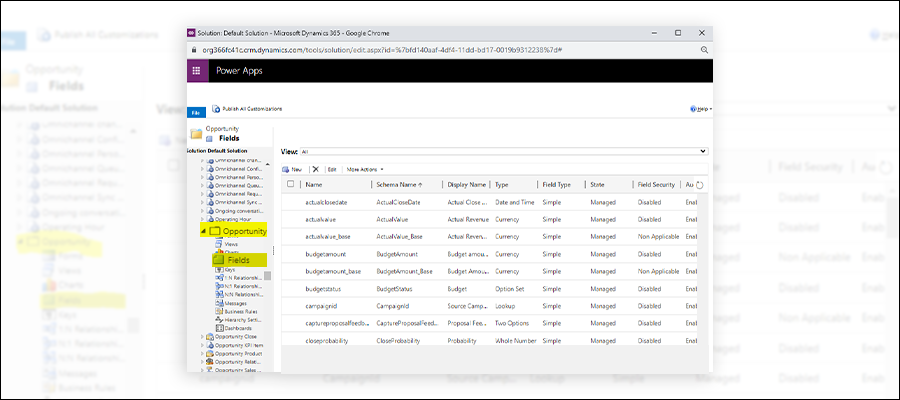
    Step 4: Expand the Opportunity entity, and it will show fields.

    imagekk04
     

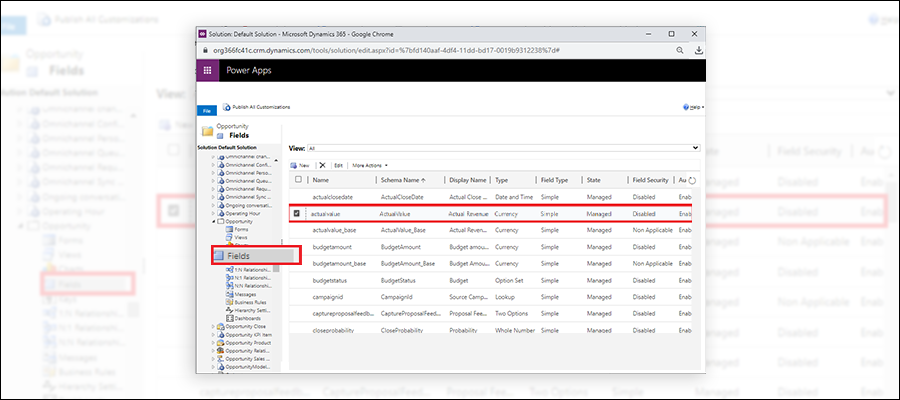
    Step 5: We will select the Actual Revenue field.

    imagekk05
     

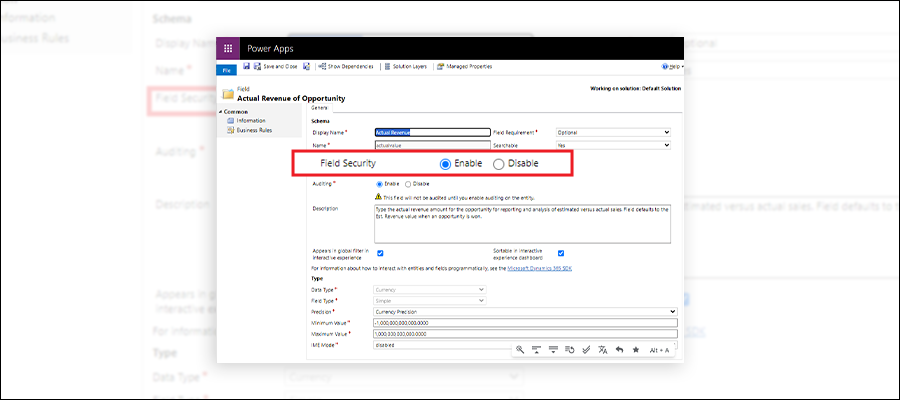
    Step 6: The field pop-up window will open. Click on Enable under the Field-level security profile. Click on Save and Close.

    imagekk06
     

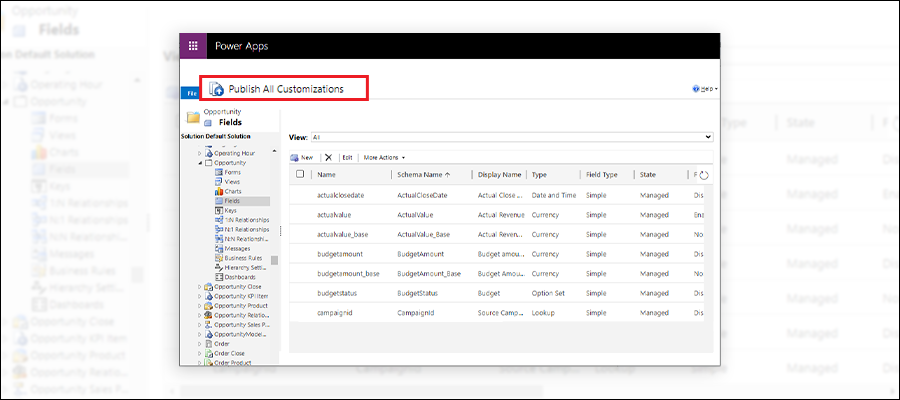
    Step 7: Then Click on Publish the Customization.

    imagekk07
     

    So, this is how to apply field-level security in system fields in CRM.

    Next, you must create a new field security profile to define your field’s security settings.

    Step 1: Click on the setting >Select Advanced setting.

    imagekk08
     

    Step 2: The Advanced Settings Tab will open. Click on the Settings and open Security.

    imagekk09
     

    Step 3: Now select the Field Security Profiles.

    imagekk010
     

    Step 4: Click on New to create a new field security profile.

    imagekk011
     

    Step 5: Enter a name and a Description (optional) and click on Save.

    imagekk012
     

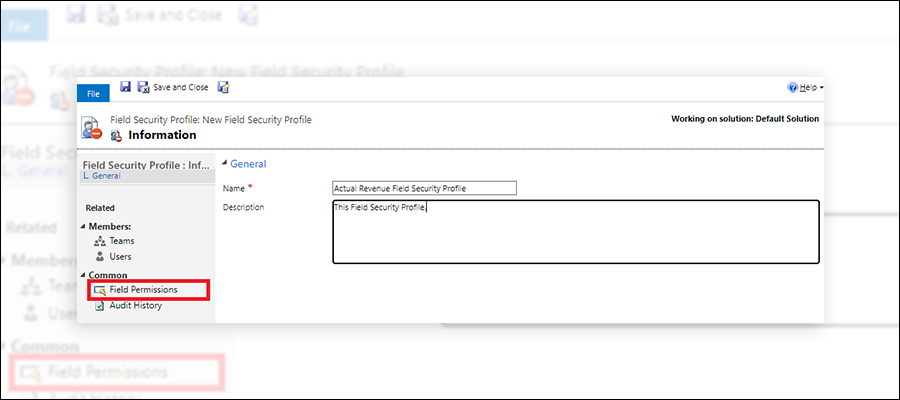
    Step 6: Click On Field Permissions.

    imagekk013
     

    Step 7: Select the field and choose edit.

    imagekk014
     

    Step 8: The Edit Field Security pop-up window will open. Select the permissions you want to assign to users or teams, then choose OK. In this example, I want the group of users to be able to read the actual revenue but not update or enter a brand-new value. Click on OK.

    imagekk015
     

    Step 9: Click on Save to apply the modification to the system.

    How to Add Users and Teams.

    Step 1: You can add teams and users by clicking “Teams” and “Users” below the member section.

    imagekk016
     

    Step 2: On the command bar, click on Add.

    imagekk017
     

    Step 3 It will open a lookup dialog box; select the user or team that should have the security settings applied for the field and then click Select.

    imagekk018
     

    Step 4: Repeat steps if you would like to add multiple teams or users, and then choose Add. So, this is how to apply field-level security in a system field.

    If you have any query related this please contact us

    Please mark the answer as verified if it was helpful.

  • Suggested answer
    FidelMartin Profile Picture
    128 on at
    Hello A.D.Karthik,
     

    To apply field-level security in Dynamics 365, you need to have the correct permissions.Typically, only users with the System Administrator or System Customizer security role have the ability to set field-level security.

    Follow the below steps to apply field-level security in the system field in CRM.

    Step 1: Click on Settings > Select Advanced setting.
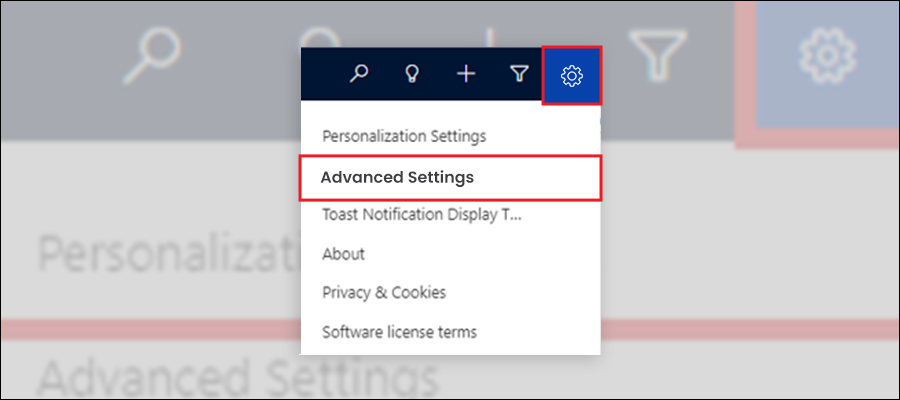
    imagekk01
     

    Step 2: The Advanced setting tab will be open. Click on the Customize the System.
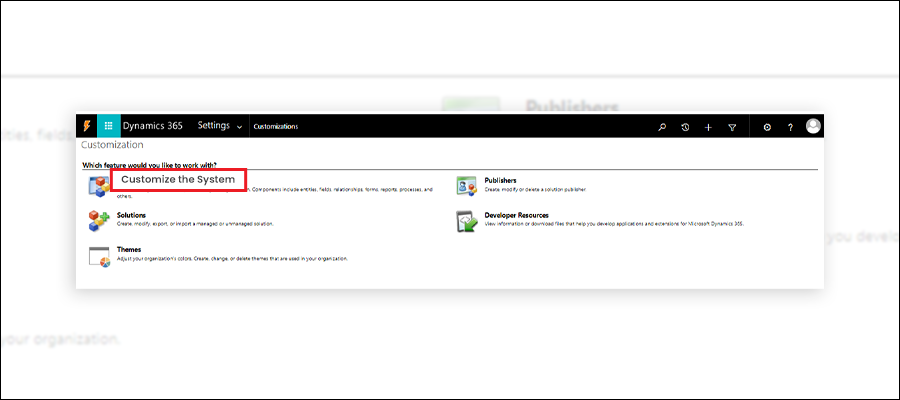
    imagekk02
     

    Step 3: This window will open. Click on Entities.
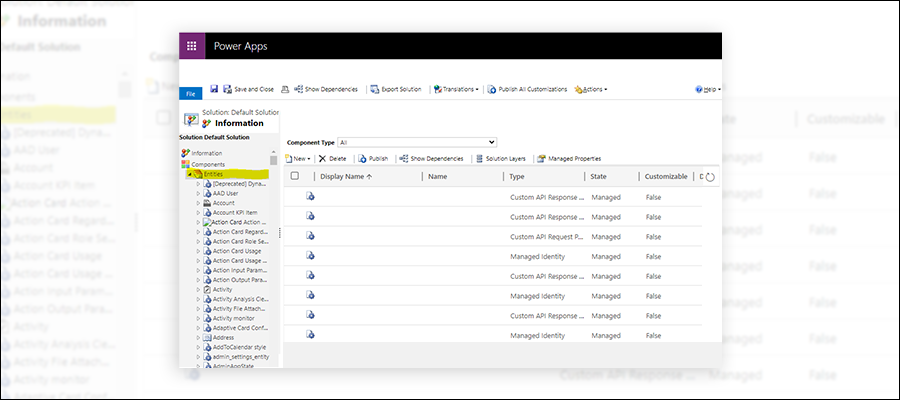
    imagekk03
     

    Step 4: Expand the Opportunity entity, and it will show fields.
    imagekk04
     

    Step 5: We will select the Actual Revenue field.
    imagekk05
     

    Step 6: The field pop-up window will open. Click on Enable under the Field-level security profile. Click on Save and Close.
    imagekk06
     

    Step 7: Then Click on Publish the Customization.
    imagekk07
     

    So, this is how to apply field-level security in system fields in CRM.

    Next, you must create a new field security profile to define your field’s security settings.

    Step 1: Click on the setting >Select Advanced setting.
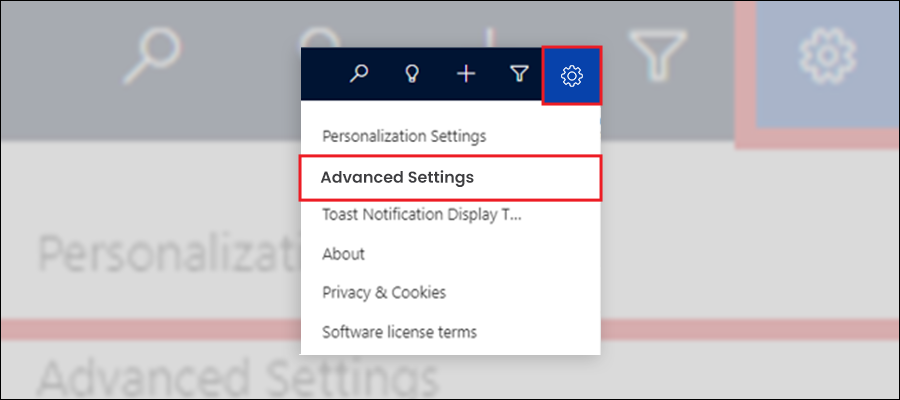
    imagekk08
     

    Step 2: The Advanced Settings Tab will open. Click on the Settings and open Security.
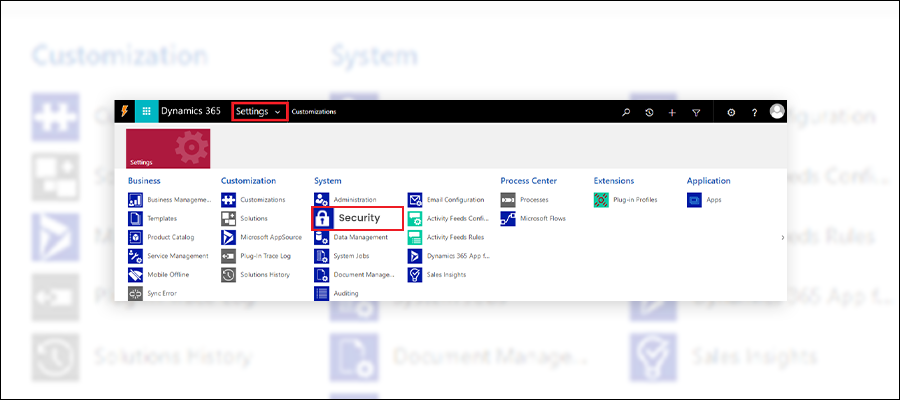
    imagekk09
     

    Step 3: Now select the Field Security Profiles.
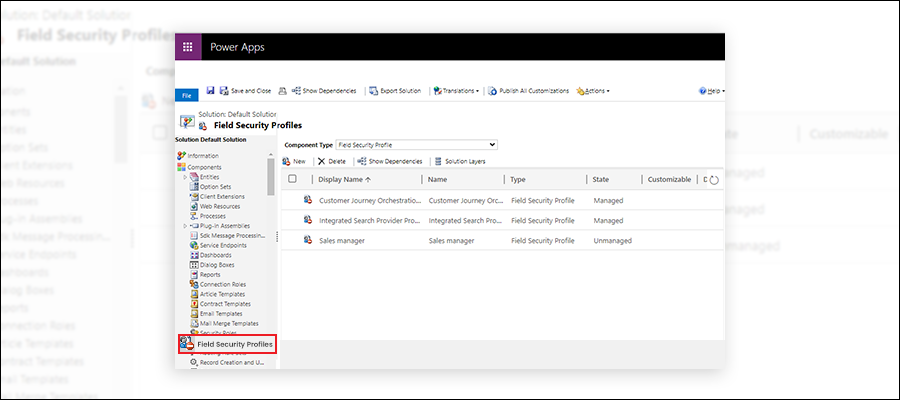
    imagekk010
     

    Step 4: Click on New to create a new field security profile.
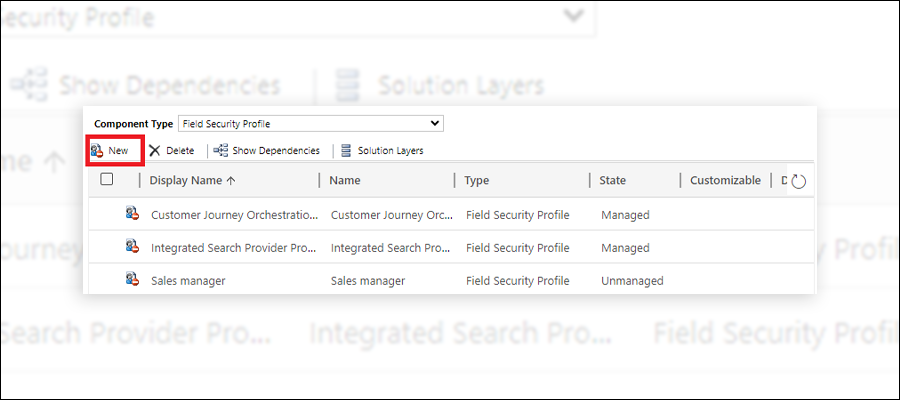
    imagekk011
     

    Step 5: Enter a name and a Description (optional) and click on Save.
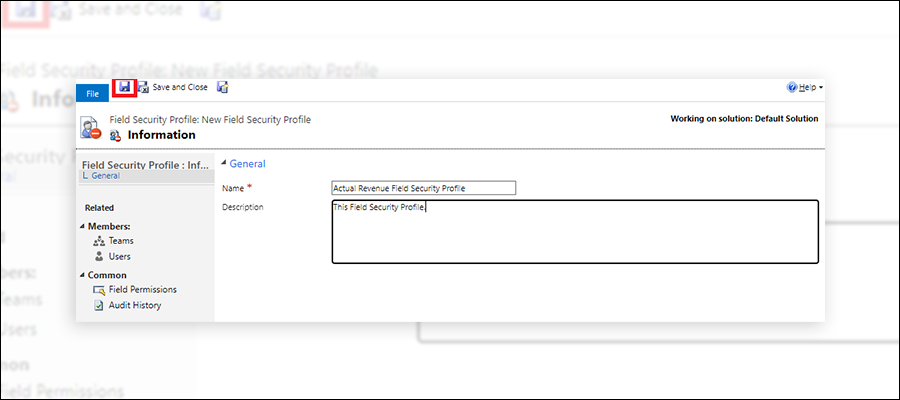
    imagekk012
     

    Step 6: Click On Field Permissions.

    imagekk013
     

    Step 7: Select the field and choose edit.
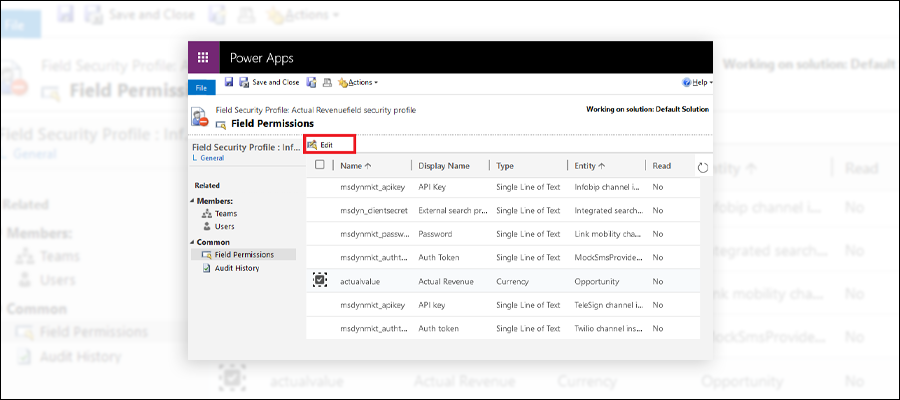
    imagekk014
     

    Step 8: The Edit Field Security pop-up window will open. Select the permissions you want to assign to users or teams, then choose OK. In this example, I want the group of users to be able to read the actual revenue but not update or enter a brand-new value. Click on OK.
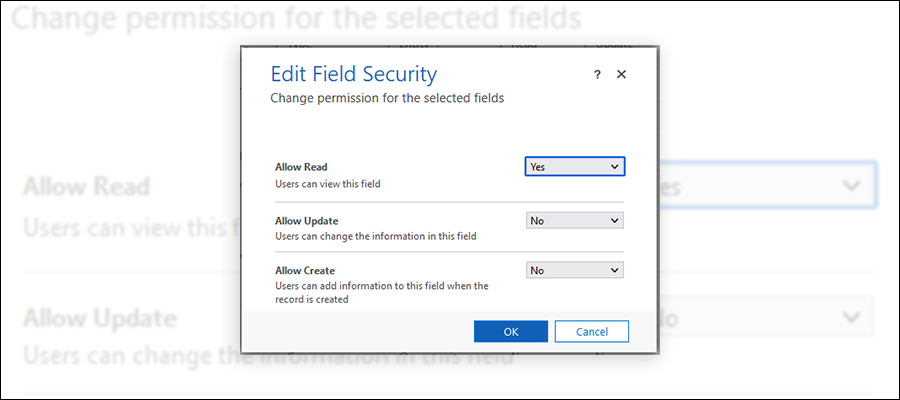
    imagekk015
     

    Step 9: Click on Save to apply the modification to the system.

    How to Add Users and Teams.

    Step 1: You can add teams and users by clicking “Teams” and “Users” below the member section.
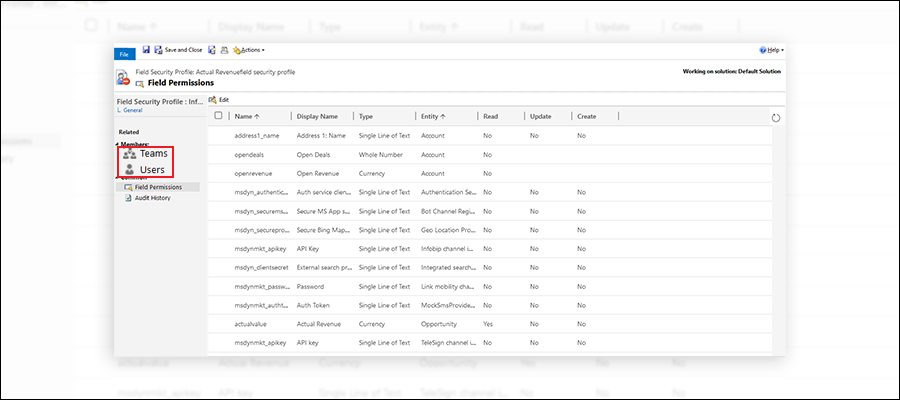
    imagekk016
     

    Step 2: On the command bar, click on Add.
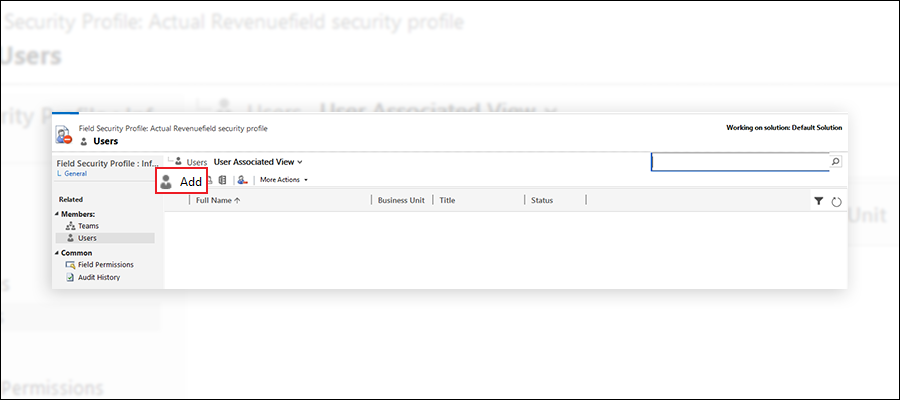
    imagekk017
     

    Step 3 It will open a lookup dialog box; select the user or team that should have the security settings applied for the field and then click Select.
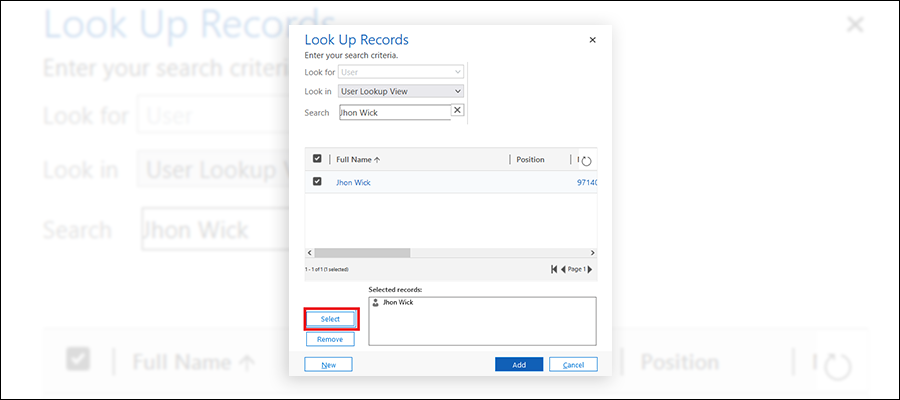
    imagekk018
     

    Step 4: Repeat steps if you would like to add multiple teams or users, and then choose Add. So, this is how to apply field-level security in a system field.

    If you have any query related to thia please contact us.

Under review

Thank you for your reply! To ensure a great experience for everyone, your content is awaiting approval by our Community Managers. Please check back later.

Helpful resources

Quick Links

Responsible AI policies

As AI tools become more common, we’re introducing a Responsible AI Use…

Neeraj Kumar – Community Spotlight

We are honored to recognize Neeraj Kumar as our Community Spotlight honoree for…

Leaderboard > 🔒一 Microsoft Dynamics CRM (Archived)

#1
SA-08121319-0 Profile Picture

SA-08121319-0 4

#1
Calum MacFarlane Profile Picture

Calum MacFarlane 4

#3
Alex Fun Wei Jie Profile Picture

Alex Fun Wei Jie 2

Last 30 days Overall leaderboard

Featured topics

Product updates

Dynamics 365 release plans