web
You’re offline. This is a read only version of the page.
close
Skip to main content

Notifications

Announcements

No record found.

Community site session details

Community site session details

Session Id :
Customer experience | Sales, Customer Insights,...
Answered

Dynamics 365 UCI Error: The view is not available. Please contact your system administrator.

(0) ShareShare
ReportReport
Posted on by 133

Hi Experts,

Have you encountered this issue before?

Subgrid is working in Classic UI. But not in UCI.

I tried to update the Subgrid View from My Active Contacts View to Active Contacts. Saved and Publish.

But the subgrid view in the Classic UI is not changed and "The view is not available" error is the same in UCI. I already cleared the cache. Opened the application in other browser (Firefox).

But issue is the same.

I published the solution in the default solution. But issue is the same.

On my research I came across the solution on checking the View if Active. The view is active.

Any idea on this?

Thanks in advance.
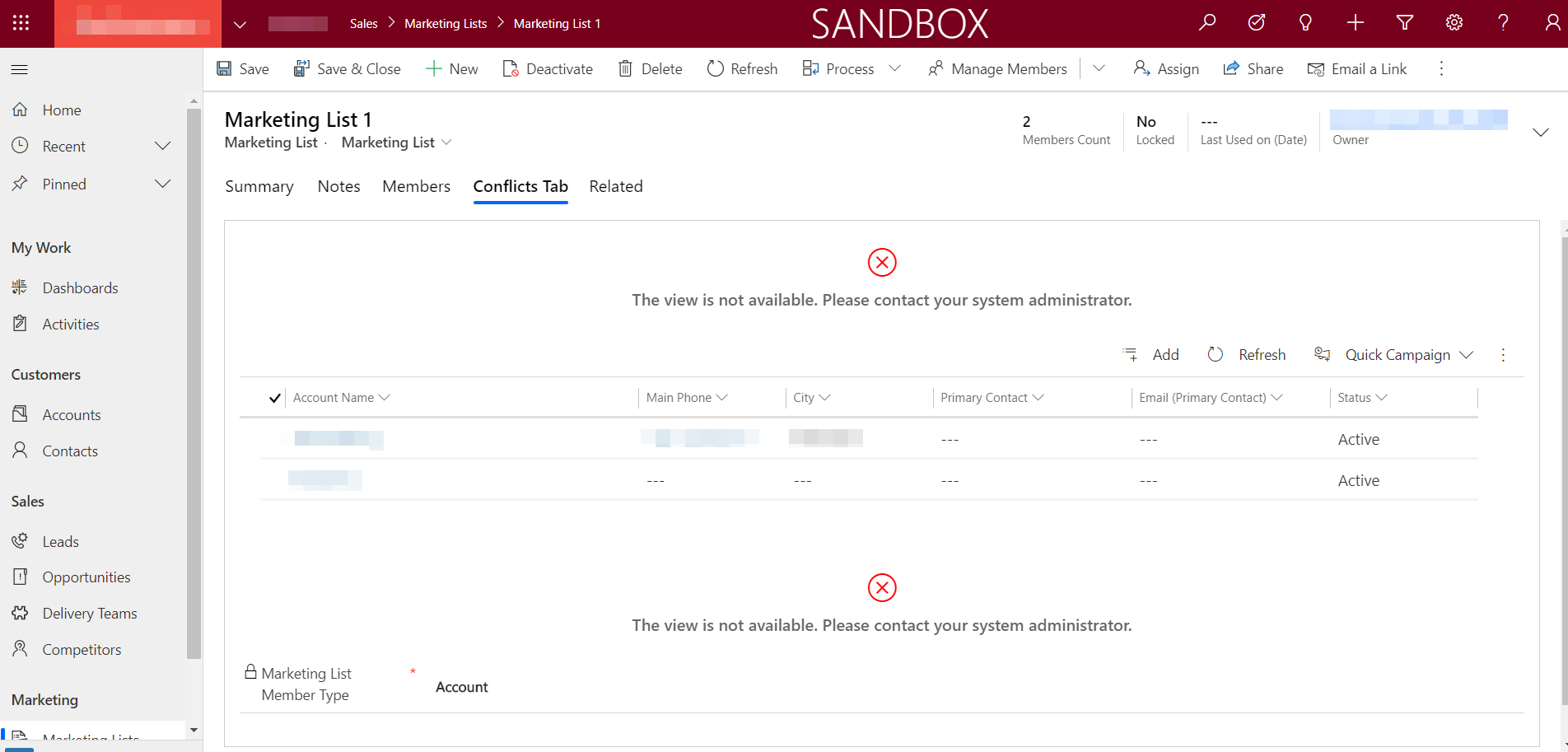
pastedimage1585542666137v1.png

I have the same question (0)
  • Pradeep_Gowda Profile Picture
    on at

    + I would recommend to check console by pressing f12 to see if you get the Guid ID .

    + Incase if you get the Guid ID try to run the following web apiquery .

    + yourorgurl/api/data/v9.0/savedqueries(Guid ID if you get it).

    Please double check if that Guid is Active.

    Incase if you do not get the Guid ID here is what you can do :

    Go to the app designer makesure  you have the view for the subgrid in the app .

    Further if you still not able to resolve it please raise a ticket with MS since we might have to get the access to error traces and act accordingly

  • Verified answer
    Euclides Pelisco Jr Profile Picture
    133 on at
  • Yony M Profile Picture
    16 on at

    In the App make.powerapps.com/environments access the solution :

    1. Add or Look for the view in the solution.

    2. Activate the View.

    3. Publish the Solution.

    4. Delete The Browse History and Cache. / Use Private Mode

    5. Validate that the view is showing in the form.

    Regards!

  • Suggested answer
    Krupa Mehta Profile Picture
    10 on at

    The view might be inactive or deleted, That's why it is not fetching records from that particular section of the form... You need to set the data source view which is the active system view. Also, verify their security roles.

    To change the Data source for a particular form Go to Advanced Settings > Customizations > Customize the System > Select particular Entity > Select Particular Form > Select Tab > Select Section Properties > Set Properties windows > Data Source 

    You can select available active system views from Specify the primary data source for this list or chart.

Under review

Thank you for your reply! To ensure a great experience for everyone, your content is awaiting approval by our Community Managers. Please check back later.

Helpful resources

Quick Links

Responsible AI policies

As AI tools become more common, we’re introducing a Responsible AI Use…

Neeraj Kumar – Community Spotlight

We are honored to recognize Neeraj Kumar as our Community Spotlight honoree for…

Leaderboard > Customer experience | Sales, Customer Insights, CRM

#1
Tom_Gioielli Profile Picture

Tom_Gioielli 170 Super User 2025 Season 2

#2
#ManoVerse Profile Picture

#ManoVerse 61

#3
Gerardo Rentería García Profile Picture

Gerardo Rentería Ga... 52 Most Valuable Professional

Last 30 days Overall leaderboard

Product updates

Dynamics 365 release plans
