Hi Lee,
The reason you do not see the "Save & Close" button in Sales Hub is probably you have Auto-Save enabled.
Quoting Manage Auto-Save documentation page:
"With auto-save enabled, the save button only appears for the initial save of the record. After the record is created, the save button in the command bar isn’t shown, but you can see a Auto save button button in the lower right corner that will show if there are any unsaved changes."
If you disable auto-save you should see the Command Bar showing the buttons:
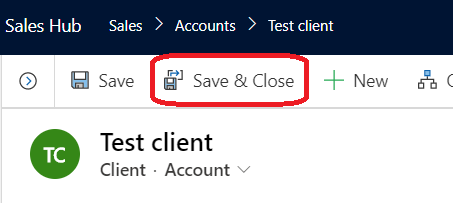
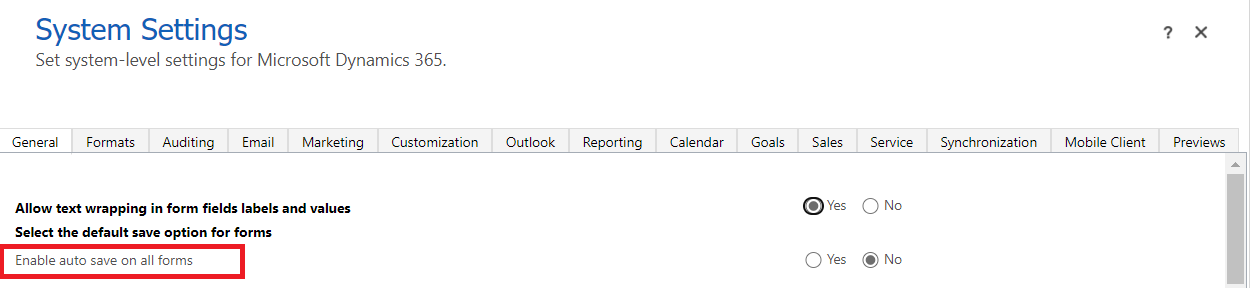
As Asif mentioned in the reply above, you can indeed control the Saving settings using the System Settings page. So if you want to disable auto-save and instead manually save your records, you can do that via:
Settings --> Administration --> System Settings and then set "Enable auto-save on all forms" to "No"
If you would like to read more about the Auto-Save behavior, I would recommend the article below:
https://docs.microsoft.com/en-us/dynamics365/customerengagement/on-premises/customize/manage-auto-save
Hope this helps!


