web
You’re offline. This is a read only version of the page.
close
Skip to main content

Announcements

No record found.

News and Announcements icon
Community site session details

Community site session details

Session Id :
Supply chain | Supply Chain Management, Commerce
Answered

Tracking dimension group on Released product grid view

(1) ShareShare
ReportReport
Posted on by 321

Hello 

I need a way to filter out the items that is batched tracked vs serial tracked. So I was hoping to add the 'Tracking dimension group on the released product grid view.

But I don't find this field to be added. How else can I find this information without a mod?

Thanks!

Indiguna 

I have the same question (0)
  • Verified answer
    Guy Terry Profile Picture
    28,970 Moderator on at

    Hi Indiguna

    You cannot add the field to the grid without a mod, but you can filter the list.

    Head to Product information management > Products > Released products.

    In the Action pane, do Options > Page options > Advanced filter / sort.

    On the Joins tab, click on Items and then Add table join.

    In the list, find and click on 1:n Items - tracking dimension groups, then click Select.

    Then click on Items - tracking dimension groups and click Add table join.

    Click on n:1 Tracking dimension groups then click Select.

    Head back to the Range tab and click Add. This adds a line to the grid.

    On this line, set Table = Tracking dimension groups (should be the last one in the drop-down). In Field, select Name.

    In Criteria, select one of the Tracking dimension groups you are interested in; for example, the group for your Batch tracked items.

    At this point, the screen should look something like this:
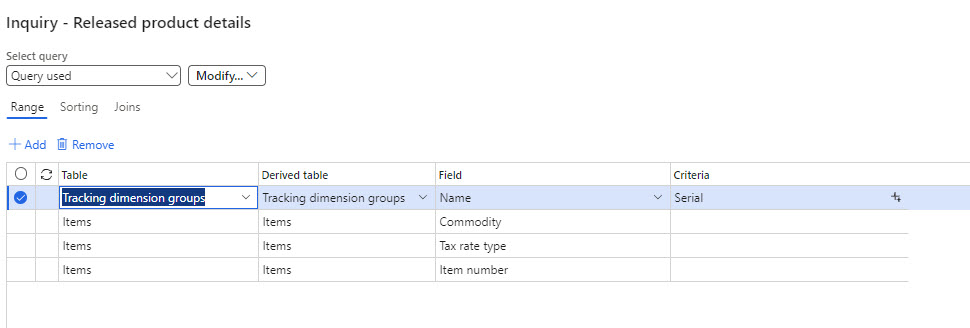
    Hit OK, and the Released products screen will be filtered to show Items which have that Tracking dimension group in the current Legal entity.

    You could save this view, and then create another filter for your Serial tracked items, and save that view too. Saved views can be re-used later. You could also create Favourites for 'Batch tracked items' and 'Serial tracked items' using the saved views.

  • Indiguna Profile Picture
    321 on at

    Much appreciated Guy! This is one of the best instructions written. Not only you solved my issue but also guided me with additional tips on advanced filters and how to save them.

    Indiguna

  • Torlila Profile Picture
    19 on at
    Hi Guy Terry,
     
    I have followed the steps as stated, however, I cannot view the added fields. 
    I have attempted inserting columns on the grid and adding fields on the filter pane, however, there fields are not visible.
    Did a refresh on the page, logged out/in again to D365 and still do not see a thing.


  • Torlila Profile Picture
    19 on at
    Disregard!
     
    I figured what the view looks like.
     

Under review

Thank you for your reply! To ensure a great experience for everyone, your content is awaiting approval by our Community Managers. Please check back later.

Helpful resources

Quick Links

Introducing the 2026 Season 1 community Super Users

Congratulations to our 2026 Super Stars!

Meet the Microsoft Dynamics 365 Contact Center Champions

We are thrilled to have these Champions in our Community!

Congratulations to the March Top 10 Community Leaders

These are the community rock stars!

Leaderboard > Supply chain | Supply Chain Management, Commerce

#1
Mallesh Deshapaga Profile Picture

Mallesh Deshapaga 296

#2
Laurens vd Tang Profile Picture

Laurens vd Tang 223 Super User 2026 Season 1

#3
Syed Haris Shah Profile Picture

Syed Haris Shah 145 Super User 2026 Season 1

Last 30 days Overall leaderboard

Product updates

Dynamics 365 release plans
