web
You’re offline. This is a read only version of the page.
close
Skip to main content

Notifications

Announcements

No record found.

Community site session details

Community site session details

Session Id :
Microsoft Dynamics CRM (Archived)

Changing Dashboard Icons

(0) ShareShare
ReportReport
Posted on by

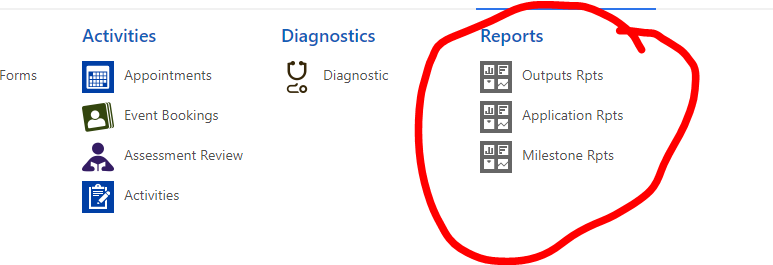
We have recently updated our CRM to v9, and with this I have noticed that a lot of our icons have changed from a royal blue to a grey colour.

I prefered the blue colour, so I am going through and changing the entities colour which is in turn changing the icons back to blue.

However, I can't seem to find a way to change the colour of the icons that come up for dashboards...
0778080.Capture.PNG

Does anyone have an idea of how I can do this? When I go into the dashboard editor in customisation, there doesn't seem to be an option to change it.

*This post is locked for comments

I have the same question (0)
  • Suggested answer
    Alex Fun Wei Jie Profile Picture
    33,628 on at

    Hi

    refer below post on how to change the entity icon. But if not mistaken you cant change the system entity icon

    [View:http://ledgeviewpartners.com/blog/changing-a-custom-entity-icon-in-dynamics-crm/]

  • Suggested answer
    gdas Profile Picture
    50,091 Moderator on at

    Hi ,

    Here is the step -

    1. Open solution explorer, expand Entities if necessary, select the custom entity you want to update the icon for, and then on the command bar, select Update Icons.

    2. In the Select New Icons dialog box, under Icon in Web application or Icon for Entity Forms, to the right of New Icon, select the Browse button Lookup button, select the appropriate image file, and then select OK.

    3. On the command bar, on the File menu, select Save.

    4. When your customizations are complete, publish them:

      • To publish customizations for only the component that you are currently editing, in the Navigation Pane, select the entity you have been working on, and then select Publish.

      • To publish customizations for all unpublished components at one time, in the Navigation Pane, select Entities, and then on the command bar, select Publish All Customizations.

        For more information regarding size , format  you can refer below reference -

    https://docs.microsoft.com/en-us/dynamics365/customer-engagement/customize/change-custom-entity-icons

  • Suggested answer
    Alex Fun Wei Jie Profile Picture
    33,628 on at

    Hi,

    You can change the color instead of changing the icon. Remember to publish after changed.

    Before

    8863.report-2.png

    3173.report.png

    After

    6786.after.png


    8863.report-2.png

Under review

Thank you for your reply! To ensure a great experience for everyone, your content is awaiting approval by our Community Managers. Please check back later.

Helpful resources

Quick Links

Responsible AI policies

As AI tools become more common, we’re introducing a Responsible AI Use…

Neeraj Kumar – Community Spotlight

We are honored to recognize Neeraj Kumar as our Community Spotlight honoree for…

Leaderboard > 🔒一 Microsoft Dynamics CRM (Archived)

#1
SA-08121319-0 Profile Picture

SA-08121319-0 4

#1
Calum MacFarlane Profile Picture

Calum MacFarlane 4

#3
Alex Fun Wei Jie Profile Picture

Alex Fun Wei Jie 2

Last 30 days Overall leaderboard

Featured topics

Product updates

Dynamics 365 release plans



