Hi Vaibhav
AX once had functionality specifically called 'Consolidated picking', but this was deprecated in F&O; so you will not find a Consolidated picking method parameter on the Item model group form, for example.
The reason the Consolidated picking functionality was deprecated is that it is replaced by functionality in the Warehouse management module. You need to use configuration in multiple places to get what you want.
Fundamentally, to get multiple Sales order lines on to the same Work Id, you need to get them on to the same Wave. Then, you can get them broken in to separate Work Ids as needed. To configure your scenario, I would do something like this.
You need at least one Wave template. I would think about using Wave template grouping function, so that F&O will group Shipments with the same ship date on to a single Wave. Set it like this:
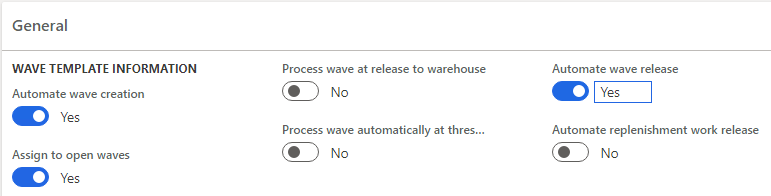
As long as you are not releasing sales orders on the same day that you will ship them, all the orders to be picked on one day will go in to a single wave. You will manually Process the wave at the start of that day's picking shift to create the Work for the day.
The splitting of the Work in to 'Cartons from Bulk locations' and 'Eaches from Pick locations' is done by a combination of the Location directive and the Work template.
Your items need to have a Reservation hierarchy which contains both the Carton and the Each unit.
Your Pick Location directive will need two Lines. The first Line will have Restrict by unit ticked, and using the Restrict by unit button, set the Carton unit. The Location directive action will search Bulk locations only. The second Line does not need Restrict by unit ticked, and the Location directive action will search Pick locations only.
You will need two Work templates. One for Bulk picking and one for picking from Pick locations. On the Edit query of the first, you need to add a Range so that the Work template knows if it should be used for Bulk locations or Pick locations. You have two ways to do this. You can use the Directive unit (which will be set to Carton or Each), or you can use the Zone of the Location (you will need to give each Bulk and Picking location a Zone i.e. Bulk or Pick). (Both Directive unit and Zone are fields on the Temporary work transactions table). You probably also need to specify a Sort order on the Edit query. You need F&O to put Work lines for the same Location/Item (and any other relevant inventory dimensions) next to each other. For example, if you can have multiple Items in a single location, you will need to add Sorting on Location and Item (I mean, you should probably be sorting by some property of Location anyway, else you will be wandering around the warehouse in an inefficient manner!).
On the mobile devie menu item that you will use to process the Work, set the Group pick parameter to Yes.
With this setup, your sales orders will get released on to a Wave with all the other orders that should be picked on the same day. When you process the wave, F&O will deteremine if the quantity on each order line is enough to trigger a bulk pick, or not. Each order line will be assigned to the appropriate Bulk or Pick location, and the appropriate Bulk or Pick Work Id for that day. When you process the work using the mobile device, the operator will be asked to pick the total quantity required for each Location/Item that they have to visit.
Note - depending on your order volumes, if you copied this setup exactly, you might end up with two really large Work Ids each day. That might not be exactly what you want, but it gives you an idea how to configure it.
Wave template grouping: https://docs.microsoft.com/en-us/dynamics365-release-plan/2019wave2/dynamics365-supply-chain-management/wave-template-grouping
Group pick: https://docs.microsoft.com/en-us/dynamics365-release-plan/2019wave2/dynamics365-supply-chain-management/pick-line-grouping





