web
You’re offline. This is a read only version of the page.
close
Skip to main content

Notifications

Announcements

No record found.

Community site session details

Community site session details

Session Id :
Customer experience | Sales, Customer Insights,...
Answered

Need help giving users the proper permissions to view audit logs

(0) ShareShare
ReportReport
Posted on by

Hello,

I'm trying to allow users to view audit logs, and I've created a new security role with the following permissions (see screenshot).
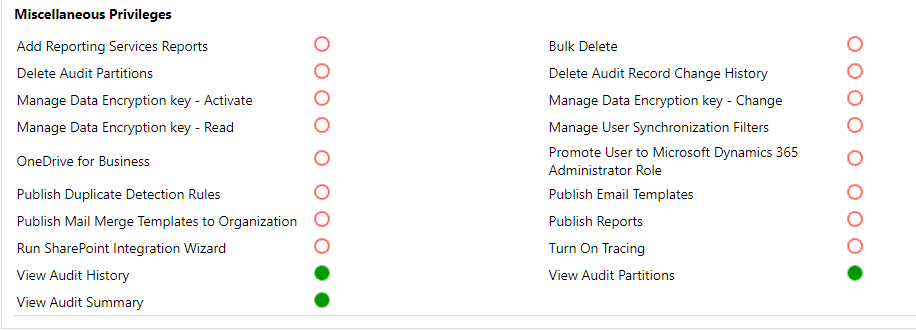
Audit1.PNG

I've assigned the security role to the proper users.  However, they are reporting that they are still unable to access the audit logs.  Under "Advanced Settings", this is what they're seeing:
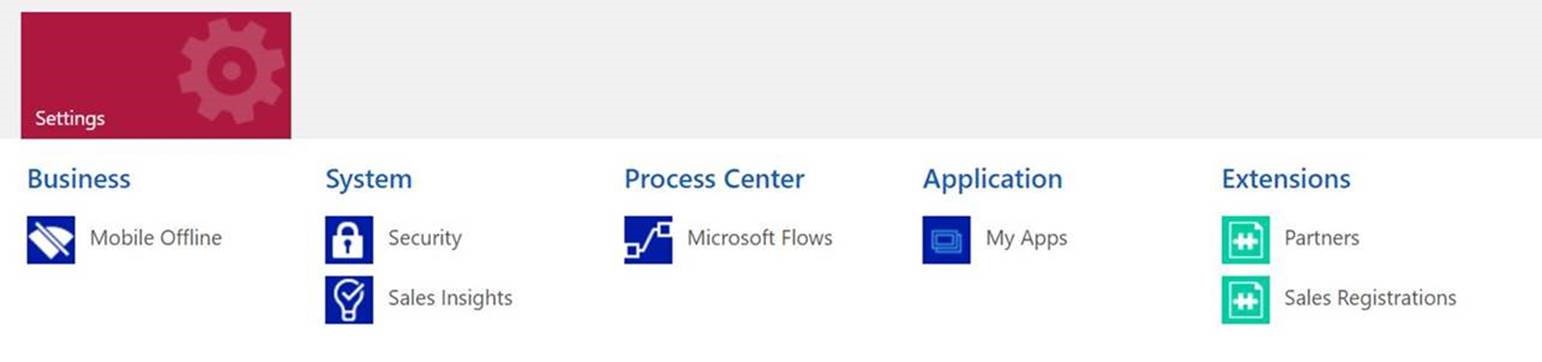
audit2.jpg

I believe "Auditing" should be an option under settings. How can I allow users to access the audit logs?

Thanks!

I have the same question (0)
  • Arun Vinoth Profile Picture
    11,615 Moderator on at

    Are they able to see the Audit history under each record?

  • Community Member Profile Picture
    on at

    Hi Arun,

    Yes, but is there a way to allow them to view the Audit Summary Log like in the screenshot below?

    AuditSummary.PNG

  • Community Member Profile Picture
    on at

    Still having trouble getting this to work.  Any suggestions?

    Thanks!

  • Charles Abi Khirs Profile Picture
    3,569 on at

    Hello,

    Can you check the "Delete Audit Partitions" permission as well to check if this solve your issue.

  • Community Member Profile Picture
    on at

    Hi Charles,

    I just tried that but it didn't work unfortunately.

  • Verified answer
    Community Member Profile Picture
    on at

    I was able to solve this by adding the "Read" permission to the "SettingsSiteMap".  Thanks everyone!

  • cfc Profile Picture
    5 on at

    I have the same problem, but where do you find the SettingSiteMap in Dynamics 365 ?

  • Suggested answer
    Nishant Rana Profile Picture
    11,325 Microsoft Employee on at

    You'd find it in Custom Entities tab of any Security Role.

  • Suggested answer
    Samy Younan Profile Picture
    2 on at
    It worked for me. Here is what I did
    1- Create a custom security group named "Audit History View"
    2- selected the option D"Direct User(Basic) access level and Team privileges.
    3- Select the dropdown "Show All privileges".
    4- Select "View Audit History" and select your Organization.
    5- Select "View Audit Partitions" and select your Organization.
    6- Select "View Audit Summary" and select your Organization.
    7- Go fo Admin Center, Permissions, Users. Select your user, then click on Assign Security Role, then assigned them the newly created Security Role (Audit History View).

Under review

Thank you for your reply! To ensure a great experience for everyone, your content is awaiting approval by our Community Managers. Please check back later.

Helpful resources

Quick Links

Responsible AI policies

As AI tools become more common, we’re introducing a Responsible AI Use…

Neeraj Kumar – Community Spotlight

We are honored to recognize Neeraj Kumar as our Community Spotlight honoree for…

Leaderboard > Customer experience | Sales, Customer Insights, CRM

#1
Tom_Gioielli Profile Picture

Tom_Gioielli 171 Super User 2025 Season 2

#2
#ManoVerse Profile Picture

#ManoVerse 83

#3
Jimmy Passeti Profile Picture

Jimmy Passeti 50 Most Valuable Professional

Last 30 days Overall leaderboard

Product updates

Dynamics 365 release plans
