I did find a solution, and probably should've updated the post, but it's good that I get the chance to do it now!
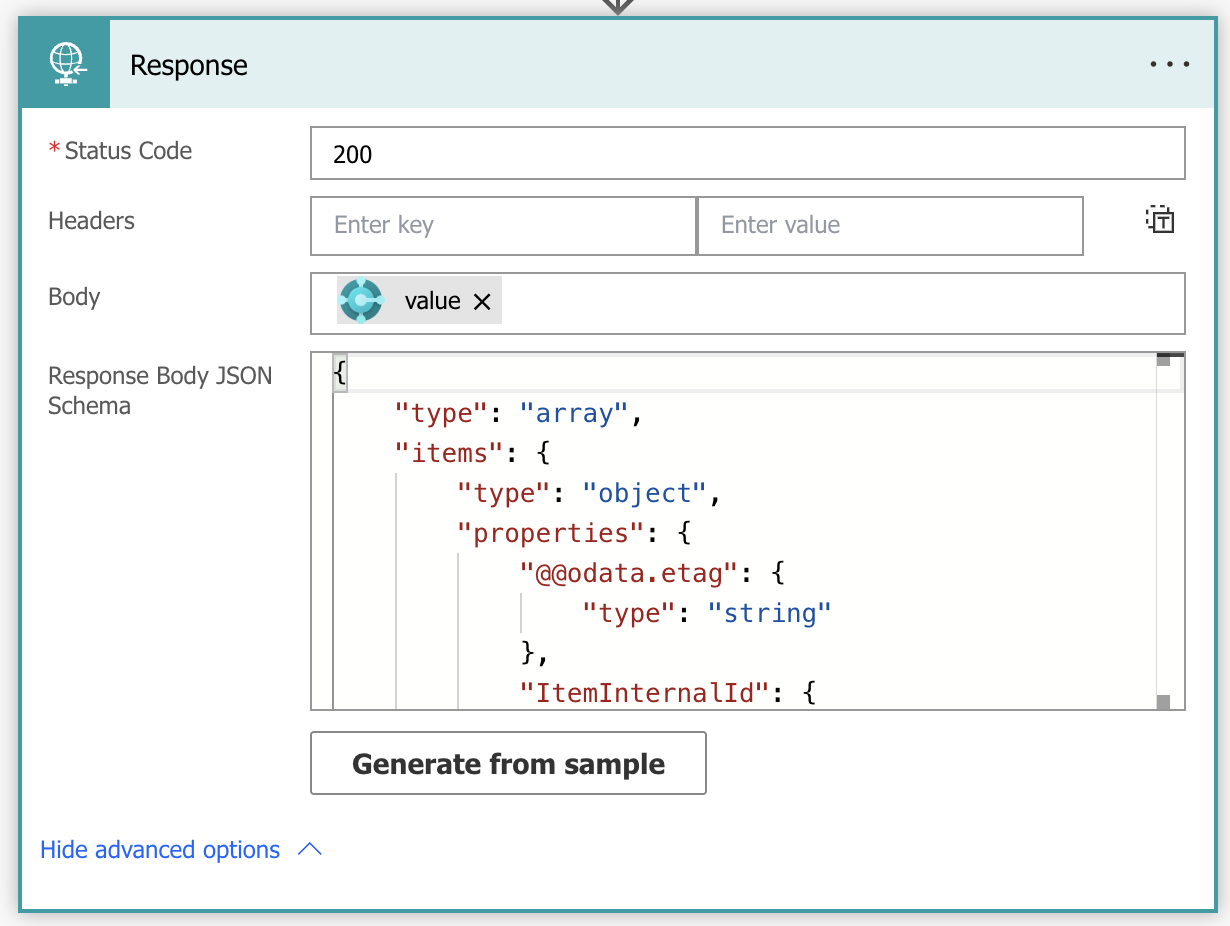
I believe the simplest way to do this is probably to use the Response action in your Power Automate flow, add a status code, your JSON body, and paste your resulting JSON into the "Generate from sample" bit and generate the schema (If you don't already have this, just run the flow once, copy the output, click the "Generate from sample" button, and paste it in). Then when you do "ClearCollect(yourCollection, yourFlow.Run())" you should get an already parsed JSON into your table, and be able to put "yourCollection" into the Items property of your gallery, and use ThisItem.Name for example in your gallery label. Adding a screenshot of the response action, just for reference. You won't need a "Respond to PowerApp" or anything after this action, as this action will work in the same way.
This is how I ended up solving it before I learned about the Response action, just to give another option. However I do not recommend this, as it is a lot more manual work. What made this difficult at the time was that the JSON I got was just an array of objects, and not an object with an array inside, which was kind of new to me. So the response from the API was kind of similar to this:
{
"statusCode": 200,
"headers": {}
"body": [
{object},
{object},
{object}
]
}
And then I just returned the Body with the "Respond to PowerApps" action, and got only an array in return. I believe the Response action would handle this, but in case it doesn't.. The way you handle this in PowerApps is as follows:
// 1. Run flow and save result in variable
Set(
varResult,
myFlow.Run()
);
// 2. Parse JSON to a collection
ClearCollect(
myCollection,
ForAll(
Table(ParseJSON(varResult.tableObject)),
{
id: Value.id,
name: Value.name,
age: Value.age,
nickname: Value.nickname,
// Object
address: {
city: Value.address.city
street: Value.address.street,
zipCode: Value.address.zipCode
},
// Table
pets: ForAll(
Table(Value.pets),
{
animal: Value.animal,
color: Value.color,
age: Value.age
}
)
}
)
);
You might need to put all the "Value.item"'s inside a Text() or Boolean() to get the right type. For example Text(Value.name).
If you have a table inside a table, you will need to nest in another ForAll(Table(Value.anotherTable), Text(Value)).
Please try the Response action first, as that is by far the easiest way to go. I just wanted to add the way I solved it as an alternative.
EDIT: I just tested the Response action with the JSON i had the issue with. Testing the flow and pasting the output to generate a schema gave my a schema that PowerApps wouldn't understand, and I got the same error as in the original post. I asked ChatGPT to give me a schema PowerApps would understand, and it gave me a schema I could paste directly into the "Response Body JSON Schema" of the Response Action. When doing "ClearCollect(myCol, myFlow.Run())" and added myCol to the gallery, it worked perfectly.
Also, if you don't find the Response Action when you search for it, it lies under "Request", so just click that, and you will find it.


