web
You’re offline. This is a read only version of the page.
close
Skip to main content

Notifications

Announcements

No record found.

Community site session details

Community site session details

Session Id :
Microsoft Dynamics 365 | Integration, Dataverse...
Suggested Answer

Fields not showing in Workflow editor

(0) ShareShare
ReportReport
Posted on by

Hi everyone,

I'm in the process of creating a simple Workflow that removes all the contact details from a person if they are marked as Deceased. This works totally fine with the postal address fields (using the "clear" option in the Workflow editor). However, I have 4 fields on my Main Contact form that I can't find in the Workflow editor as follows:

Telephone, Mobile, Primary Email and Secondary Email

I've searched and searched many times but I'm not able to find them in the Workflow editor. As I say, all four fields appear on my Main form and function correctly.

Does anyone know why this could be?

Many thanks
Jon

I have the same question (0)
  • Community Member Profile Picture
    on at

    Hi,

    Could you provide screenshots about the workflow all steps?

  • JonClay Profile Picture
    on at

    Hi  

    Many thanks for your reply. Here are my screenshots with extra detail:

    pastedimage1663944176532v1.png

    I am then adding the clear function to all the fields that I wish to empty. However, the aformentioned fields do not appear on the screen, even though they do appear on the Contact Form within Dynamics:

    pastedimage1663944282921v2.png

    Many thanks
    Jon

  • Suggested answer
    Bipin D365 Profile Picture
    28,983 Moderator on at

    Hi,

    Please check the Form order under customization - customize the system - entities- your Entity - Forms - Form Order

    Do you have multiple Main type Forms if yes then based on the Order of the form workflow assistant shows first Form .

  • Suggested answer
    Community Member Profile Picture
    on at

    Hi JonClay,

    Telephone, Mobile, Primary Email and Secondary Email

    They should be the display names of the fields, if you can't search for them, it's probably because they have different display names in different forms.

    You mentioned: even though they do appear on the Contact Form within Dynamics

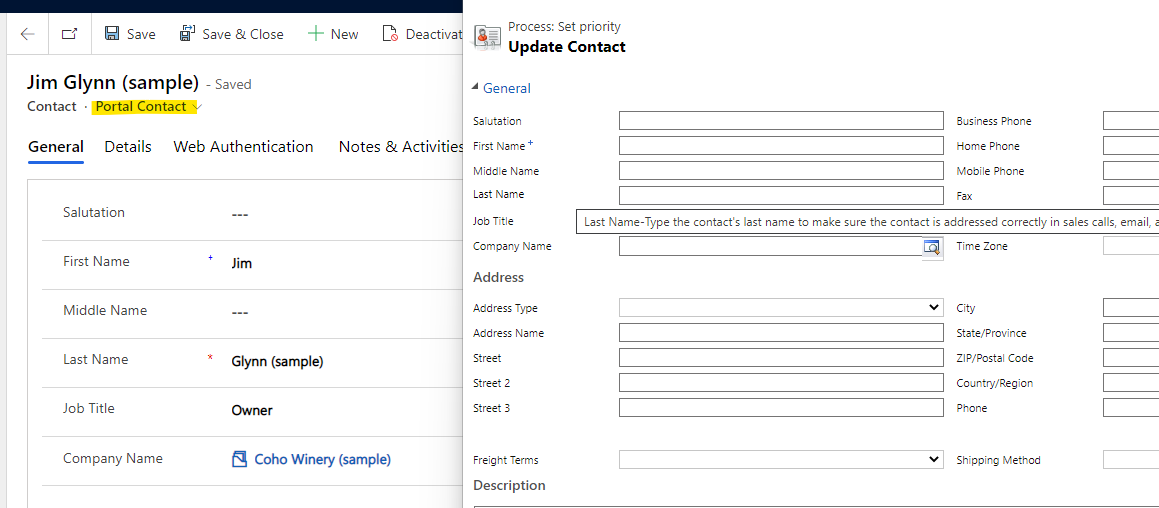
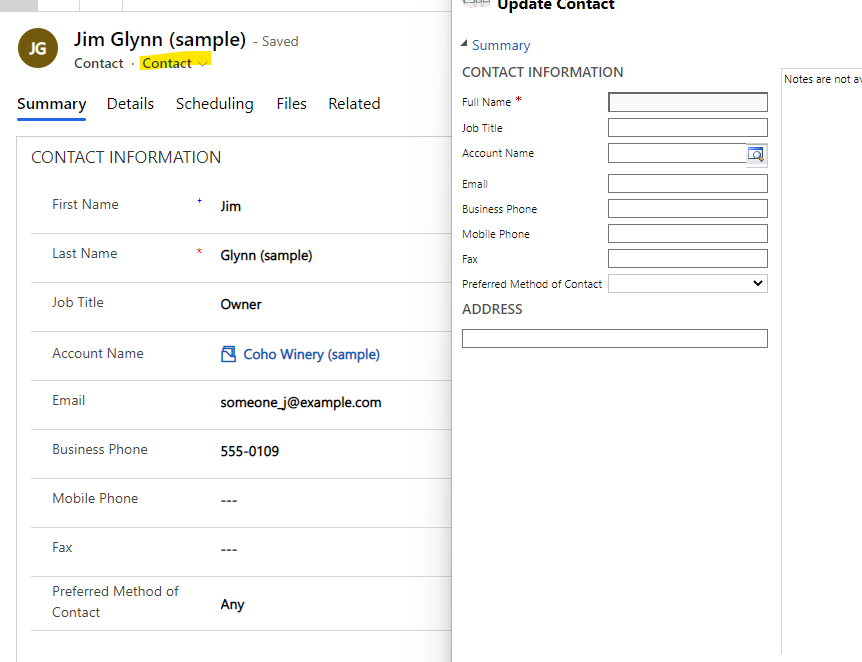
    The default form on the workflow depends on what you are choosing to use in the app:

    For example:

    (1)
    pastedimage1664178088794v1.png

    (2)

    pastedimage1664178993263v1.png

    So you can select the form have these four fields in dynamics,and refresh workflow dialog, then you should see them.

Under review

Thank you for your reply! To ensure a great experience for everyone, your content is awaiting approval by our Community Managers. Please check back later.

Helpful resources

Quick Links

Responsible AI policies

As AI tools become more common, we’re introducing a Responsible AI Use…

Neeraj Kumar – Community Spotlight

We are honored to recognize Neeraj Kumar as our Community Spotlight honoree for…

Leaderboard > Microsoft Dynamics 365 | Integration, Dataverse, and general topics

#1
Martin Dráb Profile Picture

Martin Dráb 41 Most Valuable Professional

#2
iampranjal Profile Picture

iampranjal 39

#3
Satyam Prakash Profile Picture

Satyam Prakash 35

Last 30 days Overall leaderboard

Product updates

Dynamics 365 release plans