A3681.checkbook-setup.png3"MsoNormal">Setting up EFT for Payables for the company
Set up the Checkbook in Checkbook Maintenance Financial | Cards | Financial | Checkbook
In the lower right-hand corner, push the EFT Bank button, this will open the Checkbook EFT Bank Maintenance window.

On the Checkbook EFT Bank Maintenance window, select the Payables Options button in the lower right-hand corner. This will open the Checkbook EFT Payables Options window.

On the Checkbook EFT Payables Options window, select the blue expansion button next to the appropriate Format option. That will open the EFT File Format Maintenance window.

On the EFT File Format Maintenance window, select the appropriate format type. The window will fill with the fields you need to complete to define the file you will be sending to the bank. 
Save this format ID when complete and then close all of the windows in order, saving or hitting OK or whatever is appropriate.
Here's a summary of the windows
-
Checkbook Maintenance
-
Checkbook EFT Bank Maintenance
-
Checkbook EFT Payables Options
-
EFT File Format Maintenance
That completes the ‘company’ setup, simple eh?
Now for the vendors.
Open the Vendor Address Maintenance window Purchasing | Cards | Addresses

On the Vendor Address Maintenance window, select the EFT Bank button in the lower right-hand corner of the window. This will open the Vendor EFT Bank Maintenance window.

Fill out the window with the relative information and click OK.
Process EFT Payment
Create an EFT batch using the Payables Batch Entry window through Purchasing | Batches.
On the Payables Batch Entry window, select an EFT enabled checkbook ID and select the EFT radio button under Payment Options:

Add payments to the batch using vendors that you have entered EFT information.
Select Transactions and then go to the appropriate window for you, I picked the Edit Payables Check Batch window.
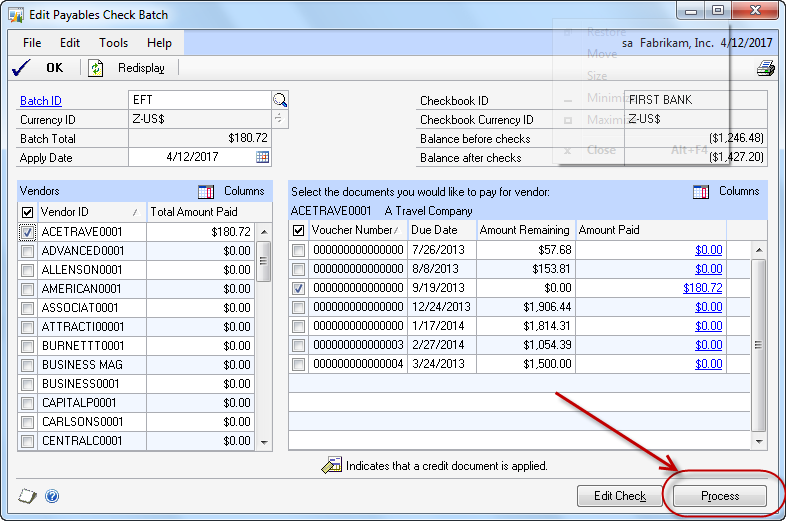
Pick the vouchers you want to pay and then select the Process button in the lower right-hand corner of the window. The Print Payables Checks window will open. Select the Process button in the Print Payables Checks window. The Process Payables Remittance window will open.

Select the Remittance Form radio button and then click on the Process button.

After printing the Remittance Form, select the Post radio button and then click the Process button again.
After posting, open the Generate EFT Files window at Purchasing | Transactions | Generate EFT File. Check the box for the batch you want to process and then click on the Generate EFT File.

Upon successful generation, a dialog window will display with the file name and location. You picked the location on the Checkbook EFT Payables Options window.

That’s it. Now, transmit the file to your bank.
Recap of the processing procedure windows
-
Payables Batch Entry
-
Edit Payables Batch window (or whatever you selected)
-
Print Payables Checks
-
Process Payables Remittance
-
Process Payables Remittance window again to Post
-
Generate EFT Files
I think that covers it, hopefully I haven't left out any steps. Oh, one more. If you are processing European Electronic Funds Transfer, you need to select the checkbox identified below in the Company Setup Options window.

Kind regards,
Leslie







