web
You’re offline. This is a read only version of the page.
close
Skip to main content

Announcements

No record found.

News and Announcements icon
Community site session details

Community site session details

Session Id :
Customer experience | Sales, Customer Insights,...
Answered

Configure the Dynamics 365 Server for claims-based authentication docs seem to be incorrect

(1) ShareShare
ReportReport
Posted on by 10

So I am new to this Windows Server stuff. I am going through the Implement claims-based authentication: external access. It indicates I need to first complete the internal access first.

That is where I am stuck now here at this link:

https://docs.microsoft.com/en-us/previous-versions/dynamicscrm-2016/deployment-administrators-guide/gg188575%28v%3dcrm.8%29

The CRMAppPool account and the Microsoft Dynamics CRM encryption certificate

At step three it states , "In the details pane, right-click the encryption certificate specified in the Configure Claims-Based Authentication Wizard, point to All Tasks, and then click Manage Private Keys"
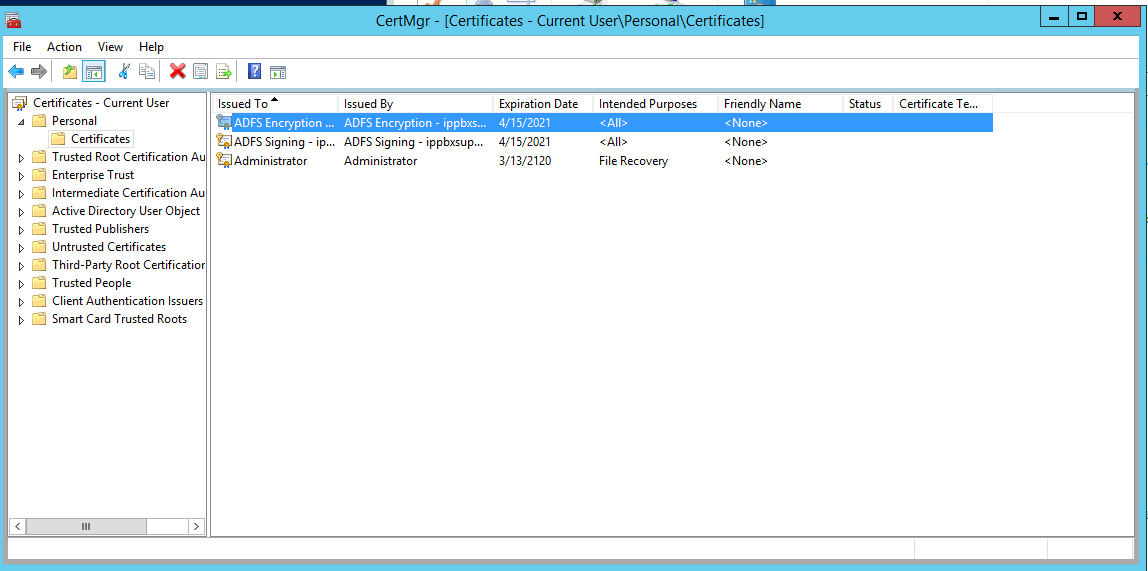
win_5F00_server-_2800_2_2900_.png

Here is a screen shot of what I think is the correct place I need to be.

I have right clicked on the white space while nothing is selected, and selected the certificates, and selected "All tasks," but I am not seeing the "Manage Private Certificates" as stated in the documentation.

Am I doing something wrong?

I have the same question (0)
  • Suggested answer
    Ragnar Hilmarsson Profile Picture
    3,427 on at

    Hi 

    What kind of certificate do you have ? wildcard or san? 
    based on  your screen shot you are importing in current user but ssl for CRM needs to be in computer account 
    Look at this article on item 20 "select Cerificates and add"

    https://interactivewebs.com/index.php/crm/how-to-set-up-microsoft-crm-2016-ifd-on-windows-2012-r2-server/

  • saurabhtiwarii Profile Picture
    Microsoft Employee on at

    Hello,

    Looks like you are at the right spot, you might have just missed to select your SSL/TLS certificate and then do the right click to see this menu ::

    pastedimage1587406542604v1.png

    Please mark my comment as answered if this helps. 

    Thanks,

    Saurabh

  • Suggested answer
    KNERDY Profile Picture
    10 on at

    It seems the docs are a bit lacking on the MS site, but the site you linked to gave a better instruction on what to do. I was in the Certificate Manager, while I was suppose to be using MMC.

    Thanks a lot!

  • KNERDY Profile Picture
    10 on at

    I was in Certificate Manager, not MMC. So no, I was incorrect, but thank you for taking the time to respond.

Under review

Thank you for your reply! To ensure a great experience for everyone, your content is awaiting approval by our Community Managers. Please check back later.

Helpful resources

Quick Links

Introducing the 2026 Season 1 community Super Users

Congratulations to our 2026 Super Stars!

Meet the Microsoft Dynamics 365 Contact Center Champions

We are thrilled to have these Champions in our Community!

Congratulations to the March Top 10 Community Leaders

These are the community rock stars!

Leaderboard > Customer experience | Sales, Customer Insights, CRM

#1
ManoVerse Profile Picture

ManoVerse 196 Super User 2026 Season 1

#2
11manish Profile Picture

11manish 129

#3
CU11031447-0 Profile Picture

CU11031447-0 100

Last 30 days Overall leaderboard

Product updates

Dynamics 365 release plans
