web
You’re offline. This is a read only version of the page.
close
Skip to main content

Notifications

Announcements

Community site session details

Community site session details

Session Id :
Microsoft Dynamics GP (Archived)

Workflow Approval Menu missing GP2013 R2 for Purchase Requisition

(0) ShareShare
ReportReport
Posted on by

Hi All

Has anyone else found that their workflow menu - with the approval option has disappeared?

I have been testing the GP2013 R2 workflow functionality on Purchase Requisitions and found that at one stage for the approval user - their approve workflow menu option is no longer available although they are clearly the user to approve. Returning to a previously used workflow does not correct this. I can see no reason why it would start doing this.


thanks

KJ
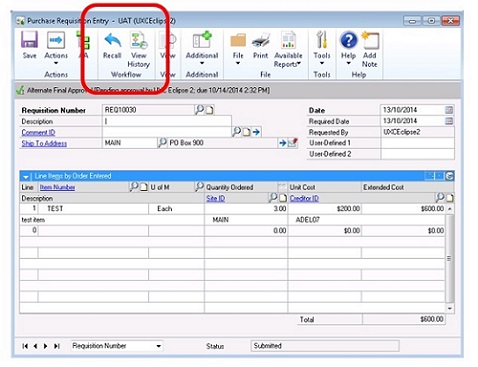


Workflow Menu – Action missing


*This post is locked for comments

I have the same question (0)
  • Joshua Page Profile Picture
    on at

    Hi K!

    Looking at the screenshot the answer is most likely right under the box you highlighted, it is requesting final approval from an alternate final approver.

    I'm guessing this occurs if the approver alters the document? if so you can try unselecting the option "Always Require at Least One Approver" from the workflow  setup which should resolve the issue for you.

    for easy reference I'm including a little info about this option from the help file. I would highly recommend clicking the help button it the workflow maintenance window for a full example of what this does. After Clicking Help about this window click on "Creating and configuring a workflow checklist>Indicate if documents should be approved by at least one person".

    An alternate final approver is required in the following situations.

    1)The Always Require at Least One Approver option is marked and there are no approval steps whose conditions are met.

    2)The Always Require at Least One Approver option is marked and the approver edits the document and there are no following approval steps.

    3)There are no approval steps following an overdue step, depending on your escalation settings.

    Another possibility is that the originator=the approver for this workflow and the option "Allow originator to be an approver" is not marked.

    Both of these situations will cause the specified alternate final approver (or the configured manager for the workflow type if there is no specified alternate final approver) to need to approve the document instead of the actual assigned approver.

    If you have any other questions or if this was not your situation please feel free to let me know!

    Joshua

  • Verified answer
    Community Member Profile Picture
    on at

    Hi Joshua,

    Thank  you for your reply. I read through your answer and clarified that my workflow setup and logic was correct. What I did discover - and a trick with testing was that:

    The correct windows account must be used for work flow. In my case the Dynamics GP user id was assigned to an appropriate windows account. If I used the relevant approver's GP user account with the incorrect windows account the workflow approval menu does not appear.

    When I logged in with the correct windows account and approver's GP login, I was able to approve without issue.  

    Thanks for your time in answering my query.

    regards

    Kirstie

Under review

Thank you for your reply! To ensure a great experience for everyone, your content is awaiting approval by our Community Managers. Please check back later.

Helpful resources

News and Announcements

Season of Giving Solutions is Here!

Quick Links

Responsible AI policies

As AI tools become more common, we’re introducing a Responsible AI Use…

Neeraj Kumar – Community Spotlight

We are honored to recognize Neeraj Kumar as our Community Spotlight honoree for…

Leaderboard > 🔒一 Microsoft Dynamics GP (Archived)

#1
mtabor Profile Picture

mtabor 1

Last 30 days Overall leaderboard

Featured topics

Product updates

Dynamics 365 release plans



