web
You’re offline. This is a read only version of the page.
close
Skip to main content

Notifications

Announcements

No record found.

Community site session details

Community site session details

Session Id :
Microsoft Dynamics GP (Archived)

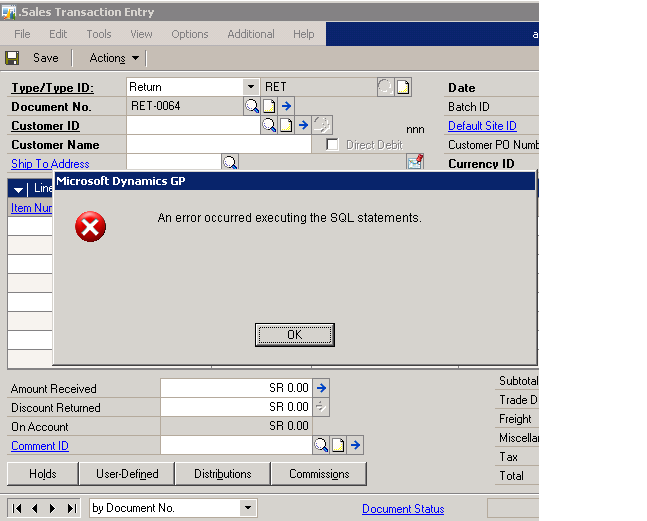
An error Occurred executing an SQL Statement

(0) ShareShare
ReportReport
Posted on by


Hello Everyone

Well I was in sales transaction entry window,  by Mistake I click something in Addittional Tab button at the top of sales transaction entry window and now that message is appearing, I click OK then some other window appears and then some other and this again and the loop continues, I am also not able to go out of it. So please help me how to get rid of it. Thanks in advance. anciously waiting for a possible solution.


*This post is locked for comments

I have the same question (0)
  • Suggested answer
    soma Profile Picture
    24,410 on at

    This is modified window. Change this to standard and try again. For changing to standard window, Open Alternate/Modified Forms and Report window (Tools-->Setup-->System-->Alternate/Modified Forms and Report). In that window choose desired id for the user, product all and type as window. Then expand the sales module and choose sales transaction window as standard Microsoft Dynamics GP then click save. Now open sales transaction window to check the issue occurs or not.

    Hope this helps!!!

  • Community Member Profile Picture
    on at

    Thank You Soma,

    actually because of that error I was not able to open any tab, three of such messages were opening in a loop, so I just asked asked the key user to kick my user out of server for a while, and my GP comes back. Thank any ways,

    I hope you can help me with a similar issue, I have no access limitation on my user like for deleting the Invoice, Sales order, but the problem is New FC dont know the password set by Ex FC for the same purpose. So please suggest is there any possible way to see the passwords?

  • soma Profile Picture
    24,410 on at

    What you mean by FC?

  • Almas Mahfooz Profile Picture
    11,009 User Group Leader on at

    Go to task manager and End process your Dynamics GP app.

    and re-login to GP.

    Why waiting for others to kick you. :-)

  • Community Member Profile Picture
    on at

    Financial Controller, any solution on how to locate a password?

  • Verified answer
    Almas Mahfooz Profile Picture
    11,009 User Group Leader on at

    Ask your FC to login to GP Navigate to Microsoft Dynamics GP>Tools>Setup>System>Sales and open Sales Order Processing, Click on on Invoice ID and open it, check  scrolling window for passwords.

  • Verified answer
    soma Profile Picture
    24,410 on at

    Login GP as sa User. Open Sales Order Processing Setup window(Tools-->Setup-->Sales-->Sales Order Processing) and click the  Sales Document Setup button to choose the Invoice. In Sales Invoice Setup window, you can see the password for delete documents as below.

    Hope this helps!!!

  • Community Member Profile Picture
    on at

    Thank you guys, it worked. Can I ask one more ease question.

    How to apply Payables Invoice in US Dollars with Payment booked in Euro.

  • Community Member Profile Picture
    on at

    Functional currency is SAR.

  • Suggested answer
    soma Profile Picture
    24,410 on at

    You can't apply one originating currency to another originating currency. 

    GP allows 3 way of apply process in payables.

    1. Functional to Functional

    2. Functional to Originating

    3. Origination to Functional

    For option 1, you can apply from both manual payment apply button and separately from apply payables documents window.

    For option 2 & 3, you need to post the functional/originating payment separately and apply it from Apply Payables Documents window with following below steps.

    1. Open Apply Payables Document window (Transactions-->Purchasing-->Apply Payables Docuements).

    2. Enter vendor ID and choose your appropriate payment booked in Euro.

    3. After selected payment numbers, the available documents for the entered vendor will be displaying in scrolling window.

    4. Now apply the payable invoice and click OK.

    Note: If you apply originating payment to originating invoice, it will through the error message. You can't apply.

    Hope this helps!!!

Under review

Thank you for your reply! To ensure a great experience for everyone, your content is awaiting approval by our Community Managers. Please check back later.

Helpful resources

Quick Links

Responsible AI policies

As AI tools become more common, we’re introducing a Responsible AI Use…

Neeraj Kumar – Community Spotlight

We are honored to recognize Neeraj Kumar as our Community Spotlight honoree for…

Leaderboard > 🔒一 Microsoft Dynamics GP (Archived)

#1
mtabor Profile Picture

mtabor 1

Last 30 days Overall leaderboard

Featured topics

Product updates

Dynamics 365 release plans



