web
You’re offline. This is a read only version of the page.
close
Skip to main content

Notifications

Announcements

No record found.

Community site session details

Community site session details

Session Id :
Small and medium business | Business Central, N...
Suggested Answer

How to install multiple versions of business central on 1 machine

(0) ShareShare
ReportReport
Posted on by 241

Hi, how are you all? Hope you all are fine. I'm looking for a way to install multiple versions of business central on 1 machine.

Currently, I'm using version 15. I also want to install version 18. I've downloaded the setup files for version 18 from https://www.microsoft.com/en-us/download/details.aspx?id=102915  When I ran the setup.exe file and clicked on "Install Demo" it gave following error

"The version of sql server instance BCDEMO is not supported"

Then I installed version 18 using "Custom option" and it got installed sucessfully but a lot of commands are missing in "Business Central Development Shell" 
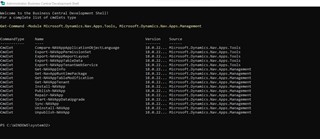
pastedimage1631519589977v1.jpeg

And version 15 server is also not working,
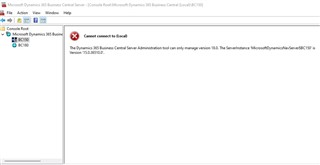
pastedimage1631519589978v2.jpeg

Can anyone please tell me how to manage two both versions 15 and 18 together on 1 machine. Answers will be highly appreciated.

Thanks for reading.

I have the same question (0)
  • Suggested answer
    Andrey Baludin Profile Picture
    3,941 on at

    Hi!

    1. this is advise from Microsoft using for versions upgrade we could apply in your case:

    Before you install new version, it can be useful to create desktop shortcuts to the old version tools, such as the Business Central Server Administration tool, Business Central Administration Shell, and Dynamics NAV Development Shell because the Start menu items for these tools will be replaced with the new version tools.

    Install new version components.

    You'll keep old version installed for now. When you install new version, you must either specify different port numbers for components (like the Business Central Server instance and web services) or stop the old version Business Central Server instance before you run the installation. Otherwise, you'll get an error that the Business Central Server failed to install.

    2. If you need both versions for test purposes only - you could deploy them using docker containers and Freddy's BCContainerHelper module:

    docs.microsoft.com/.../devenv-running-container-development

    Using the Docker you'll avoid all the version conflicts.

  • M Hussnain Javed Profile Picture
    241 on at

    Hi Andrey Baludin, thanks for replying.

    OK before installing BC version 18, I should create desktop shortcuts of Business Central Server Administration tool and Business Central Administration Shell.

    After installing BC version 18, These two tools, Business Central Server Administration and Business Central Administration Shell, will again be downloaded compatible with version 18 server instance. Right?

    If I need to run version 15 server instance then I'll have to open desktop shortcut of Business Central Server Administration tool or Business Central Administration Shell to run version 15 server instance??

    Similarly, if I need to run version 18 server instance then I'll have to open newly downloaded (with version 18) Business Central Server Administration tool or Business Central Administration Shell to run version 18 server instance??

  • Suggested answer
    Andrey Baludin Profile Picture
    3,941 on at

    Installation of v18 will replace all the shortcuts for v15. You'll be able to work with the old version only using your earlier saved shortcuts, otherwise you'll get "is not supported" error.

    Bet yes, you'll be allowed to use Business Central Server Administration and Business Central Administration Shell for the old environment

  • M Hussnain Javed Profile Picture
    241 on at

    I followed the whole procedure, now I can access old version which is 15 but version 18 is still causing same problems .In newly craeted Business Central Server Administration tool, server instance 180 is not running. It ran only once, when I restarted the pc It stopped running.

    abcc.jpg

  • Suggested answer
    Andrey Baludin Profile Picture
    3,941 on at

    V18 instance should manage with new installed BC Server administration. Run it with default (not earlier saved) shortcuts. Seems like your screenshot is for old version.

  • Suggested answer
    YUN ZHU Profile Picture
    95,329 Super User 2025 Season 2 on at

    Hi, It seems that the new version of Business Central Administration overwrites the old version, so there is a problem.

    In addition to the port problem mentioned by Andrey, after installing each version, these three files must be renamed. Unlike the previous NAV, they all have the same name. So you can reinstall BC15, rename, and install BC18.

    pastedimage1631579950005v1.png

    Hope this will help.

    Thanks.

    ZHU

Under review

Thank you for your reply! To ensure a great experience for everyone, your content is awaiting approval by our Community Managers. Please check back later.

Helpful resources

Quick Links

Responsible AI policies

As AI tools become more common, we’re introducing a Responsible AI Use…

Neeraj Kumar – Community Spotlight

We are honored to recognize Neeraj Kumar as our Community Spotlight honoree for…

Leaderboard > Small and medium business | Business Central, NAV, RMS

#1
OussamaSabbouh Profile Picture

OussamaSabbouh 3,226

#2
Jainam M. Kothari Profile Picture

Jainam M. Kothari 2,047 Super User 2025 Season 2

#3
YUN ZHU Profile Picture

YUN ZHU 1,257 Super User 2025 Season 2

Last 30 days Overall leaderboard

Featured topics

Product updates

Dynamics 365 release plans
