Refer to below to learn about adding Julian Date format in Electronic reporting in D365 FinOps.
Open the designer, click on the row sequence that contains the date fields. Click on mapping
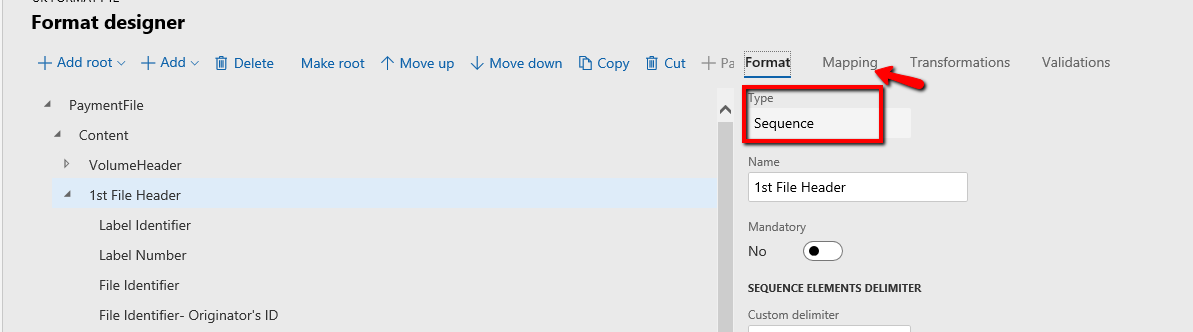
Click on ‘edit Formula’
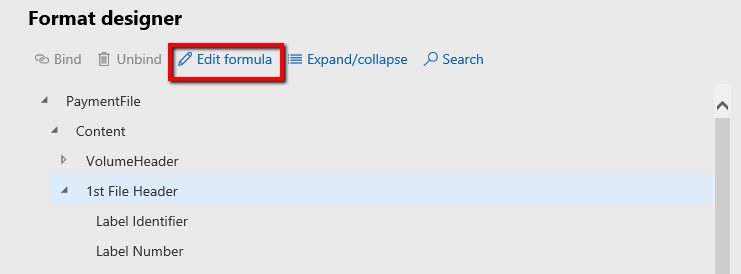
On next screen, click on payments & then click on ‘add data source’ . ‘model.payments’ will appear in the white formula box. Or you can manually type this
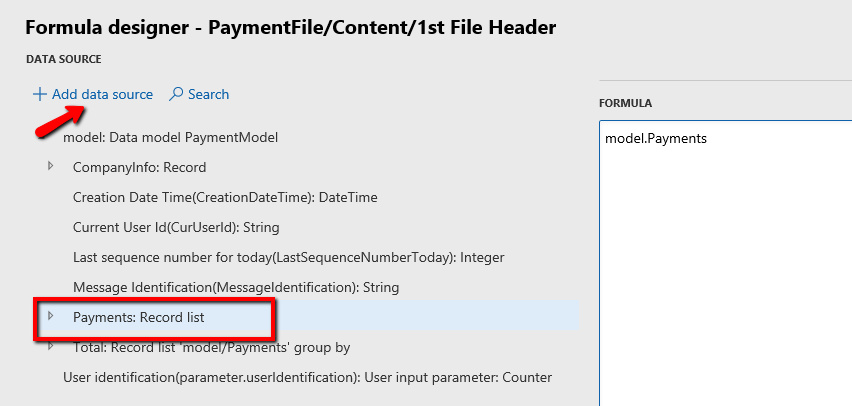
Click save & then close the screen.
Time to define the date fields:
Click on date field1 , in this case I have named it as ‘YY’ . Note that type of the field is ‘DateTime’
Define format as ‘yyMMdd’ and field length as 2 (Minimum & maximum)
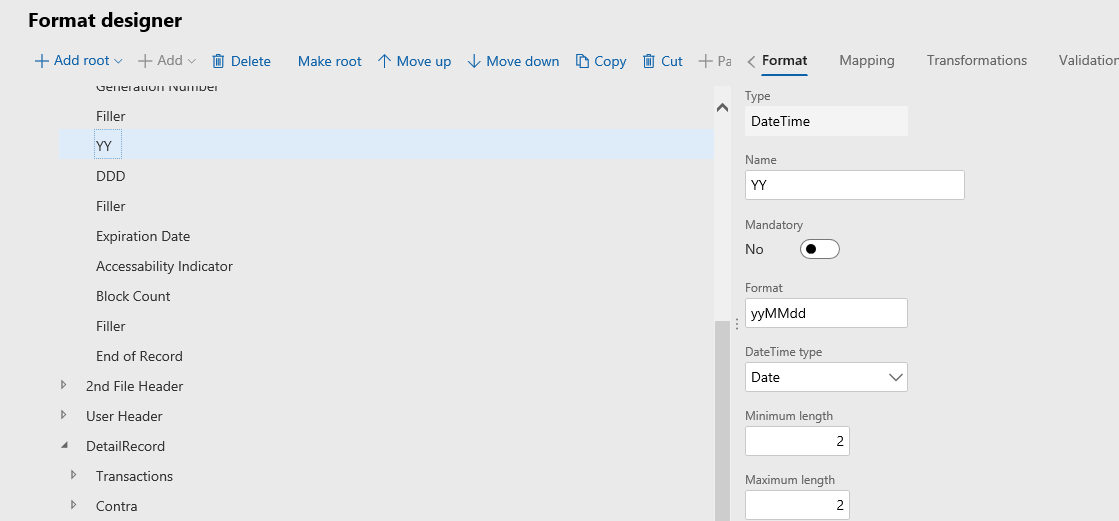
System will convert the date in ‘YYMMDD’ format and read just the 2 first characters. i.e 8th Oct,2019 will appear as ‘19’ in the file.
Click on mapping>Model>payments>RequestedExecutionDate and click Bind. The formula will appear on the left side of the screen
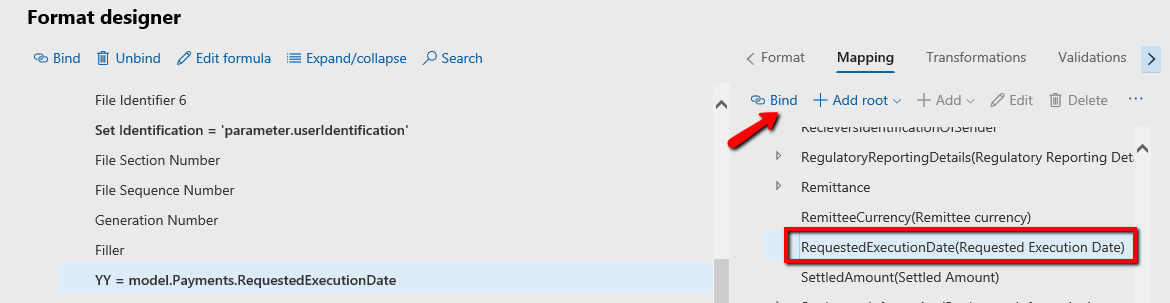
Click on ‘DDD’ field which is string type field. Click on mapping & then edit formula
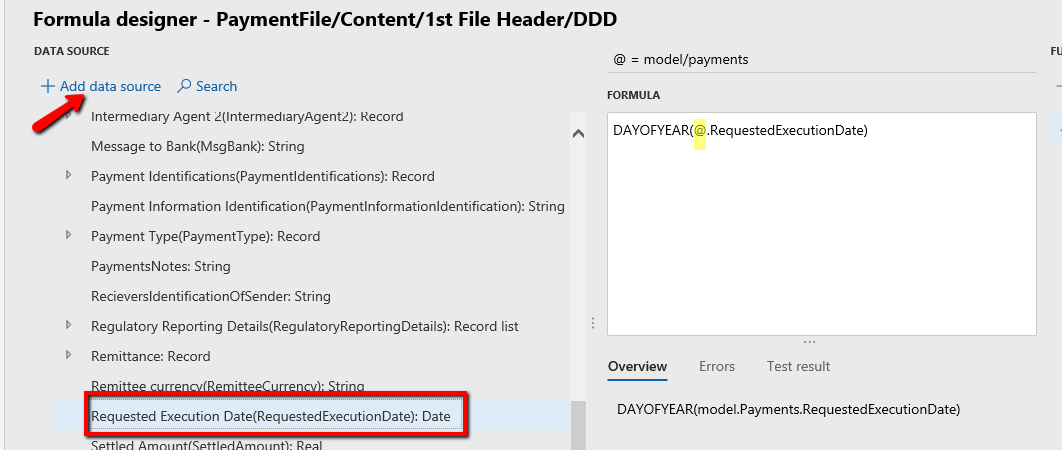
On next screen, select the ‘DAYOFYEAR’ function and then click on add function. It will be added to formula box.

Click on Requested Execution date and then ‘Add data source’. The field will be added to formula box. Just manually type @. before the field name and close the bracket.
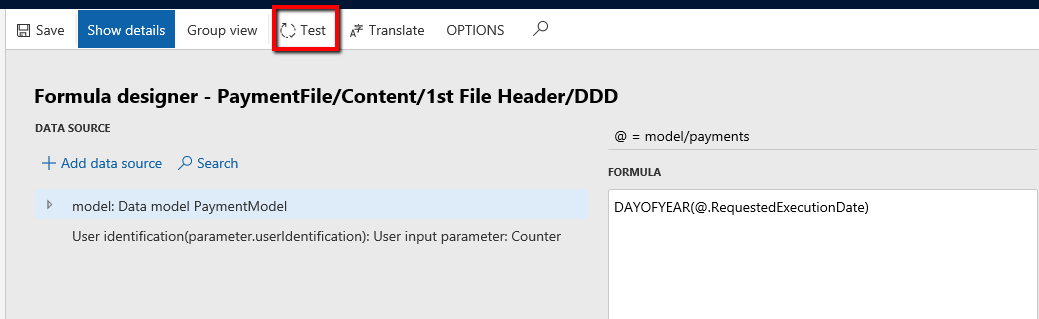
Save & test the formula
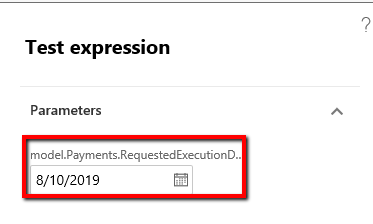
8th October is read as 281st day of the year
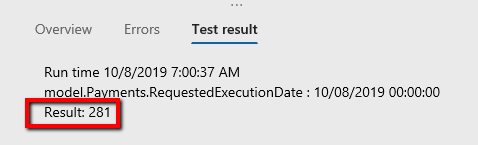
And this is how the value will look like in the file , Julian date format.



