web
You’re offline. This is a read only version of the page.
close
Skip to main content
Community site session details

Community site session details

Session Id :
Microsoft Dynamics 365 | Integration, Dataverse...
Answered

Navigation Menu

(0) ShareShare
ReportReport
Posted on by 5

Hi,

I'm a salesforce admin and started learning MS dynamics admin course for one of my project assignment. 

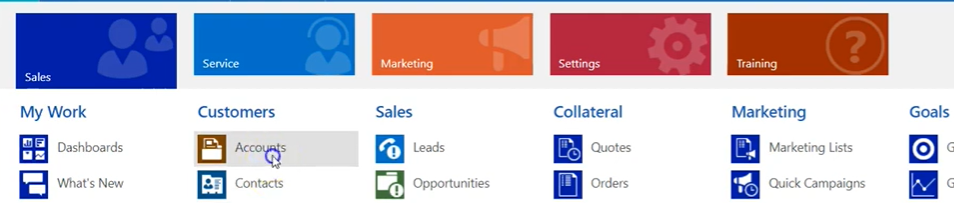
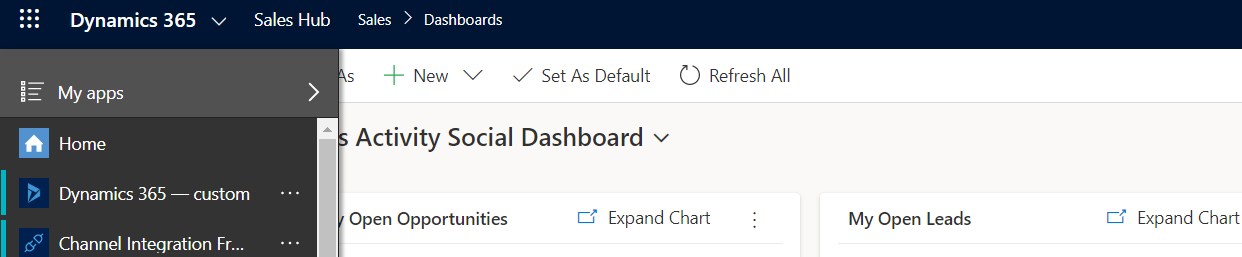
Could someone please let me know why I can't see below navigation sales/services/marketing/settings/training icons on my trail app? Below are screenshots 

Thanks for your help. 

Original Screenshot from the course that I'm learning
pastedimage1593083918120v1.png

below is my screenshot which I have downloaded from trails.dynamics.com
pastedimage1593084090251v2.png

I have the same question (0)
  • Verified answer
    Shaina Profile Picture
    on at
    RE: Navigation Menu

    Hi, 

    The first screenshot is the old web client interface. The second screenshot from your trial is the new UCI ( Unified Interface). 

    You will be able to see the apps on the left side: 

    pastedimage1593088705772v1.png

    You can also switch the area by clicking on the dropdown on the left bottom

    pastedimage1593088812784v2.png

    More details: https://docs.microsoft.com/en-us/power-platform/admin/about-unified-interface

    Regards,

    Shaina

    Please mark this answer as verified, if it's been helpful.

  • flexcoder7 Profile Picture
    5 on at
    RE: Navigation Menu

    Thank you Shaina. However, I can see the drop down on the left bottom with different options like Sales/app settings/sales insight settings/help and support which different from the screenshot you posted.

    pastedimage1593126719611v1.png

  • Verified answer
    Shaina Profile Picture
    on at
    RE: Navigation Menu

    Hi Swapna,

    From your screenshot, if you go into the app that says 'Dynamics - 365 Custom' and then click on the dropdown on the bottom left corner, you should be able to see those options.

    pastedimage1593159832985v1.png

    For the Settings, that you see in your first screenshot, you will need to go to the gear icon on the top right and then advanced settings. 

    pastedimage1593160092044v1.png

    You will reach Settings. 

    pastedimage1593160175399v2.png

    Regards,

    Shaina

Under review

Thank you for your reply! To ensure a great experience for everyone, your content is awaiting approval by our Community Managers. Please check back later.

Helpful resources

Quick Links

Responsible AI policies

As AI tools become more common, we’re introducing a Responsible AI Use…

Pallavi Phade – Community Spotlight

We are honored to recognize Pallavi Phade as our Community Spotlight honoree for…

Leaderboard > Microsoft Dynamics 365 | Integration, Dataverse, and general topics

#1
#ManoVerse Profile Picture

#ManoVerse 103

#2
Siv Sagar Profile Picture

Siv Sagar 93 Super User 2025 Season 2

#3
Martin Dráb Profile Picture

Martin Dráb 67 Most Valuable Professional

Last 30 days Overall leaderboard

Product updates

Dynamics 365 release plans



