web
You’re offline. This is a read only version of the page.
close
Skip to main content

Notifications

Announcements

No record found.

Community site session details

Community site session details

Session Id :
Customer experience | Sales, Customer Insights,...
Answered

Dynamics Workflow Display Name can't enter greyed out error message You haven't entered a Value but won't allow Value to be entered

(0) ShareShare
ReportReport
Posted on by 20

Hi There, 

My name is Brentan and I'm having an issue within Dynamics 365 where by I am trying to add a workflow but I get the error regarding Display Name that says "You haven't entered a Value" but I do not have the option to enter in a display name as it is greyed out. 

If you can help please let me know. 

Kind Regards.

Brentan

I have the same question (0)
  • Suggested answer
    LuHao Profile Picture
    40,892 on at

    Hi Brentan,

    You mean, when you create a record in the workflow, the required field is locked so you cannot enter a value in it, right?

    If so, we need to unlock the required field.

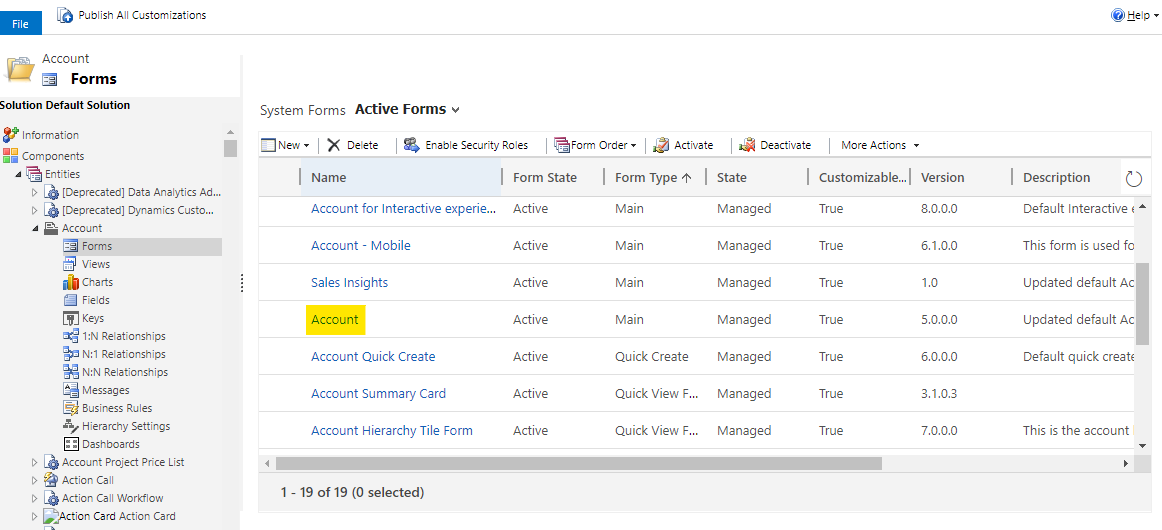
    First of all, check the form order of the main form, remember the top form name.

    For example, if I want to create an Account, I will see the form order of Account. The top one is "Account" form.
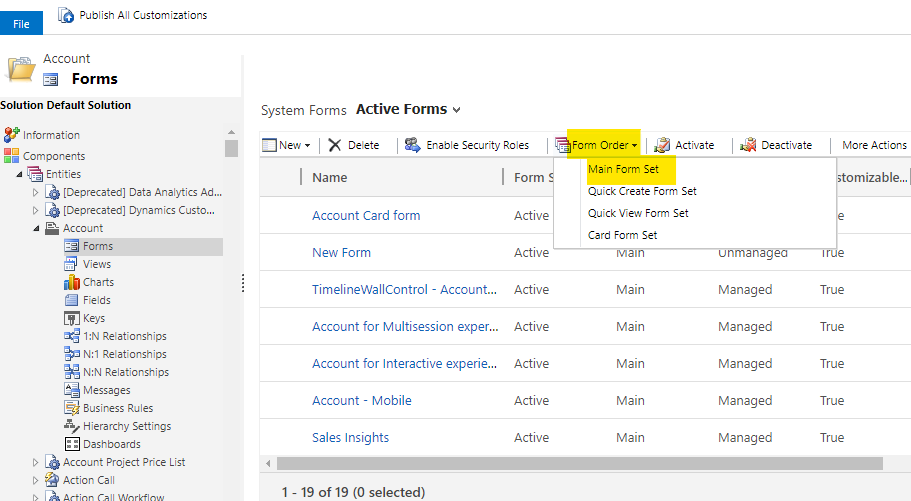
    pastedimage1616725992228v1.png

    Then I edit the "Account" main form.

    pastedimage1616726060486v2.png

    Edit the properties of the locked field, uncheck "Field is read-only". Save and publish.
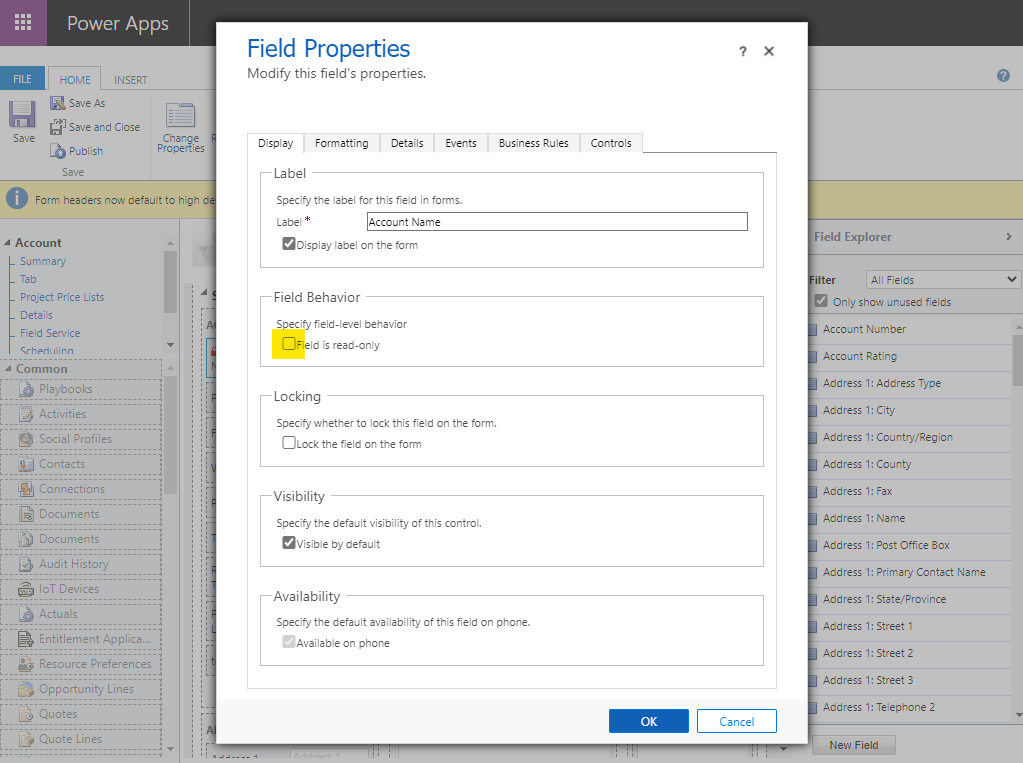
    pastedimage1616726132411v4.png

  • Brentan Profile Picture
    20 on at

    Hi Hao,

    Thank you for your response. This may be similar to the problem I am having but I can't find the solution based on your answer. Perhaps if I provide more details:

    I am editing a process called First Home Owner

    I wish to add a workflow into this process that when the user changes the value of Contract Signed? to YES it will populate the field Contract Signed Date to today's date.

    I was told the best way to do this was with a workflow.

    I can add in a workflow but I cannot save the workflow because it produces the error under Display Name "You haven't entered a Value." The field is greyed out or perhaps locked as Read Only as you, Hao suggested.

    This is also my first ever question in the dynamics community. How can I add a picture as you have done so I can provide a screenshot of what I am experiencing?

  • Suggested answer
    Fubar Profile Picture
    2,761 on at

    If you are inside a Workflow Update step, and the field is greyed out then it is readonly.  You need to temporarily make the field editable - find the Form edit it and on the filed properties uncheck the Field is Readonly setting. then Save and then Publish.

  • LuHao Profile Picture
    40,892 on at

    Hi Brentan,

    You can click Insert > Insert image/video/file, then select File Upload to upload your image.

    pastedimage1616737364309v1.png

    pastedimage1616737382092v2.png

    Or you can take a screenshot and paste it directly into the text box.

  • Brentan Profile Picture
    20 on at

    Hi Hao,

    Thank you again for your time. It seems I'm having trouble with the reply button on this community.dyanmics.com site. I found the options available now but before it didn't give me the options just a basic textbox and also there was a 50/50 change clicking reply just sends me to this sites homepage. Anyway back to my original problem.

    Please see screenshot below:

    Screenshot-2021_2D00_03_2D00_26-131120.png 

    It seems that both you, Hao and LA have the right idea and it is a read only option I need to change but I'm not sure which Form to find this in. 

    If you have any advice on how to find the correct form I would really appreciate it.

    Kind Regards.

    Brentan

  • Verified answer
    LuHao Profile Picture
    40,892 on at

    Hi Brentan,

    I see, you want to insert the workflow in Business Process Flow.

    So Display Name is not up to us to fill in, we just need to select the workflow, after that Display Name will automatically change to the name of the selected workflow.

    pastedimage1616740364212v1.png

Under review

Thank you for your reply! To ensure a great experience for everyone, your content is awaiting approval by our Community Managers. Please check back later.

Helpful resources

Quick Links

Responsible AI policies

As AI tools become more common, we’re introducing a Responsible AI Use…

Neeraj Kumar – Community Spotlight

We are honored to recognize Neeraj Kumar as our Community Spotlight honoree for…

Leaderboard > Customer experience | Sales, Customer Insights, CRM

#1
Tom_Gioielli Profile Picture

Tom_Gioielli 137 Super User 2025 Season 2

#2
#ManoVerse Profile Picture

#ManoVerse 57

#3
Jimmy Passeti Profile Picture

Jimmy Passeti 50 Most Valuable Professional

Last 30 days Overall leaderboard

Product updates

Dynamics 365 release plans