web
You’re offline. This is a read only version of the page.
close
Skip to main content

Notifications

Announcements

No record found.

Community site session details

Community site session details

Session Id :
Microsoft Dynamics 365 | Integration, Dataverse...
Answered

Does a Quote With Active Status Allow Editing of Production Fields/Quote Rows?

(0) ShareShare
ReportReport
Posted on by 157

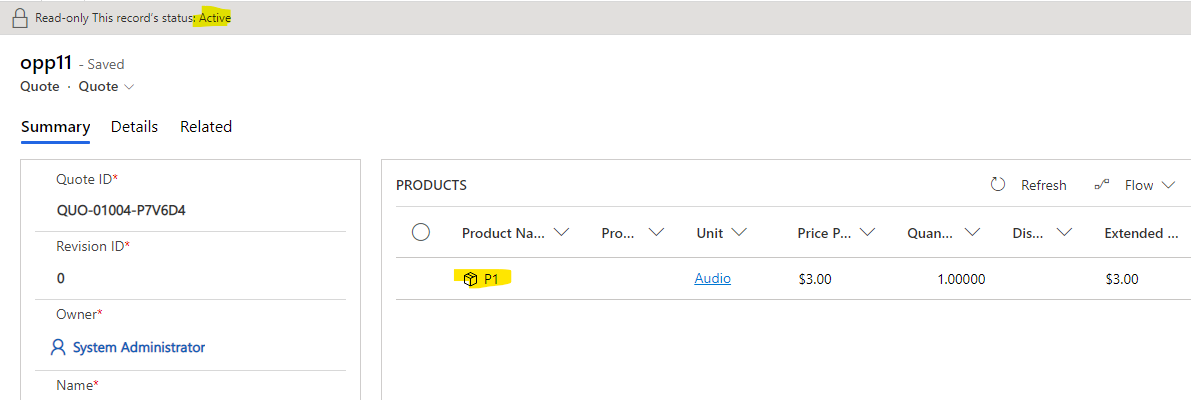
Dear, I understand that by Default, even if a Quote is in Active Status, we can access the Products/Quote Lines and Edit the Products fields, I would like to know if this is really a Dynamics365 default behavior and if there is any way to prevent to edit the fields of the Products/Quote Lines when a Quotation is in Active Status? Follow the print below for example.

2046.print-1.jpg

3034.print-2.jpg

I have the same question (0)
  • Verified answer
    Community Member Profile Picture
    on at

    Hi Dani,

    Yes, even if a Quote is in Active Status, we can access the Products/Quote Lines and Edit the Products fields by default, which is a Dynamics 365 default behavior.

    If you want to make form of related quote line is read-only when a Quote is in Active Status, you can use javascript code to lock quote line form based on status of the quote.

    js code:

    function lockQuoteLine(executionContext) {
        let formContext = executionContext.getFormContext();
        var QuoteTD = formContext.getAttribute("quoteid").getValue()[0].id;//quote lookup id
        //get status of quote
        Xrm.WebApi.online.retrieveRecord("quote", QuoteTD, "?$select=statecode").then(
            function success(result) {
                var statecode = result["statecode"];//value
                var statecode_formatted = result["statecode@OData.Community.Display.V1.FormattedValue"];//text
                if (statecode == 1)//status is active
                {
                    //lock all fields of the form
                    formContext.data.entity.attributes.forEach(function (attribute, index) {
                        let control = formContext.getControl(attribute.getName());
                        if (control) {
                            control.setDisabled(true)
                        }
                    });
                };
            },
            function (error) {
                Xrm.Utility.alertDialog(error.message);
            }
        );
    
    }

    Go Settings > Customizations > Customize the system > Web Resource to add the js code.

    pastedimage1632809319458v3.png

    Then Expand Entities to fins quote line entity, open the main form.
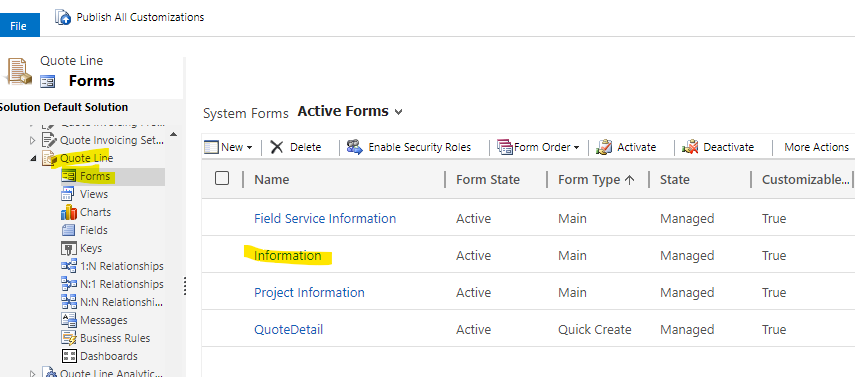
    pastedimage1632809194470v2.png

    Open form properties dialog to add the js resource:

    pastedimage1632808746812v1.png

    Save and Publish all customizations.
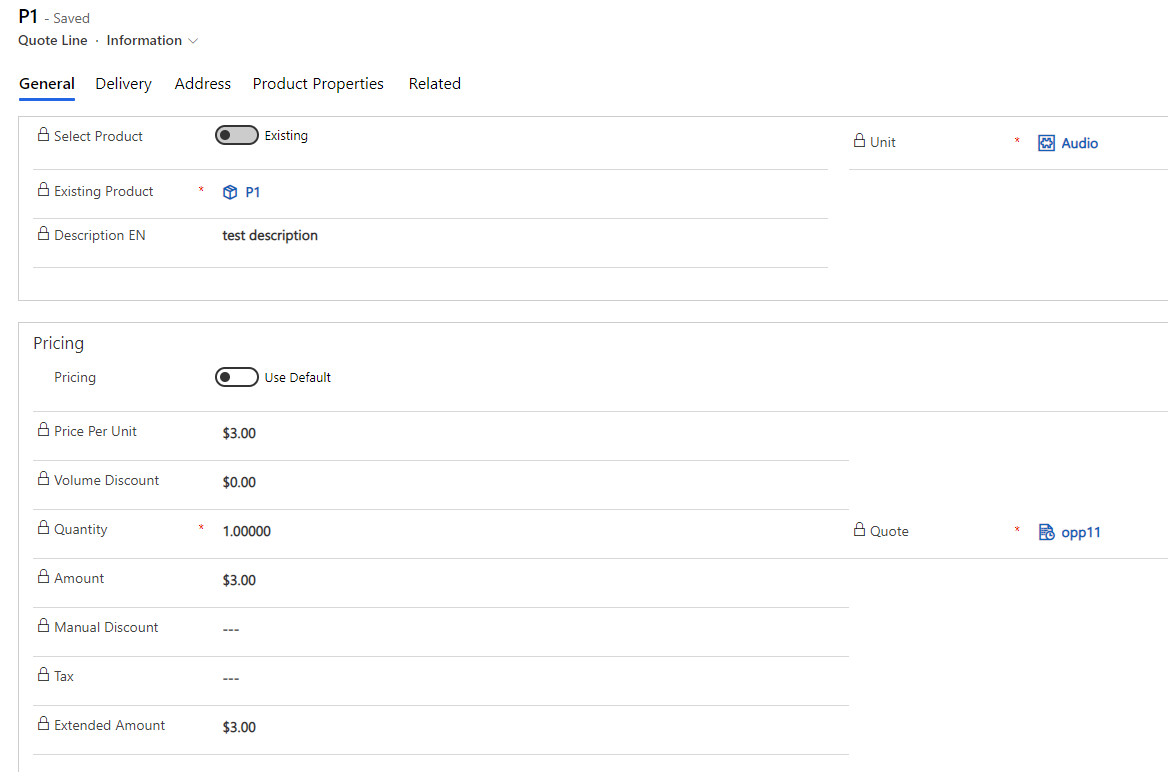
    pastedimage1632810465841v6.png

    pastedimage1632810435419v5.png

  • CU23100303-0 Profile Picture
    157 on at

    Thank you so much Leah Ju, it helped a lot.

Under review

Thank you for your reply! To ensure a great experience for everyone, your content is awaiting approval by our Community Managers. Please check back later.

Helpful resources

Quick Links

Responsible AI policies

As AI tools become more common, we’re introducing a Responsible AI Use…

Neeraj Kumar – Community Spotlight

We are honored to recognize Neeraj Kumar as our Community Spotlight honoree for…

Leaderboard > Microsoft Dynamics 365 | Integration, Dataverse, and general topics

#1
Siv Sagar Profile Picture

Siv Sagar 93 Super User 2025 Season 2

#2
#ManoVerse Profile Picture

#ManoVerse 80

#3
Martin Dráb Profile Picture

Martin Dráb 64 Most Valuable Professional

Last 30 days Overall leaderboard

Product updates

Dynamics 365 release plans