web
You’re offline. This is a read only version of the page.
close
Skip to main content

Announcements

No record found.

News and Announcements icon
Community site session details

Community site session details

Session Id :
Customer experience | Sales, Customer Insights,...
Answered

How to add a tag for "first name" into a quick campaign?

(0) ShareShare
ReportReport
Posted on by

How do you add a merge tag for first name in a quick campaign? 
I want to email a group of my leads at once, when I try to input  {!Lead : First Name;} it just stays as that in the email that is sent. 

Thanks! 
I have the same question (0)
  • Verified answer
    LuHao Profile Picture
    40,892 on at

    Hi partner,

    We need to create a email template first.

    Open personal settings, under Email Templates, new it, select Lead.

    pastedimage1587534723366v1.png    pastedimage1587534999560v5.png

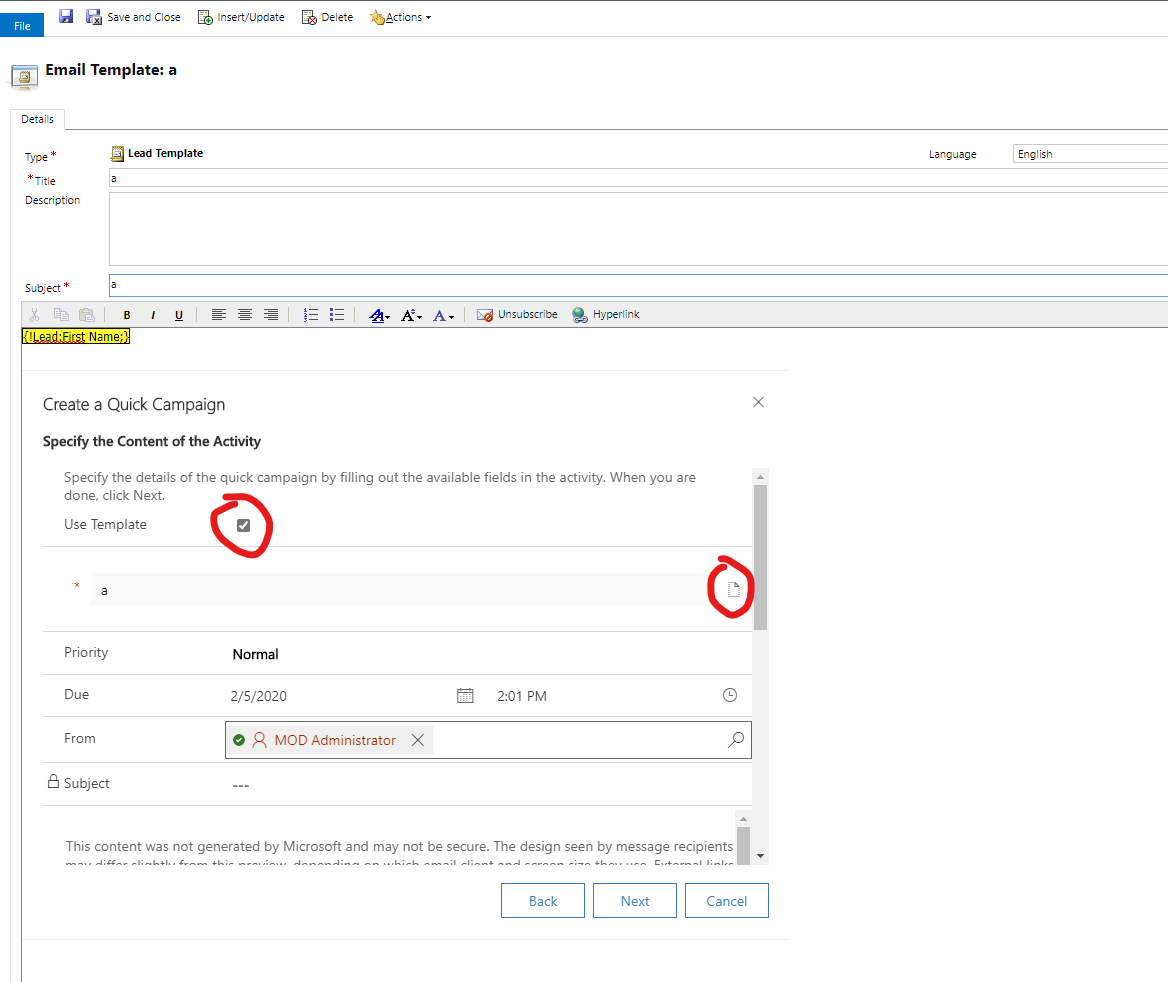
    In the email template editor, click Insert/Update button, then clik Add, select Lead and First Name. Save it.

    pastedimage1587534892356v2.png    pastedimage1587534919934v3.png    pastedimage1587534945847v4.png

    When create Quick Campaigns, select Use Template and pick the email template you just created.

    pastedimage1587535351053v6.png

  • Community Member Profile Picture
    on at

    Thanks for your reply Hao,

    Yes - I knew you could do it through template. However wondered if there was another way so our sales guys didn't need me or marketing team to add the template prior.

    Further, you can not insert images into the template as far as I can tell for email signatures, unless you know of a way?

  • Suggested answer
    LuHao Profile Picture
    40,892 on at

    Hi partner,

    1. As far as I know, there is no way to achieve it without a template.

    Using workflow or Power Automate can achieve this effect, but its complexity is no less than using an email template.

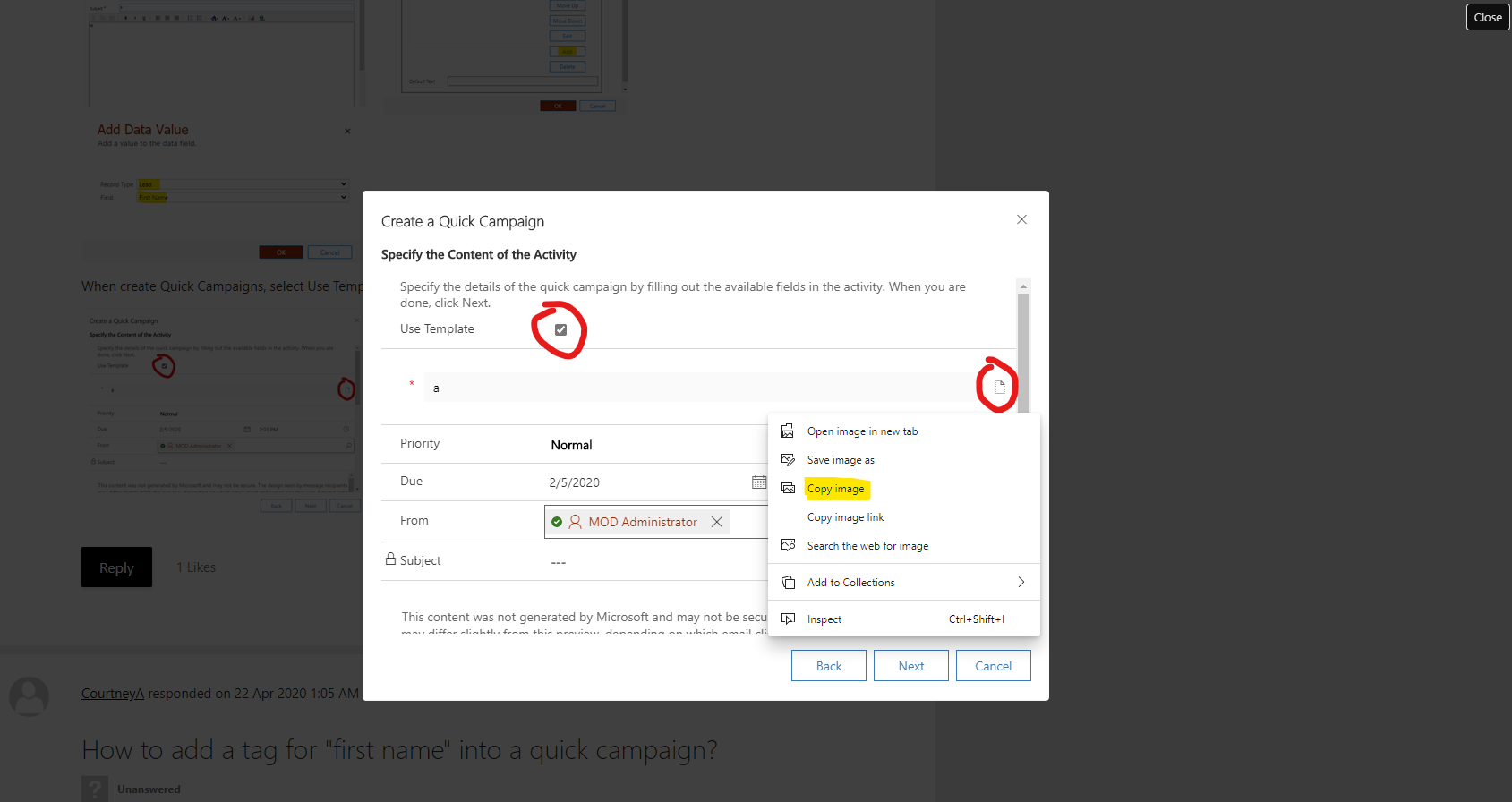
    2. We can insert images from web resources into email template body.

    For example, we can copy and paste the images in this thread directly into the template.
    pastedimage1587536083113v1.png

    pastedimage1587536126672v2.png

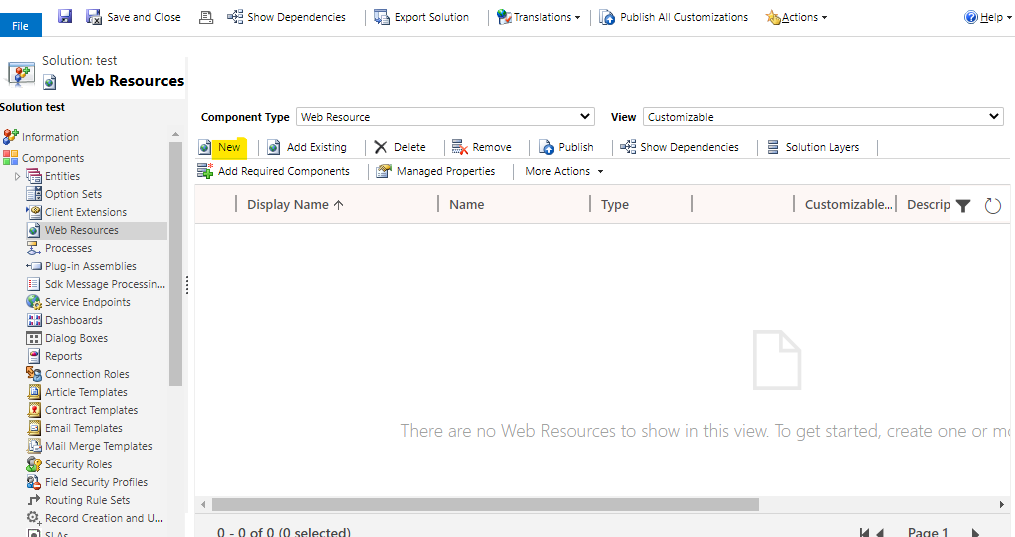
    For system email templates, we can upload images to the web resources of the solution, and then copy and paste these images into templates body.
    pastedimage1587536260506v3.png

  • Community Member Profile Picture
    on at

    This was helpful, thankyou

Under review

Thank you for your reply! To ensure a great experience for everyone, your content is awaiting approval by our Community Managers. Please check back later.

Helpful resources

Quick Links

Introducing the 2026 Season 1 community Super Users

Congratulations to our 2026 Super Stars!

Meet the Microsoft Dynamics 365 Contact Center Champions

We are thrilled to have these Champions in our Community!

Congratulations to the April Top 10 Community Leaders

These are the community rock stars!

Leaderboard > Customer experience | Sales, Customer Insights, CRM

#1
ManoVerse Profile Picture

ManoVerse 127 Super User 2026 Season 1

#2
11manish Profile Picture

11manish 121

#3
Muhammad Shahzad Shafique Profile Picture

Muhammad Shahzad Sh... 69 Most Valuable Professional

Last 30 days Overall leaderboard

Product updates

Dynamics 365 release plans