web
You’re offline. This is a read only version of the page.
close
Skip to main content

Notifications

Announcements

No record found.

Community site session details

Community site session details

Session Id :
Small and medium business | Business Central, N...
Answered

What is the difference between the variables in Recurring Jounal in Navision 2018?

(0) ShareShare
ReportReport
Posted on by 4,979

Hi Community,

May I know if you can explain what are the differences between these variables in Recurring Journal?

pastedimage1650064232945v1.png

Thank you!

I have the same question (0)
  • Suggested answer
    Inge M. Bruvik Profile Picture
    1,111 Moderator on at

    Please see explanation in this blog post:

    ebs.com.au/.../recurring-journals-in-business-central

  • Verified answer
    YUN ZHU Profile Picture
    95,729 Super User 2025 Season 2 on at

    Hi, hope the following will help.

    https://docs.microsoft.com/en-us/dynamics365/business-central/ui-work-general-journals#recurring-method-field

    pastedimage1650237078626v1.png

    Thanks.
    ZHU

  • Verified answer
    Community Member Profile Picture
    on at

    Josh,

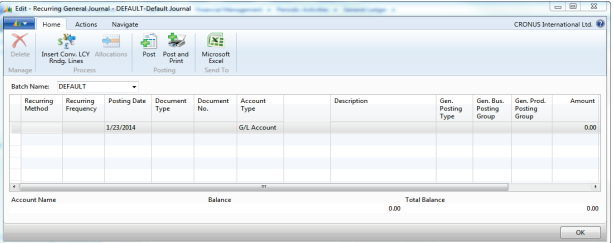
    The Recurring General Journals page contains recurring journals of all general journal types, and can be accessed as follows:
    pastedimage1651357175578v1.png

    Note: Only the recurring general journals post to general ledger accounts and they will be discussed later in this lesson. 

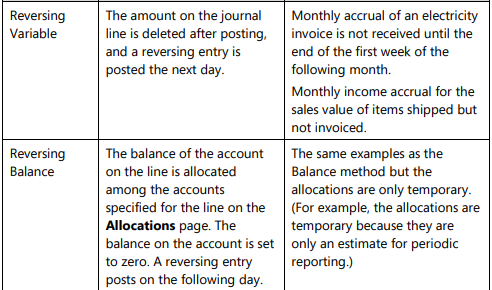
    The Recurring Method field determines how the amount on the journal line is treated after posting. The following table shows the various recurring methods.

    pastedimage1651357236039v2.png

    pastedimage1651357256348v3.png

    The Recurring Frequency field contains a formula that determines how frequently the entry on the journal line will be posted. This formula can contain no more than 20 alphanumeric characters that the program recognizes as abbreviations for time specifications. For example, if the formula 1M is entered with a Posting Date of 01/15/10, after the journal is posted, the date is changed to 02/15/10. Use one of the following methods to post an entry on the last day of every month after the current month: • Post the first entry on the last day of a month and enter the formula 1D+1M-1D (1 day + 1 month - 1 day). With this formula, the program calculates the date correctly regardless of how many days are in the month. • Post the first entry on any arbitrary day of a month and then enter the formula: 1M+CM. With this formula, the program calculates one full month plus the remaining days of the current month. Note: If you are posting monthly accruals that must be reversed the following month (Reversing Fixed, Reversing Variable, and Reversing Balance methods), post them on the last day of each month. The first entry must be posted on the last day of the current month and the recurring frequency must be either 1D+1M-1D or 1M+CM. This makes sure the reversal is always posted on the first day of the following month.

    Hope this helps.

    Thanks,

    Steve

Under review

Thank you for your reply! To ensure a great experience for everyone, your content is awaiting approval by our Community Managers. Please check back later.

Helpful resources

Quick Links

Responsible AI policies

As AI tools become more common, we’re introducing a Responsible AI Use…

Neeraj Kumar – Community Spotlight

We are honored to recognize Neeraj Kumar as our Community Spotlight honoree for…

Leaderboard > Small and medium business | Business Central, NAV, RMS

#1
OussamaSabbouh Profile Picture

OussamaSabbouh 2,238

#2
YUN ZHU Profile Picture

YUN ZHU 773 Super User 2025 Season 2

#3
Sumit Singh Profile Picture

Sumit Singh 630

Last 30 days Overall leaderboard

Featured topics

Product updates

Dynamics 365 release plans



