web
You’re offline. This is a read only version of the page.
close
Skip to main content

Notifications

Announcements

No record found.

Community site session details

Community site session details

Session Id :
Microsoft Dynamics CRM (Archived)

You must have sufficient permissions for a secured field before you can change its field level security.

(0) ShareShare
ReportReport
Posted on by 610

Hi everybody, I created some new fields in crm. The users in the company are not able to populate and edit it.

Here is a screenshot.1033.pic2.jpg
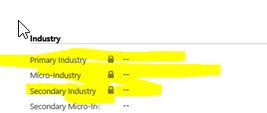
I have a padlock beside it. How can i remove it.

Secondly, I tried to enable and disable the field security, save and publish it, and here is the message I got.
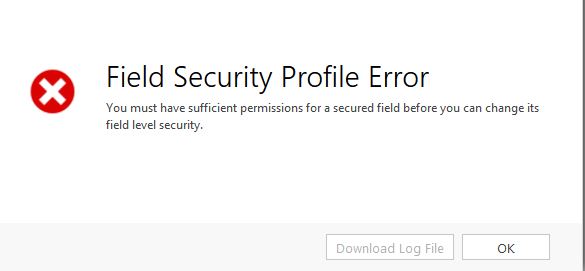
I have the administrator and customizer roles. Please could you help me figure this out?

*This post is locked for comments

I have the same question (0)
  • Emanefo Profile Picture
    610 on at

    Now I was able to publish without the error message, however, all the other users still have the padlock beside the field and cannot edit or populate the field

  • Suggested answer
    Prati Profile Picture
    980 on at

    Hello Emanefo ,

    Thank you for the Post . Open form in form editor mode, double click on field to edit (field with Lock). Under Display tab, locking section, check if “Lock the field on the form” checkbox if checked? Uncheck it and try to remove the field from form.

    Also if such fields are marked as “Business required” you need to set “Field Requirement” level to “Optional” to remove from form.

    When you change the field properties to Optional for Field Requirement level, it only makes the field an optional field when any record for that entity is created, but that does impact the presence of the field on the form. It only implies that now you can create records for that entity without adding any data to that particular field.

    The "Lock" icon that you see on the form next to field implies that OOB that field is required by CRM and if you still want to avoid using that field for some reason, you can simply hide its visibility but double clicking on the field and uncheck the option "Visible by default"

    If this info was useful , please mark this answer as verified so that other users will benefit when they get the same issue .

    Wish you a very happy and prosperous new year .

    Thanks and regards

    Prashant T

  • Emanefo Profile Picture
    610 on at

    Hi P T!

    Thank you for your answer and Happy New Year!

    I am the system admin. On the form editor the “Lock the field on the form” was already unchecked. As system admin I can edit the field, but the other users( sales person) cannot edit. the screenshot with the padlock is from another users' machine. the color is gray not red.

    Thank you!

  • Suggested answer
    Prati Profile Picture
    980 on at

    Hello Emanefo ,

    Please refer this link to disable feild Security profile :

    www.microsoft.com/.../add-or-remove-security-from-a-field.aspx

    Thanks and regards

    Prashant T

  • Suggested answer
    Prati Profile Picture
    980 on at

    Hello Emanefo ,

    Also check if these fields are read only :

    You need to back to the Form Editor : Under display tab : Under Field behavior :  and make the field as not read-only (uncheck the box)

    Thanks and regards

    Prashant T

  • Emanefo Profile Picture
    610 on at

    Thank you T P.

    I looked at it. The field security for my environment is set to disable already. When, change the role of the salesperson to administrator, the gray padlock disappear. So, i don't know how to make it disappear for person with salesperson user role.

    Thanks man for helping.

  • Emanefo Profile Picture
    610 on at

    Thank you PT.

    read-only option is also unchecked

  • Suggested answer
    Royal King Profile Picture
    27,686 on at

    You don't have field level security applied on the fields. If field level security applied then you will see Key Image like below

    In your case fields are set to read-only , read-only fields are marked with Lock like below 

    In order to make these fields read-write go to form customization and double click on the field that you want to make it read/write and uncheck  field is read-only

    Once you uncheck , click okthen save the form and publish it. If this does not resolve your problem there might be script or business rule that might be setting these fields has read-only, you may need to check business rules and web resource and correct it.

  • Suggested answer
    Prati Profile Picture
    980 on at

    Hello Emanefo ,

    Please go to form editor : Check Enable security Role and see if the salesperson role is selected .

    Thanks and regards

    Prashant T

  • Emanefo Profile Picture
    610 on at

    Yes, it's on "display to everyone"

Under review

Thank you for your reply! To ensure a great experience for everyone, your content is awaiting approval by our Community Managers. Please check back later.

Helpful resources

Quick Links

Responsible AI policies

As AI tools become more common, we’re introducing a Responsible AI Use…

Neeraj Kumar – Community Spotlight

We are honored to recognize Neeraj Kumar as our Community Spotlight honoree for…

Leaderboard > 🔒一 Microsoft Dynamics CRM (Archived)

#1
SA-08121319-0 Profile Picture

SA-08121319-0 4

#1
Calum MacFarlane Profile Picture

Calum MacFarlane 4

#3
Alex Fun Wei Jie Profile Picture

Alex Fun Wei Jie 2

Last 30 days Overall leaderboard

Featured topics

Product updates

Dynamics 365 release plans



