web
You’re offline. This is a read only version of the page.
close
Skip to main content

Announcements

No record found.

News and Announcements icon
Community site session details

Community site session details

Session Id :
Microsoft Dynamics GP (Archived)

Integrating Sales invoice - Customer ID does not exists.

(0) ShareShare
ReportReport
Posted on by

Hi All,

I have 2 different XML file, 1 for Header records and the other for Line Item records.

I have setup VKonnact on my local machine. I have been successful in integrating Sales Invoice records through VKonnact. However, VKonnact does not allow the records to be integrated where the Customer ID does not exist in GP - Yes it is right and make sense. But VKonnact claims that it allows creating non-existing master elements in GP on the fly (www.vkonnact.com/whats-new-in-vkonnact-3-1-dynamics-gp-data-integration).

On that belief I tried to integrate my Sales Invoice records with the non existing Customer ID but I have been unsuccessful in doing so. I’m really tired of finding from where the setup for “On the Fly” is to be done.

If VKonnact allows creating the new values for master key elements at the time of integration then why am I getting such error?

Does anyone know from where can I setup “On the fly” or VKonnact does not have such facility?
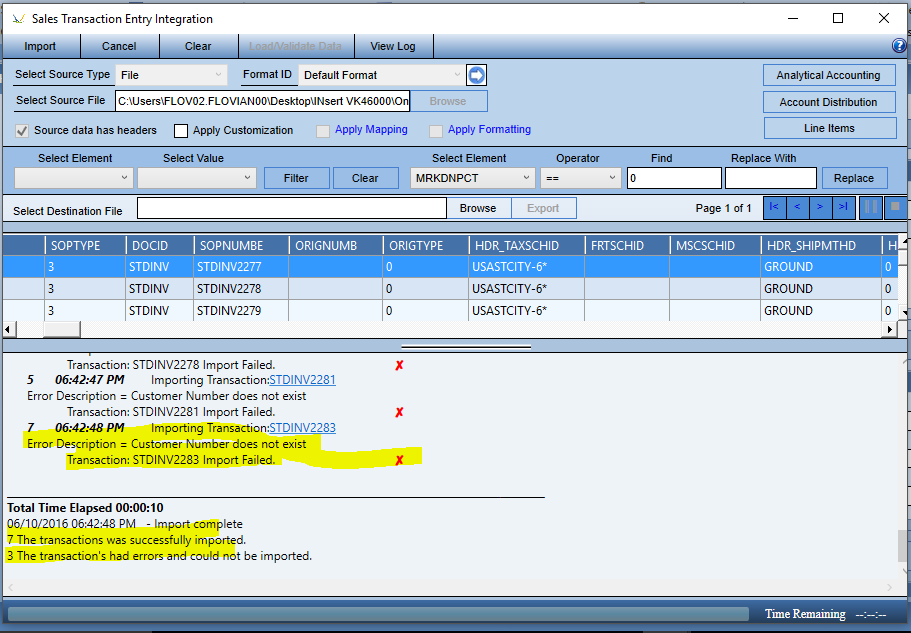
4048.SOP.PNG

*This post is locked for comments

I have the same question (0)
  • Tim Wappat Profile Picture
    5,713 on at

    I have contacted VKonnact to see if they can answer your query on here for you.

    Tim.

  • Community Member Profile Picture
    on at

    Thanks Tim and I hope to hear from them soon.

  • Community Member Profile Picture
    on at

    Hi Ceira,

    It is quite simple process to setup the “On the fly” option.

    Simply follow the below steps :

    Go to Formatting-->Transactions-->Sales Transaction Entry

    Screen2.png

    It will open the Sales Transactions Entry Formatting window.

    Select the Format ID by clicking on the lookup button provided (See the screen shot below)

    Screen2.png

    After selecting the Format ID from the lookup the Option button will be enabled. Now click on the option button, the option window will appear on your screen.  Mark the “Create Customer” check box and click on "OK" button. (See the screen shot below).

    Screen3.PNG

    Click on save button of the formatting window.

    These all you needs to do for setting up the “on the fly” option.

    Hope this works out for you.

  • Community Member Profile Picture
    on at

    Awesome!!

    Thanks Tejas

  • Community Member Profile Picture
    on at

    Hi Ceira,

    I’m happy to help.

    Feel free to reach me for any further assistance.

    -Tejas

  • Community Member Profile Picture
    on at

    Hi Tejas,

    I deeply appreciate your assistance.

    I was very much curious to know about VKonnact. So, I was just evaluating the VKonnact by myself.

    I must say that I'm thoroughly impressed with the VKonnact. Especially with the VKonnact windows which is with similar look and feel as of GP windows that depicts its user-friendliness.

  • Community Member Profile Picture
    on at

    Hi Tejas,

    I needed your help on regarding the discontinuation of integration process after reaching certain no. of error.

    Earlier I had integrated 1000 Customer records using this tool and I was happy to see that all the records were integrated in just 1 min.

    I have intentionally prepared another 1000 Customer records with some of the records having errors. I had tried integrating those data but I have noticed that while integrating records the integration process automatically discontinue after reaching 500 errors.

     0830.Capture.PNG 

    I want the integration process to discontinue after only 10 records rather than reaching till 500.

    Is there any option within VKonnact where I can specify the error count numbers? 

  • Community Member Profile Picture
    on at

    Hi Ceira,

    Yes you can specify the error count number in VKonnact.

    Simply follow the below steps to set the error count number.

    Step 1: In VKonnact, on Home-> System Setup-> Option.

    2477.Capture11.PNG

    Step 2: The Option window will appear on your screen as shown below, in the highlighted portion you can mention the number of error count for the integration to stop.
    2477.Capture11.PNG

    After you have specified the no. of error count, click on Save to save the changes.

    If you have any further queries, please do not hesitate to reach me.

  • Community Member Profile Picture
    on at

    Thanks Tejas.

  • Suggested answer
    L Vail Profile Picture
    65,271 on at

    Hi,

    I do not believe VKonnact can set up master records 'on the fly'. The options button on the top of the home page opens the Options Window, but by values it looks like they mean document numbers and batches. Here is what my Options window looks like, I'm running V3.2

    VKonnact.png

    Kind regards,

    Leslie

Under review

Thank you for your reply! To ensure a great experience for everyone, your content is awaiting approval by our Community Managers. Please check back later.

Helpful resources

Quick Links

Introducing the 2026 Season 1 community Super Users

Congratulations to our 2026 Super Stars!

Congratulations to our 2025 Community Spotlights

Thanks to all of our 2025 Community Spotlight stars!

Leaderboard > 🔒一 Microsoft Dynamics GP (Archived)

#1
HP-11021721-0 Profile Picture

HP-11021721-0 1

Last 30 days Overall leaderboard

Featured topics

Product updates

Dynamics 365 release plans
