web
You’re offline. This is a read only version of the page.
close
Skip to main content

Notifications

Announcements

No record found.

Community site session details

Community site session details

Session Id :
Microsoft Dynamics CRM (Archived)

SSL (HTTPS) Dynamics CRM 2011 OffLoading CRM for Outlook not Connecting

(0) ShareShare
ReportReport
Posted on by 130

Hello Guys,

I'm having a weird problem with Dynamics CRM SSL (HTTPS) connectivity. Let me  explain the scenario.

We have a KEMP load balancer that does the SSL offloading, KEMP listens on port 443 and talks to CRM on port 80. We also have a redirection on port 80 to get to 443 on that load balancer. I've seen on this forums that people has impletemented this solution and works fine. However if I use IE to access it works great. The second I try to make CRM for outlook to work, is when i start to have problems.

1- Using port 80 only works fine, (this will start to go a little deep into the network packets)

Open CRM configurator input my server http://xyz.mycompany.com

Port 80


So, Again, this is using the load balancer... then I simply put the HTTPS in front of the request... HTTPS://xyz.mycompany.com

Port 443


As you can see, the certificate loads but then the Microsoft for Outlook application still wants to talk on port 80 HTTP and the connection eventually Resets because it's not encrypted. What am I doing wrong? I have talked to KEMP and they swear it's a bug on the Microsoft CRM for outlook that REQUIRES HTTP only, is that true? Please help!

*This post is locked for comments

I have the same question (0)
  • Thiago Cardoso Profile Picture
    130 on at

    oh man, the screenshots looks bad, anyways, one shows http working fine, the other shows HTTPS certificate loading then Microsoft for outlook wanting to talk on HTTP again!

  • Mark Spiers Profile Picture
    1,085 on at

    Sorry, i dont know much about your issue, but if people want to see your screen shots, they can right click them and save them somewhere.

    they will open at the correct resolution/aspect.

    otherwise, anyone with an rss feed to this forum using outlook (like myself), they should show up ok.

    good luck finding an answer, we are not using IFD at this time, so i am unable to assist.


    or click

    http://center.chesterton.com/port80.png

    http://center.chesterton.com/port443.png

  • Bryan Botz Profile Picture
    600 on at

    In a typical CRM 2011 IFD configuration two URLs are set up. One for internal access that does not require SSL, and another for External access that is HTTPS.

    So the question is which URL in the above scenario are you using and is that workstation then internal and a member of the domain, or is it being configured remotely outside of the network?

  • Josh Wells - MSFT Profile Picture
    961 on at

    So I want to reply here.  I know this is a few months old but I want to provide a response as more on the documentation end.

    I have been working with a CRM customer that was using Kemp LoadMaster as well.  In a collaboration effort with Kemp, we were able to determine the root cause of the issue and how to fix it.

    The problem is that Kemp uses VIA headers rather than any sort of custom headers by default.  VIA headers are explained in section 14.45 in the URL below:
    http://www.w3.org/Protocols/rfc2616/rfc2616-sec14.html

    Essentially what happens is that the URLs for the CRM requests are changed from the internal or external CRM urls to the FQDN of the server.  This results in the requests going to CRM with the authentication method of Kerberos.  The problem here is that CRM is expecting a claim.  You will notice that CRM never sends a 302 to ADFS because the request is not being done by the internal/external claims URL.  So how do we fix this? 

    Well we need Kemp to use a custom header that is going to be the same on every request.  We can do that in Kemp in a couple of ways.  You only need to use one of these two settings outline below.

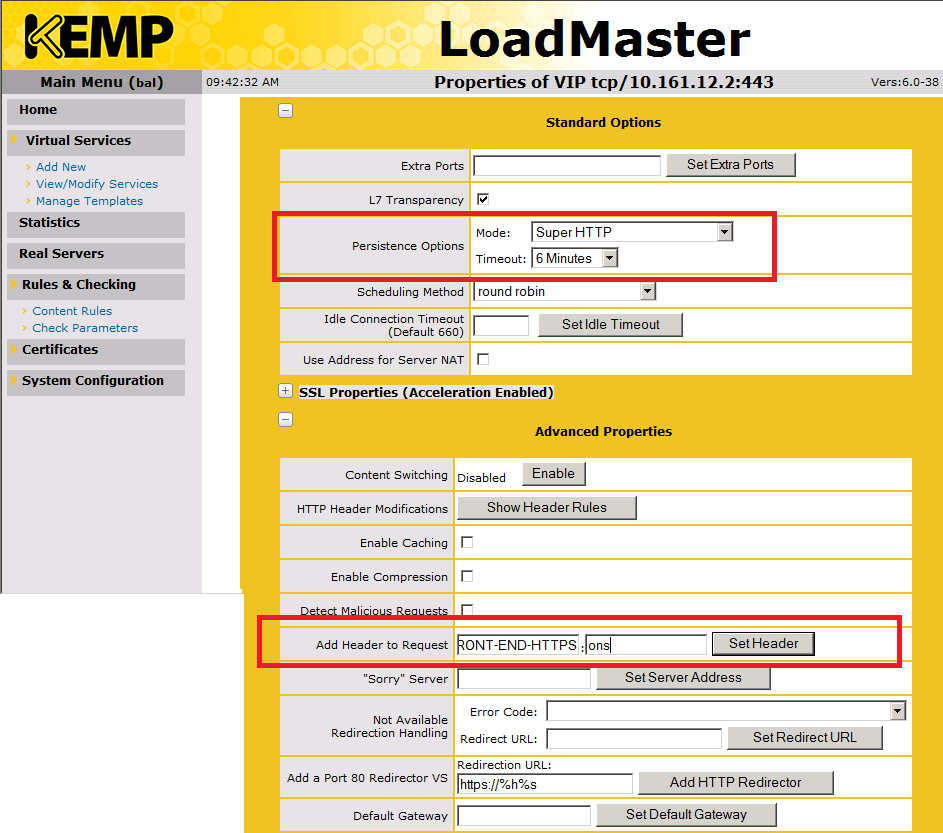
    1. Modify Persistence

    If you wish to use persistence, then the recommended Persistence option is Super HTTP.  You can find more about this option here, page 26:

    http://www.kemptechnologies.com/fileadmin/content/downloads/documentation/6.0/KEMP_LoadMaster_Configuration_Guide.pdf

     To accomplish this task using Persistence, follow the instructions below:

    a.       Access the Kemp web interface
    b.      Click on Virtual Services
    c.       Click on View/Modify Services
    d.      Locate the Virtual Services for CRM and click on Modify
    e.      Click on Standard Options
    f.        Next to Persistence Options, change it to Super HTTP
    g.       Click on Advanced Properties
    h.      On Add Header to request set it to the following:
    FRONT-END-HTTPS:on
    i.         Click on Set Header
    2. Add a custom header

    If you do not wish to use persistence, we can easily add a custom header to these requests.  To do that follow these instructions:

    a.       Access the Kemp web interface
    b.      Click on Rules & Checking
    c.       Click on Content Rules
    d.      Click on Create New …
    e.      Set the following:
    Rule Name: adfrontendheader
    Rule Type: Add Header
    Header Field to be Added: FRONT-END-HTTPS
    Value of Header Field to be Added: on
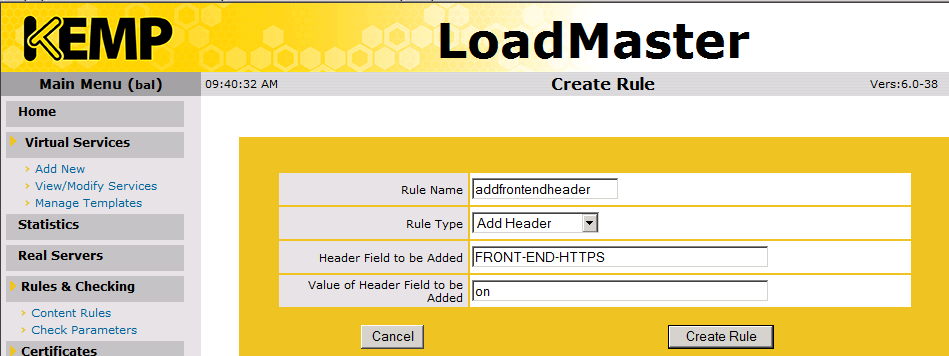
    f.        Click on Create Rule
    g.       Click on Virtual Services
    h.      Click on View/Modify Services
    i.         Locate the Virtual Services for CRM and click on Modify
    j.        Click on Advanced Properties
    k.       Click on Show Header Rules
    l.         Under Request Rules, change the drop down to “Add Header: addfrontendheader”
    m.    Click on Add 

    After you have one of the Custom Header options set within Kemp, now you need to access the Deployment Manager on the CRM server. 

    1.       Within the Deployment Manager, click on Microsoft Dynamics CRM
    2.       On the right side of the Actions pane, click on Properties
    3.       Now click on Web Address
    4.       Click on Advanced
    5.       If you are using the load balancing option within Kemp, ensure you check “This deployment uses an NLB”
    6.       Under SSL Header, enter the following:
    FRONT-END-HTTPS:on
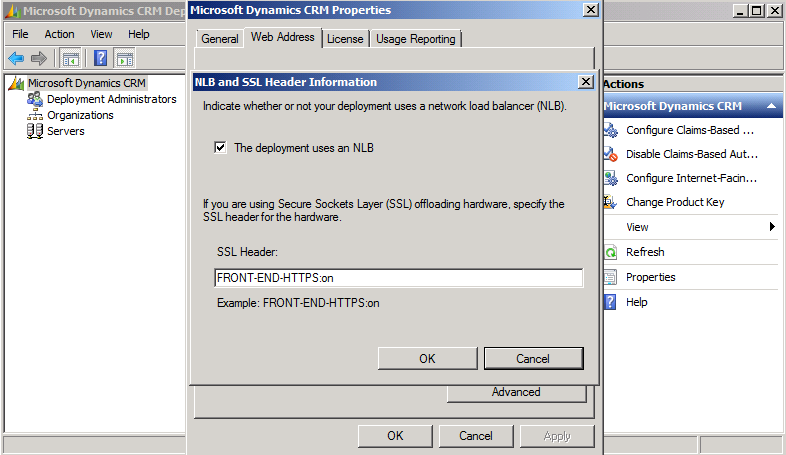
    7.       Click OK > OK

    Now when accessing CRM, you should be properly redirected to the ADFS server and get a proper Claim.  I hope this helps anyone using a Kemp LoadMaster.  I will be soon publishing this same information within an article on the Dynamics CRM Support Team blog found here:
    https://community.dynamics.com/product/crm/crmtechnical/b/dynamicscrmsupportblog/default.aspx  

  • Suggested answer
    Chris Abberley Profile Picture
    5 on at

    Hi All

    We recently deployed CRM internally for an organization and they required SSL to be used for all traffic even inside their network, they also were using SSL offload on a Load Balancer to do the HTTPS between the client and Load Balancer and then HTTP from the Load Balancer to the CRM web Server array. The issue for the Outlook client configuration wizard is that it queries the web service for a definition and the server replies with a HTTP host name for the client to then query the service.

    The simple fix for any SSL offload Load balancing scenario is to use a URL Rewrite rule on your CRM Website that selectively parses the response to the definition request and replace the http://<WEBSITE> reference with the HTTPS://<WEBSITE>. This approach is generic and should work with any SSL offload load balancer.

    To do this create a new Outbound URL Rewrite rule that has a precondition to only parse

    {Response_content_Type} = ^text/xml

    {URL} = .svc

    Then create a Match section that has Matching scope set to "Response"

    and the Pattern "HTTP://<loadBalanced FQDN>"

    and ignore case

    In the action section perform an Rewrite action type and in the Action Properties value

    "https://<loadBalanced FQDN>"

    Replace the <loadBalanced FQDN> with your load balanced hostname.

    This will correctly provide the CRM Outlook Add in client the HTTPS url that it needs to continue correctly with.

    Depending on the version of URL Rewrite installed you could create the pattern matching and rewrite sections to use the host header values instead of hardcoding them like the example above.

Under review

Thank you for your reply! To ensure a great experience for everyone, your content is awaiting approval by our Community Managers. Please check back later.

Helpful resources

Quick Links

Responsible AI policies

As AI tools become more common, we’re introducing a Responsible AI Use…

Neeraj Kumar – Community Spotlight

We are honored to recognize Neeraj Kumar as our Community Spotlight honoree for…

Leaderboard > 🔒一 Microsoft Dynamics CRM (Archived)

#1
SA-08121319-0 Profile Picture

SA-08121319-0 4

#1
Calum MacFarlane Profile Picture

Calum MacFarlane 4

#3
Alex Fun Wei Jie Profile Picture

Alex Fun Wei Jie 2

Last 30 days Overall leaderboard

Featured topics

Product updates

Dynamics 365 release plans



