Hello,
There have been some changes in this area worthwhile to mention. The below does apply to Dynamics NAV 2018 and Dynamics 365 Business Central On Premise release. There are a couple of values and keys which are important. You can find these in several files. If you require help from Microsoft CSS (support), please ensure these files have been collected and added to the support request you did raise with them.
1. The json file / manifest file or the settings in the Azure AD App
2. The navsettings.json file in IIS
3. The customsettings.config file of the relevant NST Service
4. The clientusersettings.config file of the relevant WinClient
An example of an Azure AD app does look like this (important values removed):
If you click on Manifest, it will open the manifest file. An example of an Azure AD app manifest file does look like this (important values removed):
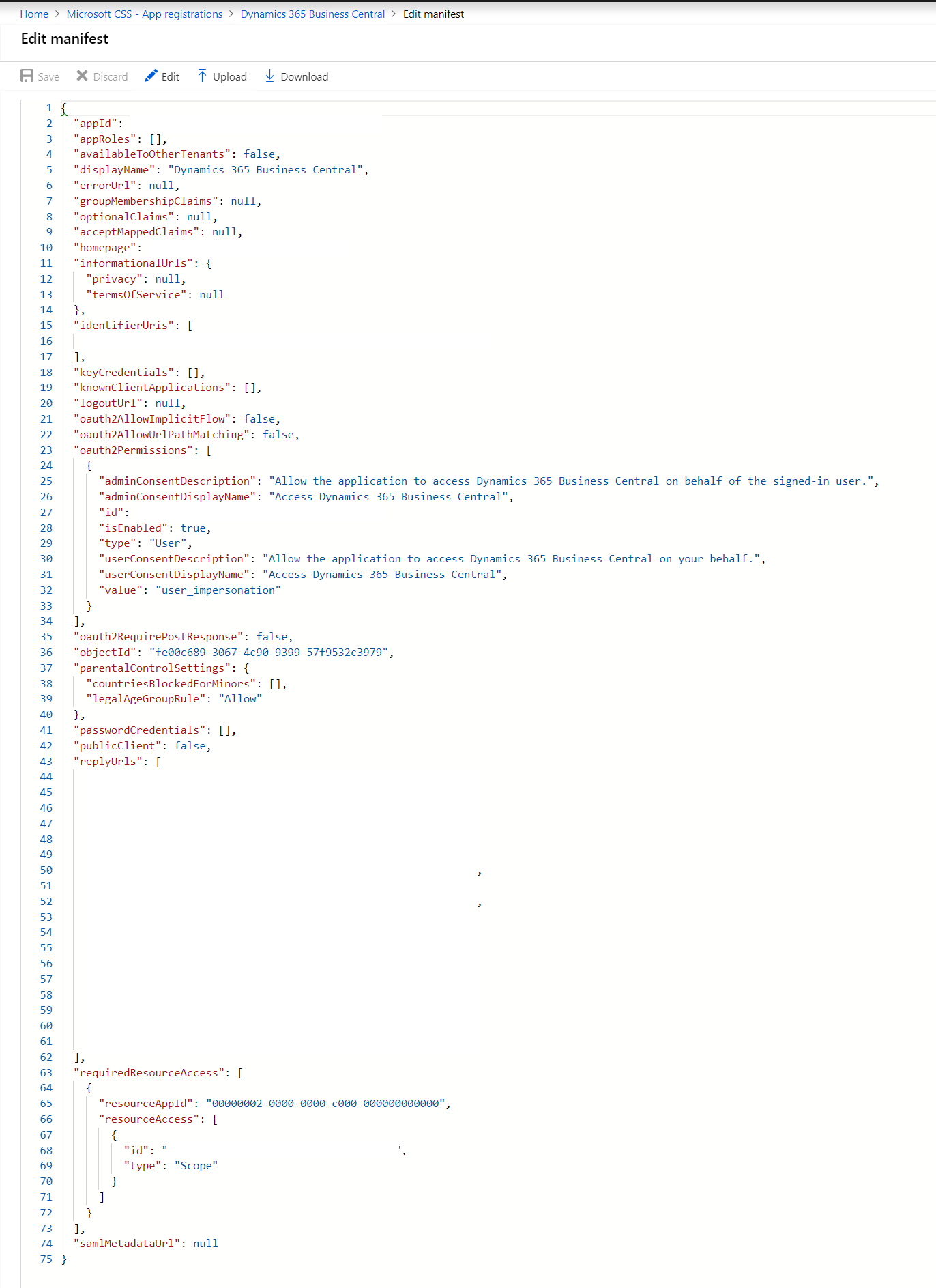
In the first picture, you will find the "Application ID". This is similar to the "appid" in the manifest file. The value for this needs to go in the customsettings.config file where the relevant keyname is now called AzureActiveDirectoryClientId. Then we do see in the manifest file the keyname "identifierUris". This is actually the wtrealm value that can be found in the clientusersettings.config file as part of the AcsUri keyname and can be found in the customsettings.config file as part of the WSFederationLoginEndpoint keyname. So you do have to write these down in notepad or any other word processor.
If you want Edit in Excel to work, then the following key should be switched from false to true: oauth2AllowImplicitFlow. That key can only be found in the manifest file. Next is the "replyUrls" keyname. For each instance (Web / Win), you must have two:
1. PublicWebBaseUrl (e.g. (
https://nav.yourbusiness.onmicrosoft.com/nav/)2. PublicWebBaseUrl/signin (https://nav.yourbusiness.onmicrosoft.com/nav/signin)
NOTE: due to a bug in Dynamics 365 Business Central RTM release, you must use lower chars for the NST instance name
With these values in notepad, you can configure the NST via the customsettings.config file (again use lower chars for NST Instance names). Important values replaced with sample values:
<add key="ServicesCertificateValidationEnabled" value="true" />
<add key="DisableTokenSigningCertificateValidation" value="true" />
<!--
"AppIdUri"
See above for the "Application ID" to be retrieved the Azure App or the "appid" to be retrieved from the manifest file.
-->
<add key="AppIdUri" value="" />
<!--
"WSFederationLoginEndpoint"
See above for the "identifierUris" to be retrieved from the manifest file as it does come after wtrealm=. After wreply,
we have to use the "PublicWebBaseUrl". Note that these must match. If you specify a port within the PublicWebBaseUrl,
it must also be written in the value for the "WSFederationLoginEndpoint".
-->
<!--
"AzureActiveDirectoryClientId"
See above for the "Application ID" or the "appid"
-->
<add key="AzureActiveDirectoryClientId" value="" />
For the WebClient, there is the navsettings.json. Here are most important keys. Important values replaced with sample values:
"//ServerInstance": "Name of the Microsoft Dynamics NAV Server instance to connect to (for client) or listen on (for server).",
"ServerInstance": "",
"ClientServicesCredentialType": "AccessControlService",
"//ClientServicesPort": "The listening TCP port for the Microsoft Dynamics NAV Server. This is part of the server\u0027s URL. Valid range: 1-65535",
"ClientServicesPort": "",
"//ManagementServicesPort": "The listening TCP port for the Microsoft Dynamics NAV management endpoint. Valid range: 1-65535",
"ManagementServicesPort": "" ,
"DnsIdentity": "*.yourbusiness.onmicrosoft.com",
For the WinClient have a look at the following keys. Important values replaced with sample values:
<add key="Server" value="" />
<add key="ClientServicesPort" value="" />
<add key="ServerInstance" value="" />
<add key="ClientServicesCredentialType" value="AccessControlService" />
<add key="ACSUri" value="https://login.windows.net/yourbusiness.onmicrosoft.com/wsfed?wa=wsignin1.0%26wtrealm=https://yoursbusiness.onmicrosoft.com/<<guid>>%26wreply=https://nav.yourbusiness.onmicrosoft.com/nav/" />
<add key="AllowNtlm" value="true" />
<add key="ServicePrincipalNameRequired" value="False" />
<add key="ServicesCertificateValidationEnabled" value="true" />
<add key="DnsIdentity" value="*.yourbusiness.onmicrosoft.com" />
Furthermore, I am using a selfsigned cert with CN name *.yourbusiness.onmicrosoft.com. If you are using Chrome browser you also have to use a Subject Alternate Name (for me as well *.yourbusiness.onmicrosoft.com).
Note that there are more important keys that require a specific values. From our experience in support, these are the ones that generate the most questions for support. Hope this does make things much more clear.
Thank you.


